Tables & orders
Guests eat first and pay later. Open a table, send the order to the kitchen, add more any time, then take payment at the end.
Open a table & send the order
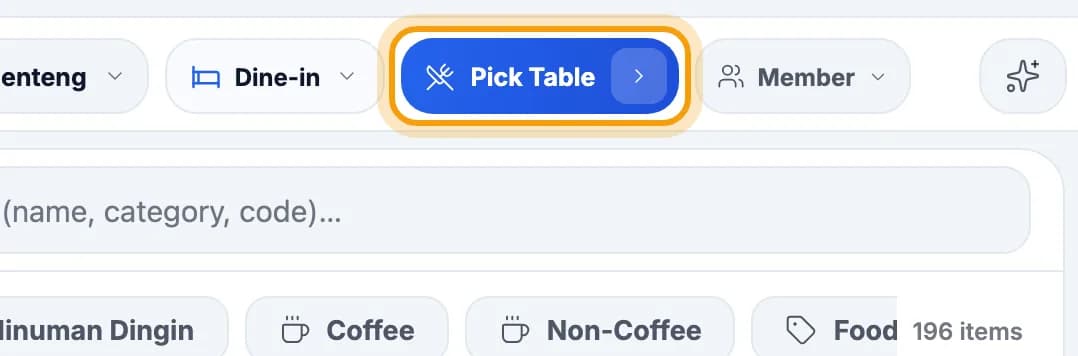
Tap Pick Table in the top bar.Takeaway? Tap Dine-in and switch to Takeaway. Takeaway orders don't need a table.
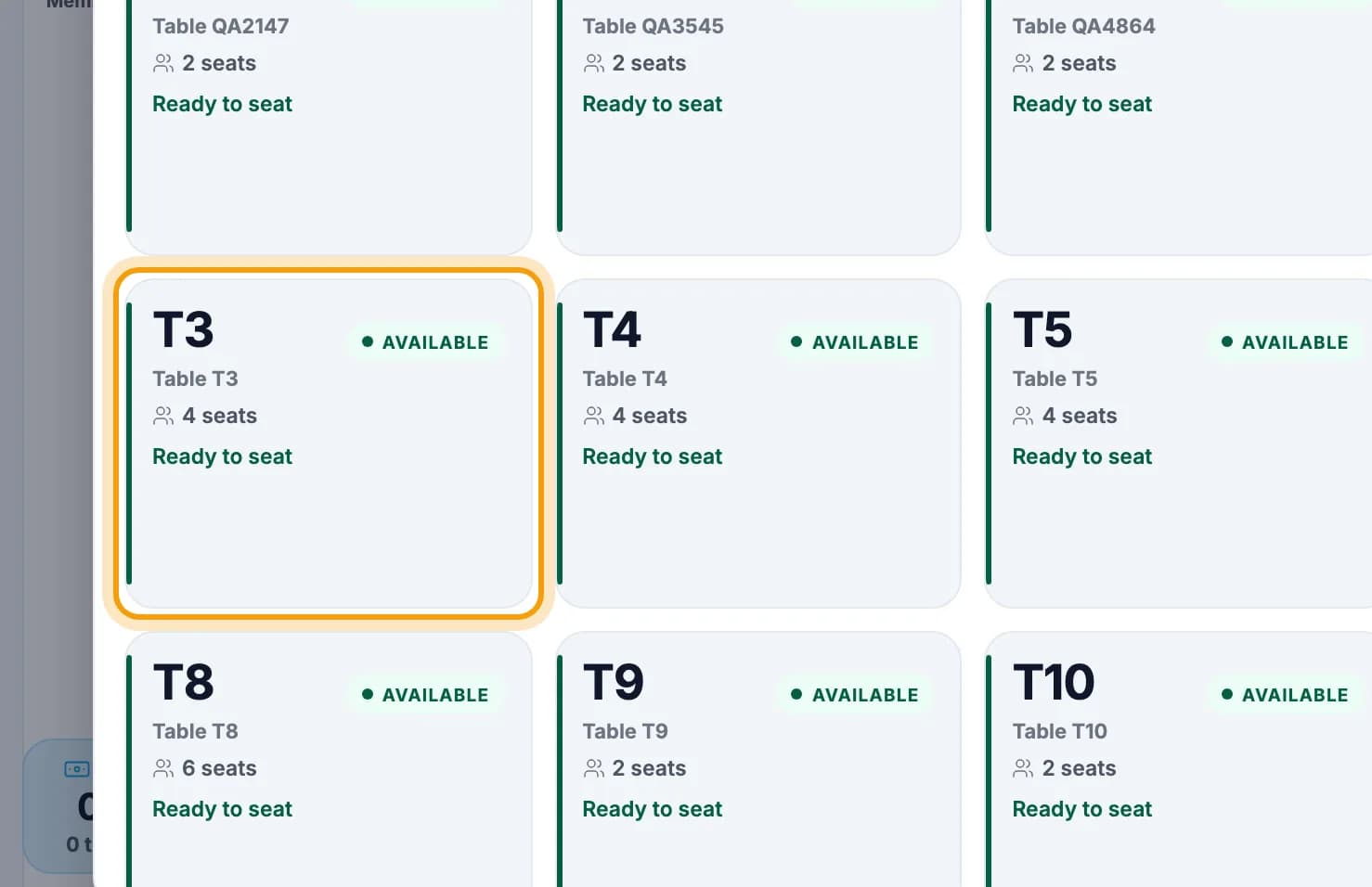
Tap the guests' table.Tables marked AVAILABLE are free. Then pick the number of guests, or tap Skip.
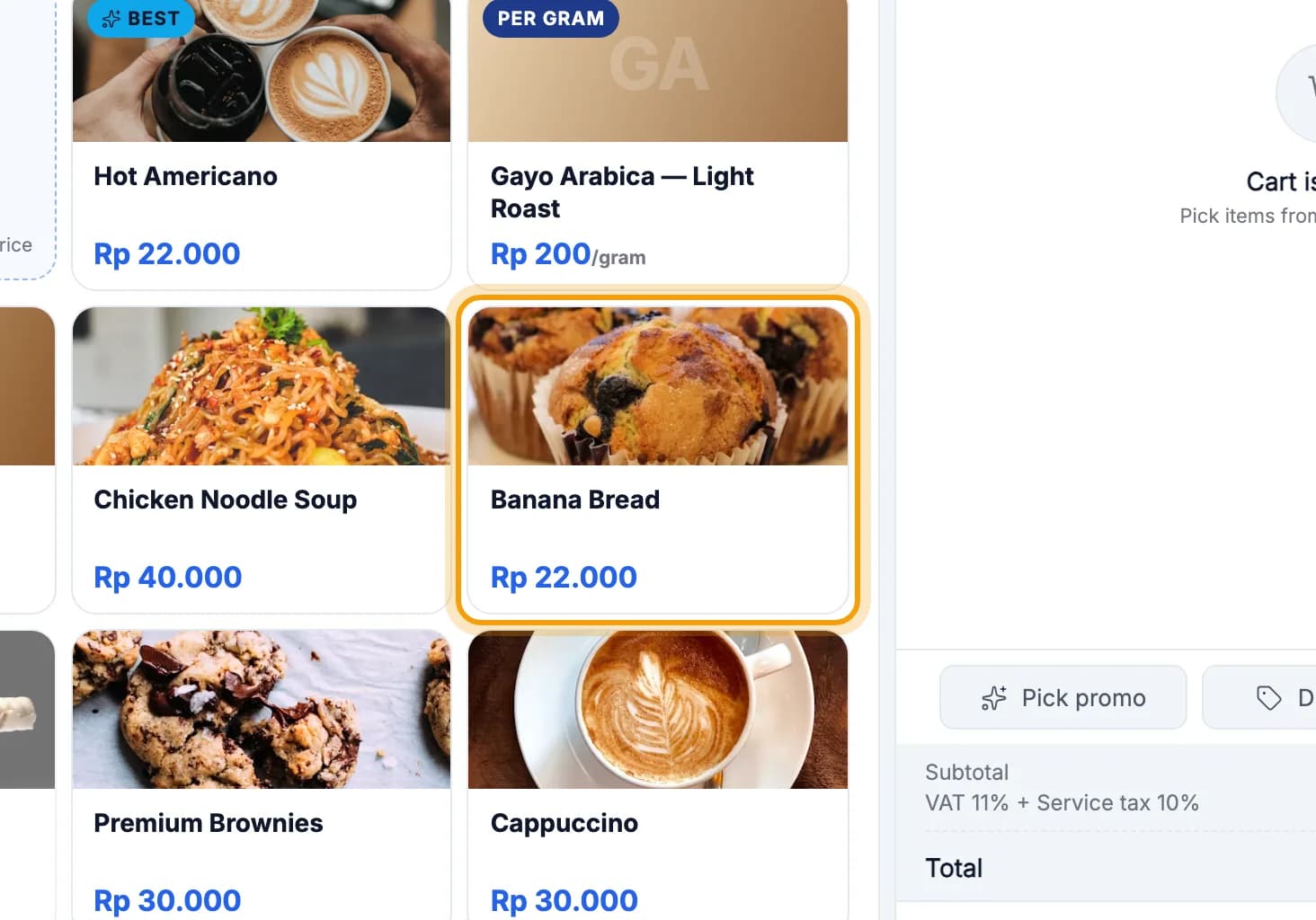
Tap the items they order.
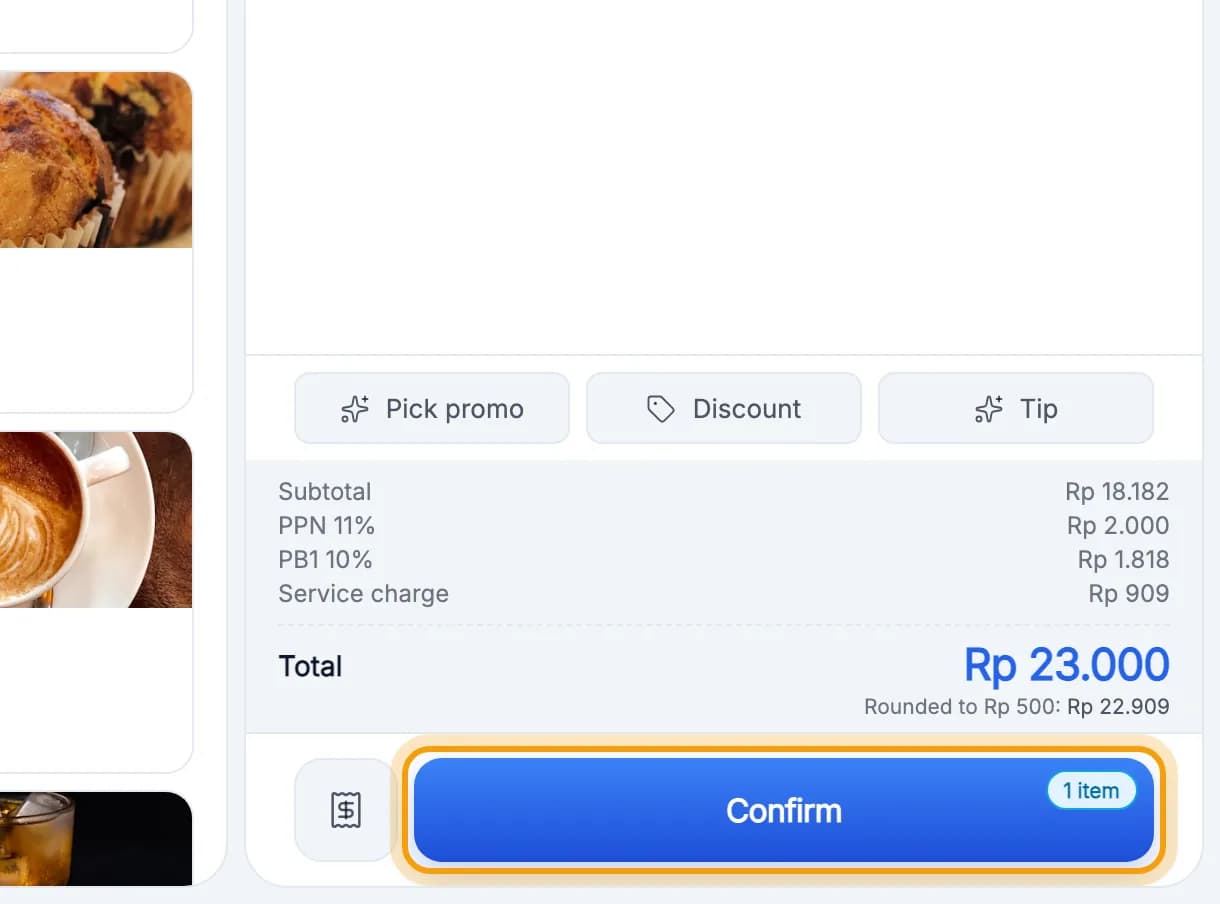
Tap Confirm. The order goes to the kitchen and stays on that table.Nothing is paid yet. You can serve other guests in the meantime.
Add to the same table's order
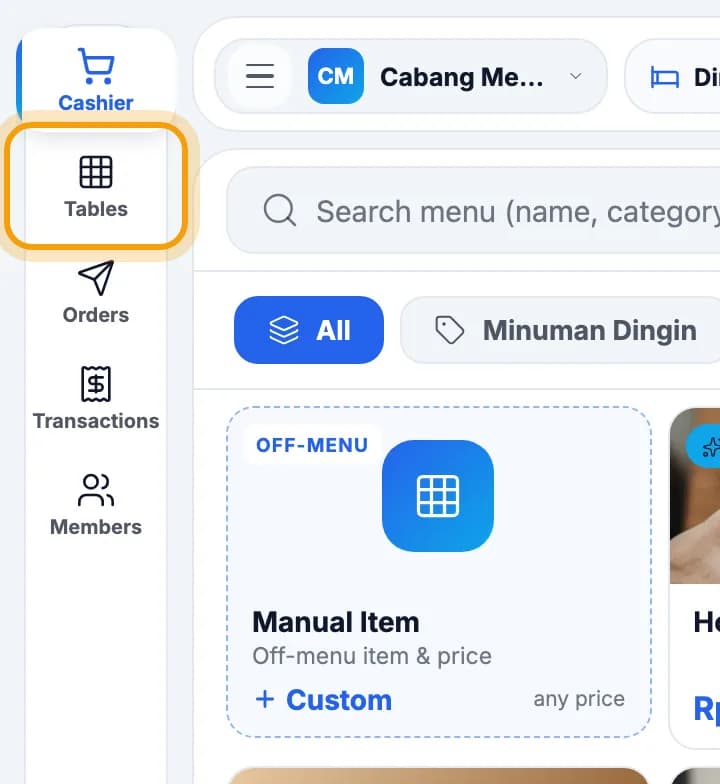
Tap Tables in the left menu.
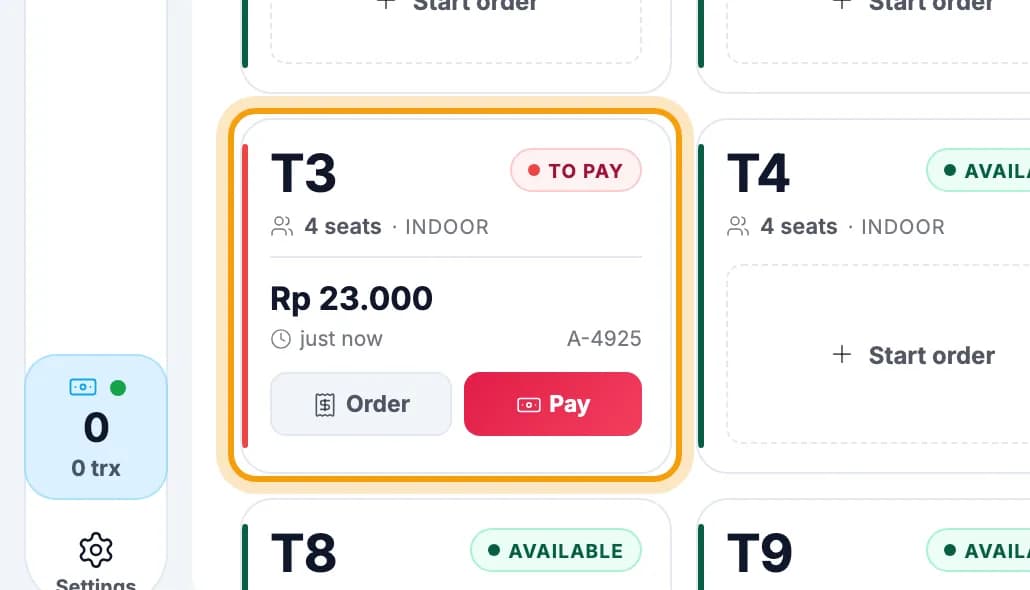
Tap the guests' table. A table that has ordered but not paid is marked red TO PAY.The table card also shows the bill so far.
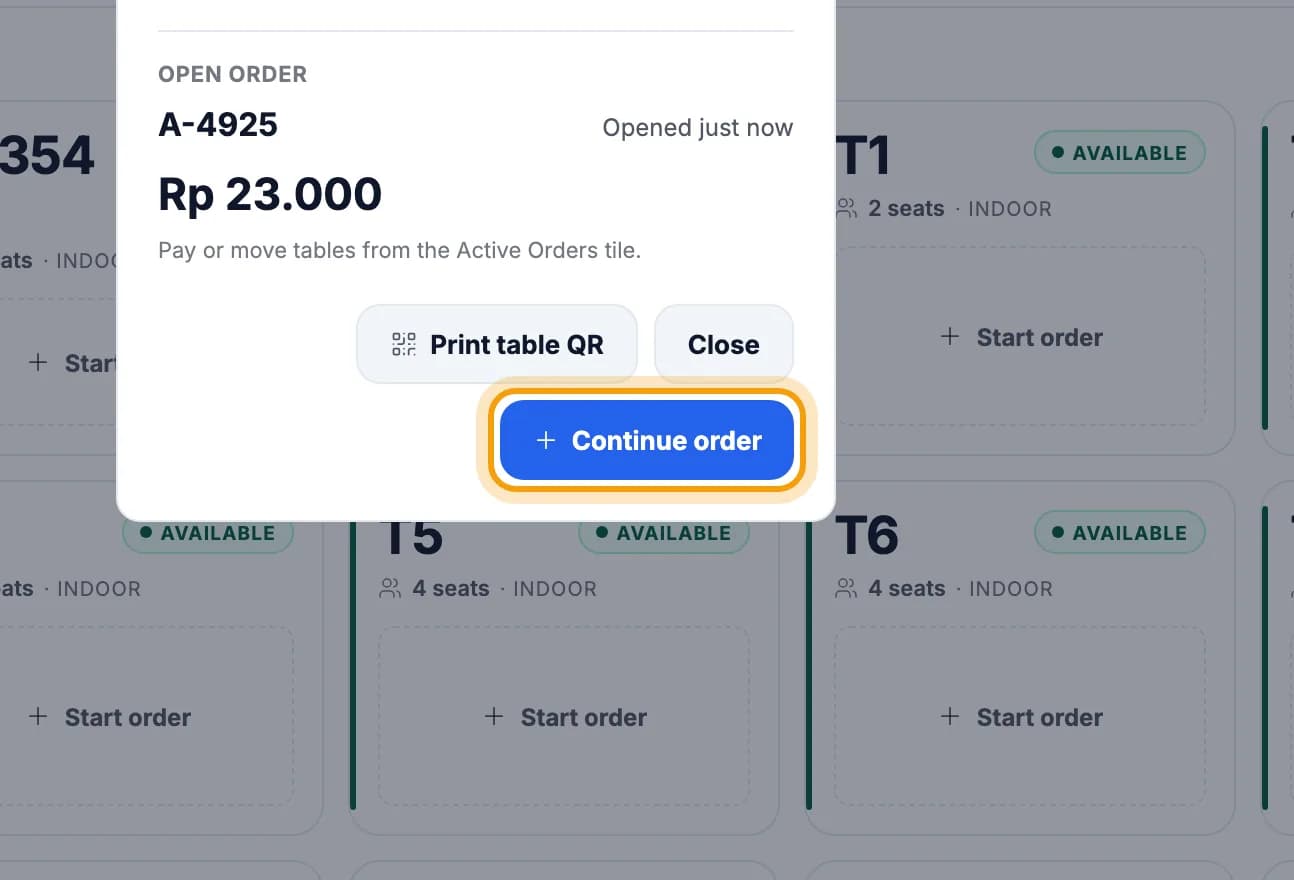
Tap Continue order.
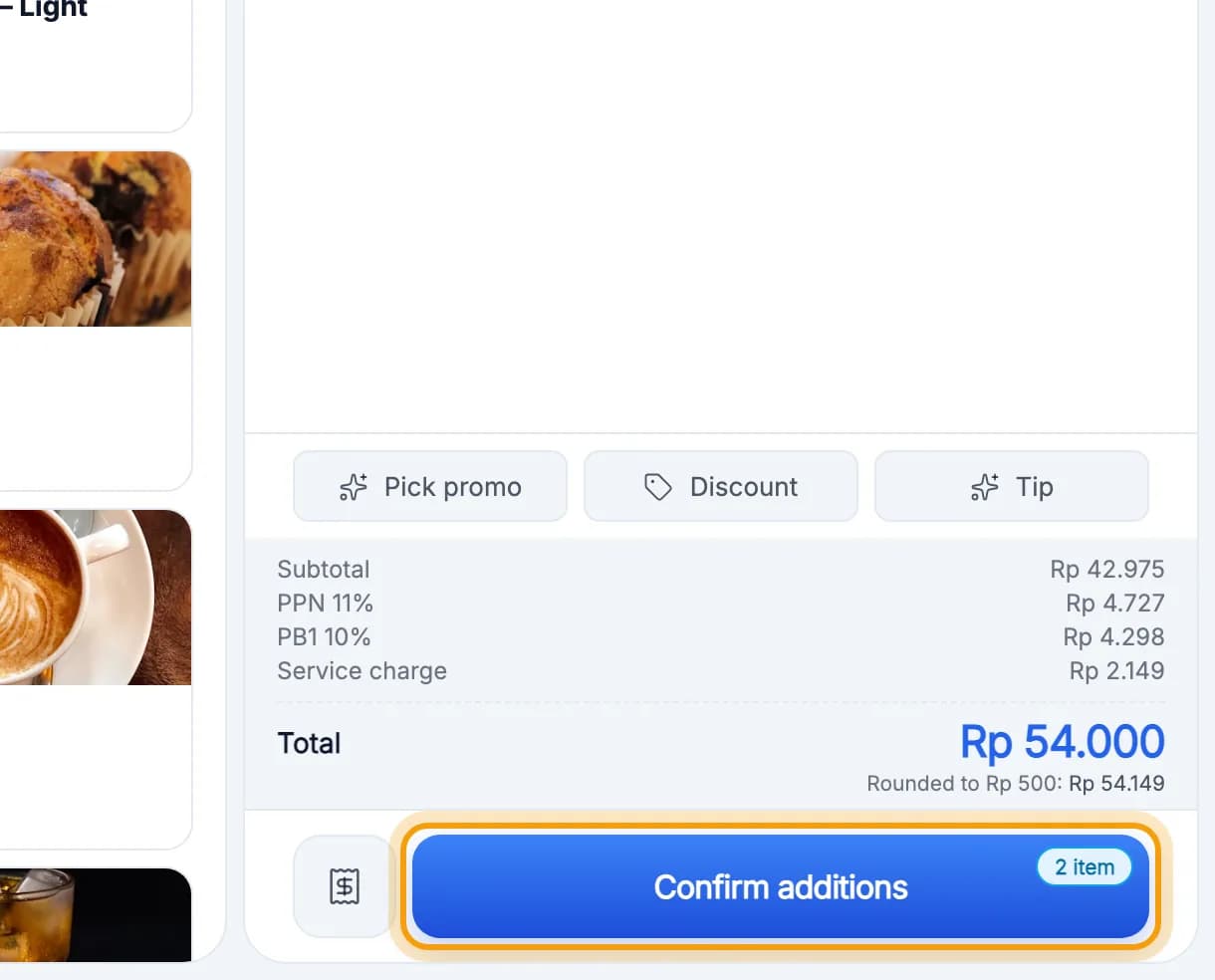
Tap the extra items, then tap Confirm additions.Only the new items go to the kitchen. The earlier order stays on the bill.
Tip: Colours on the Tables screen: green Available = free, orange Occupied = guests seated, red To pay = an order that hasn't been paid, purple Reserved = booked.
Move & merge tables
Guests changed seats? Open their order, then tap Move table above the Order panel.
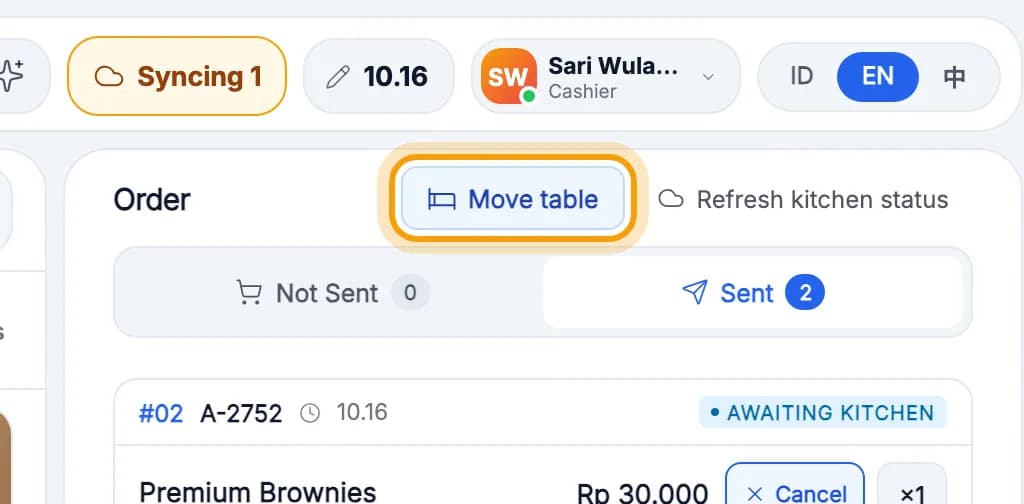
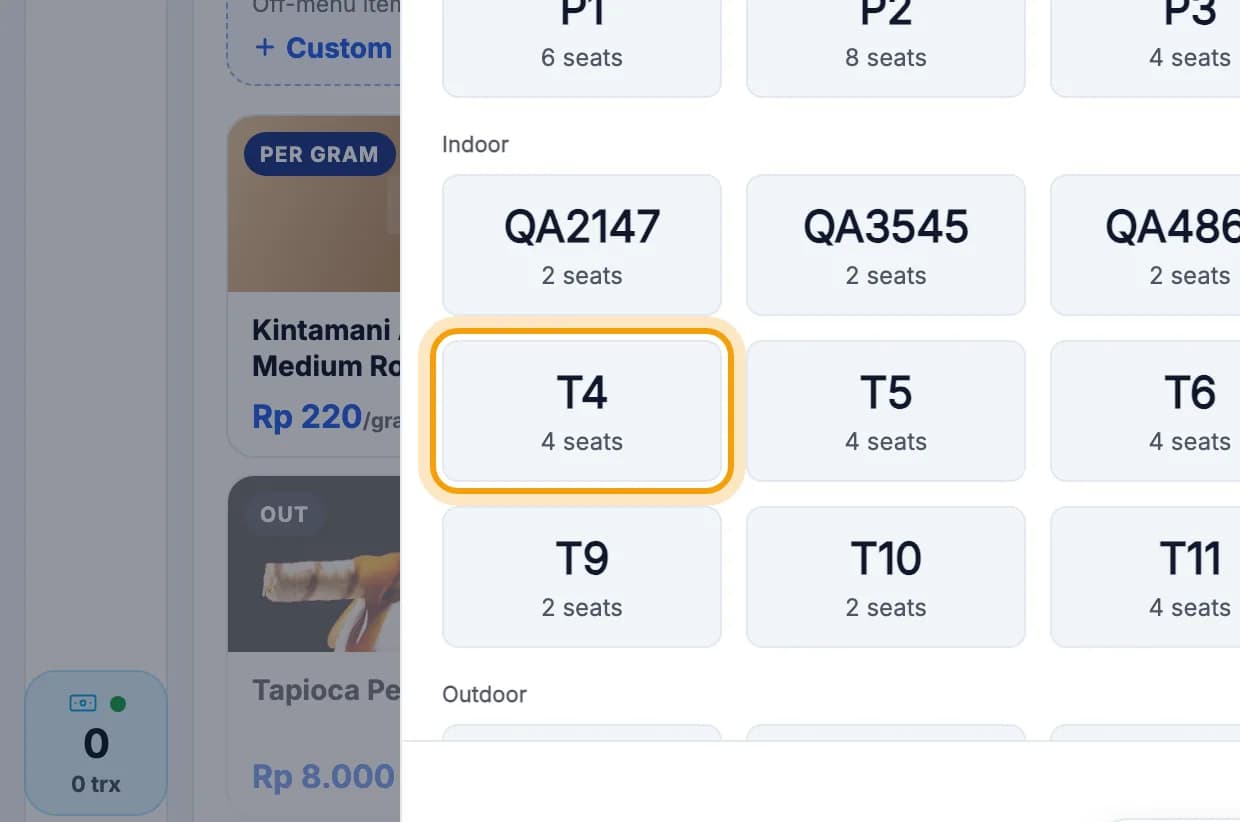
Tap the new table. The order and its bill move with them.
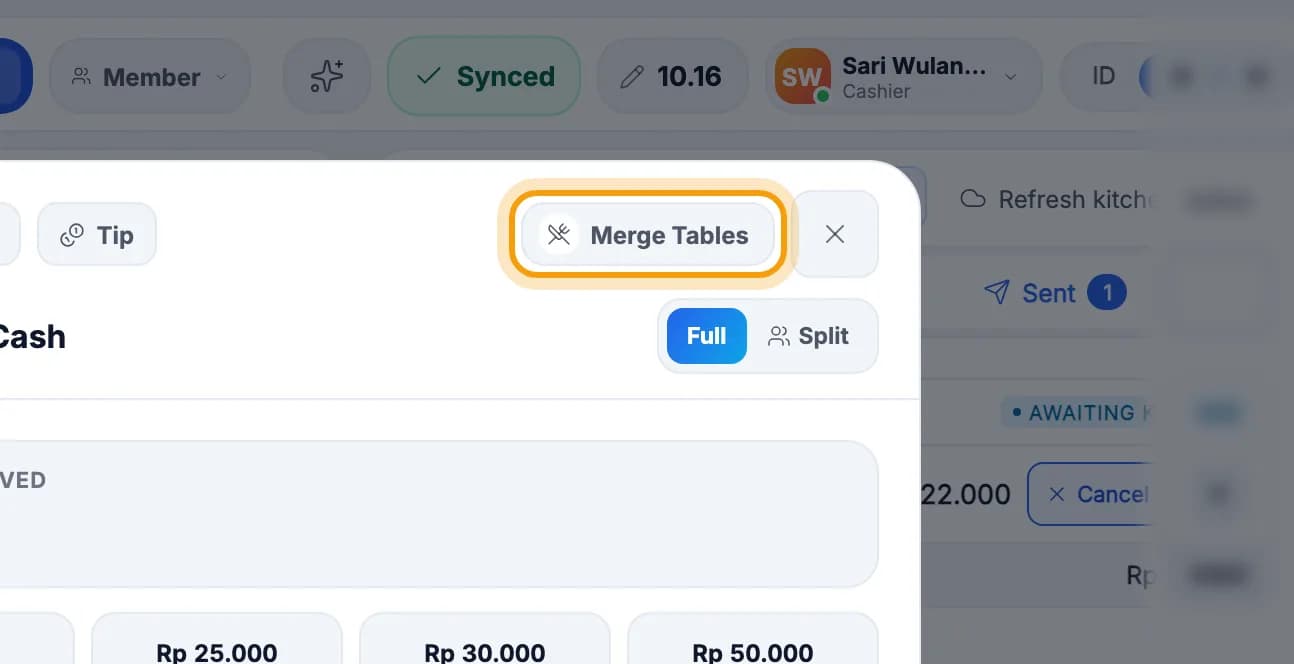
Two tables paying as one? Tap Pay tab on one of them, then tap Merge Tables.
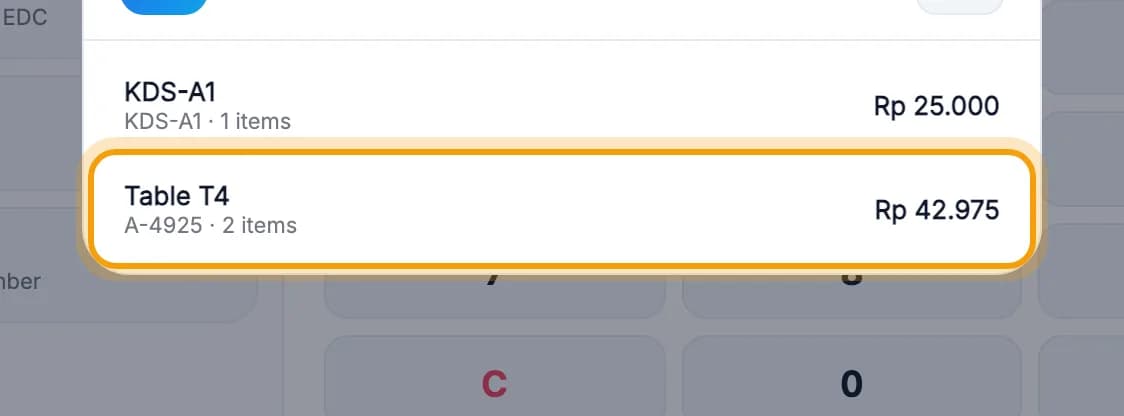
Tap the other table's order, then tap Merge another table's bill.That table's order joins this bill, and the table becomes free.
Print the bill & take payment
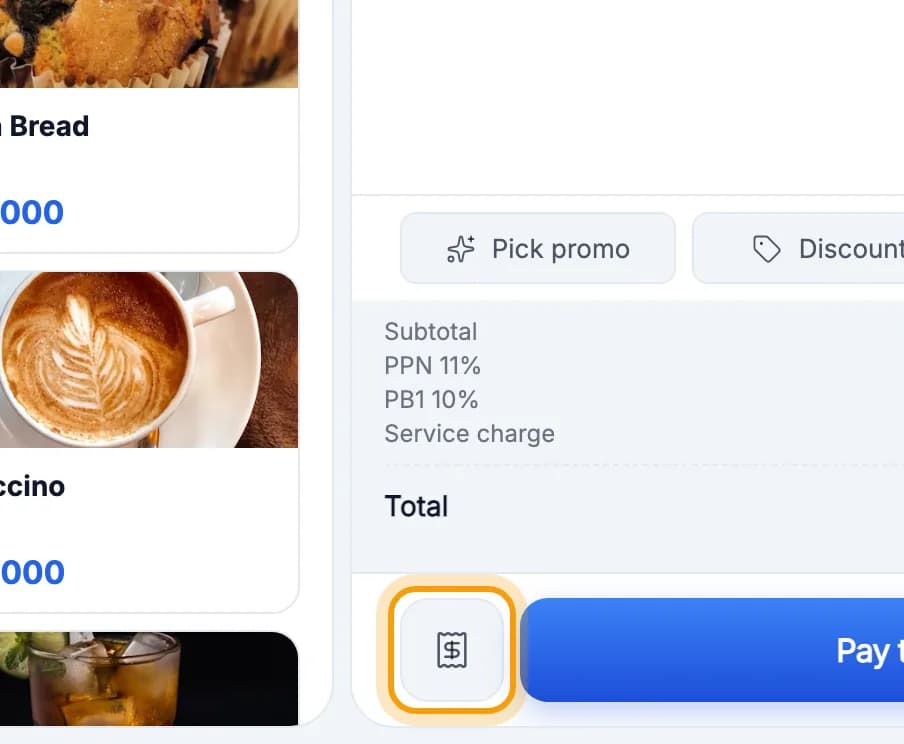
Guests want to see the bill? Tap the receipt icon next to Pay tab.
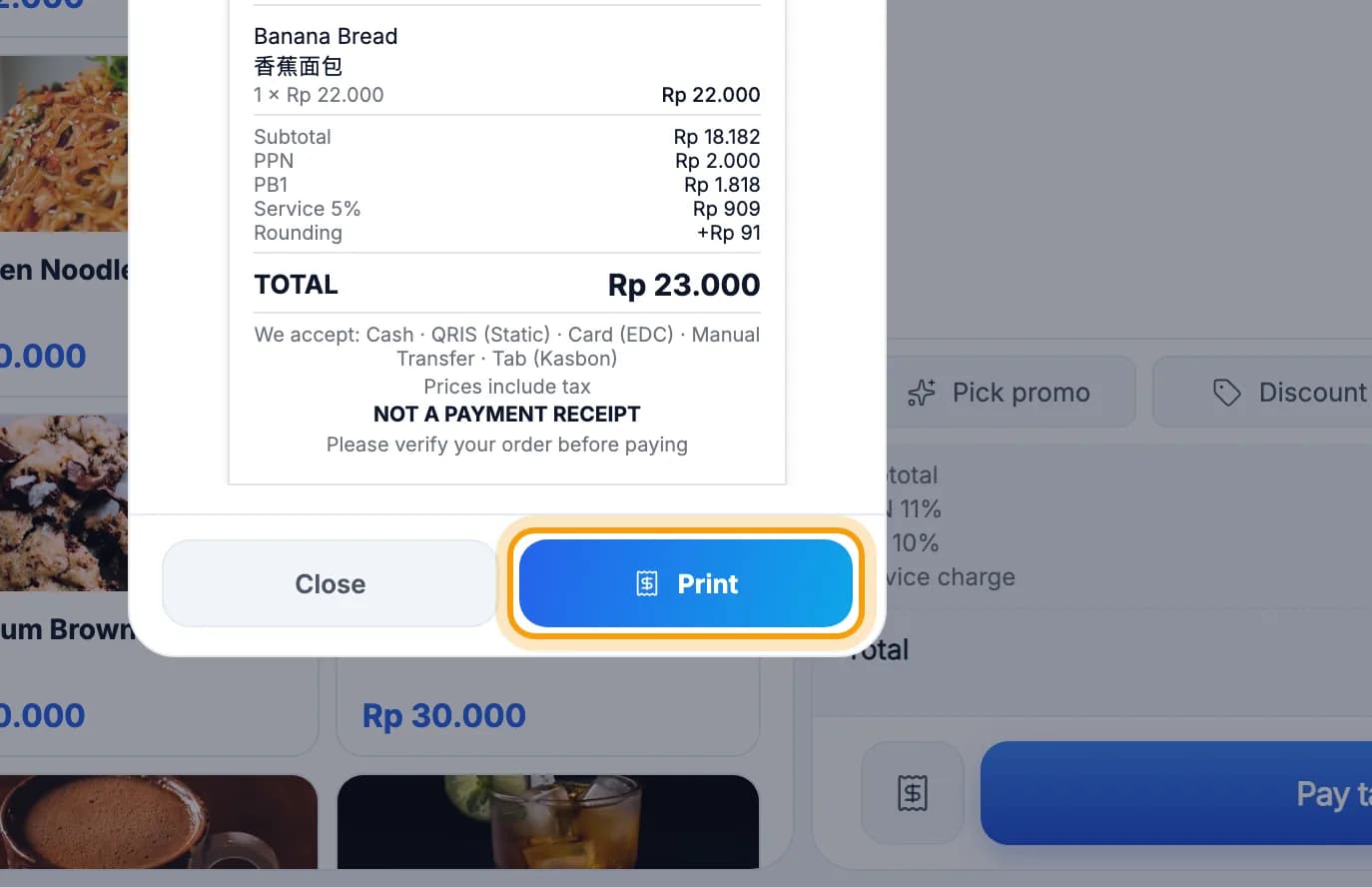
Check it, then tap Print.This is a bill check, not a paid receipt. Guests can still order more.
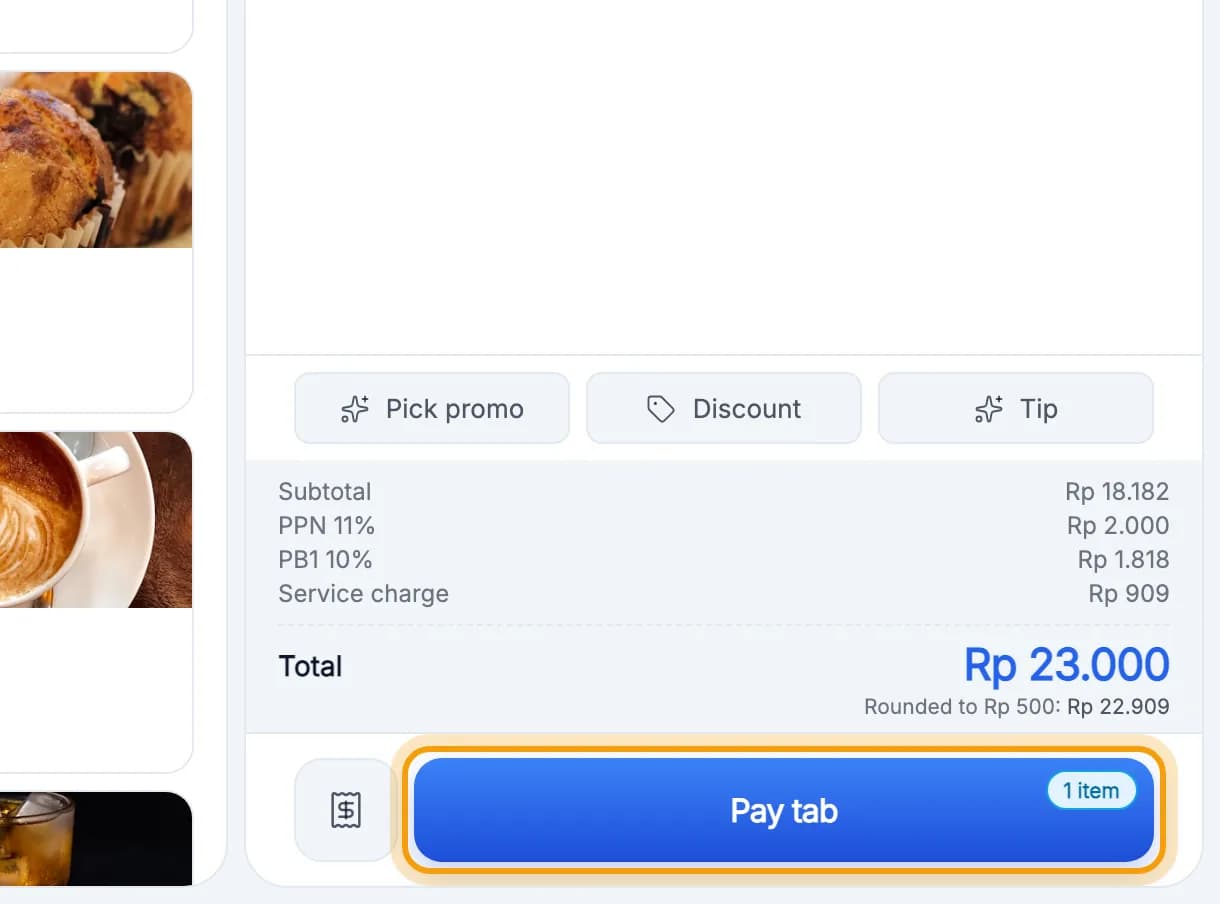
Ready to pay? Tap Pay tab and choose how they pay.Cash, QRIS, card, splitting the bill and deposits are covered in Payments.
Note: Don't close the shift while tables are unpaid. When you close the shift, every open order must be paid, carried to the next shift, or cancelled with a manager PIN.
Done.
Bookmark this page, or send a section's link to your staff.