Cancellations & refunds
Remove an item keyed in by mistake, cancel items or whole orders already sent to the kitchen, and give money back on a sale that was already paid.
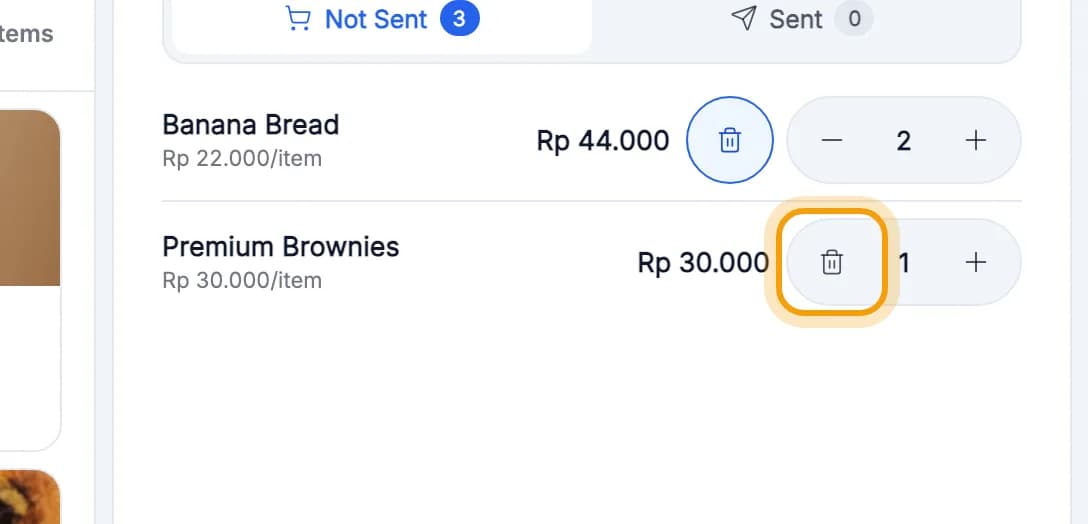
Remove an item before it's sent
Tap the bin icon on the wrong item's line.Items under Not Sent haven't reached the kitchen yet, so you can remove them without a PIN.
Cancel an item already sent
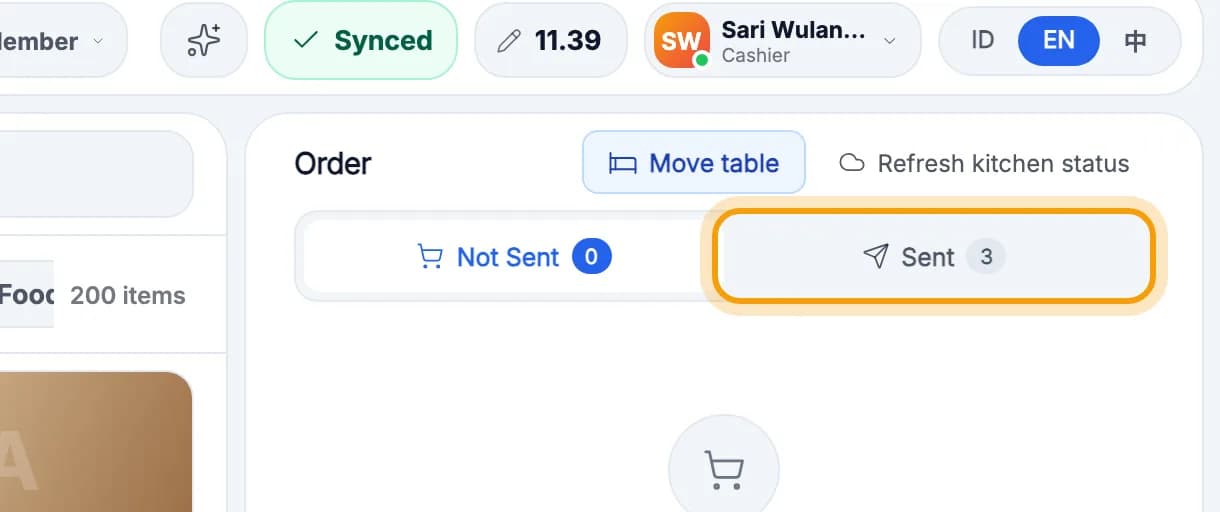
Open that table's order, then tap Sent.Open it through Pick Table or the Tables screen. See Tables & orders.
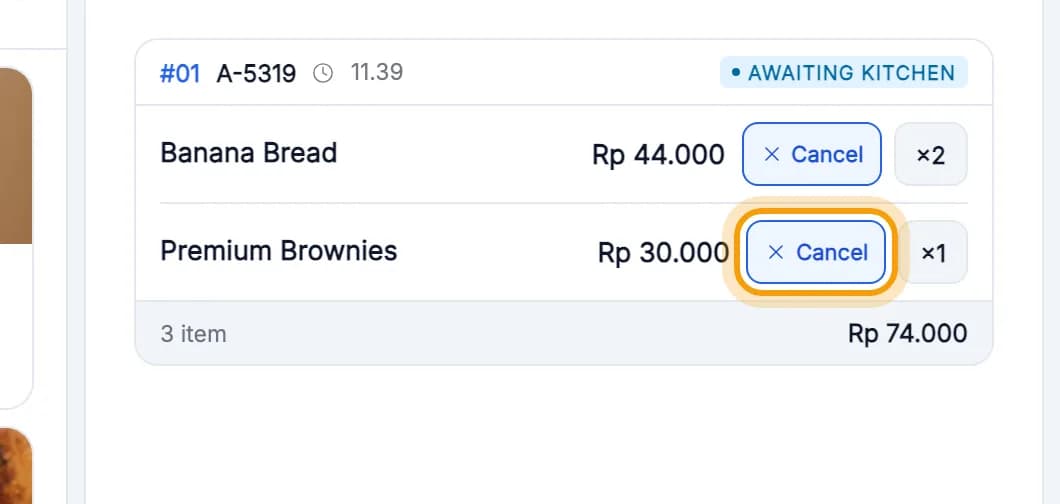
Tap Cancel on the item's line.The item is struck through, marked CANCELLED and taken off the bill.
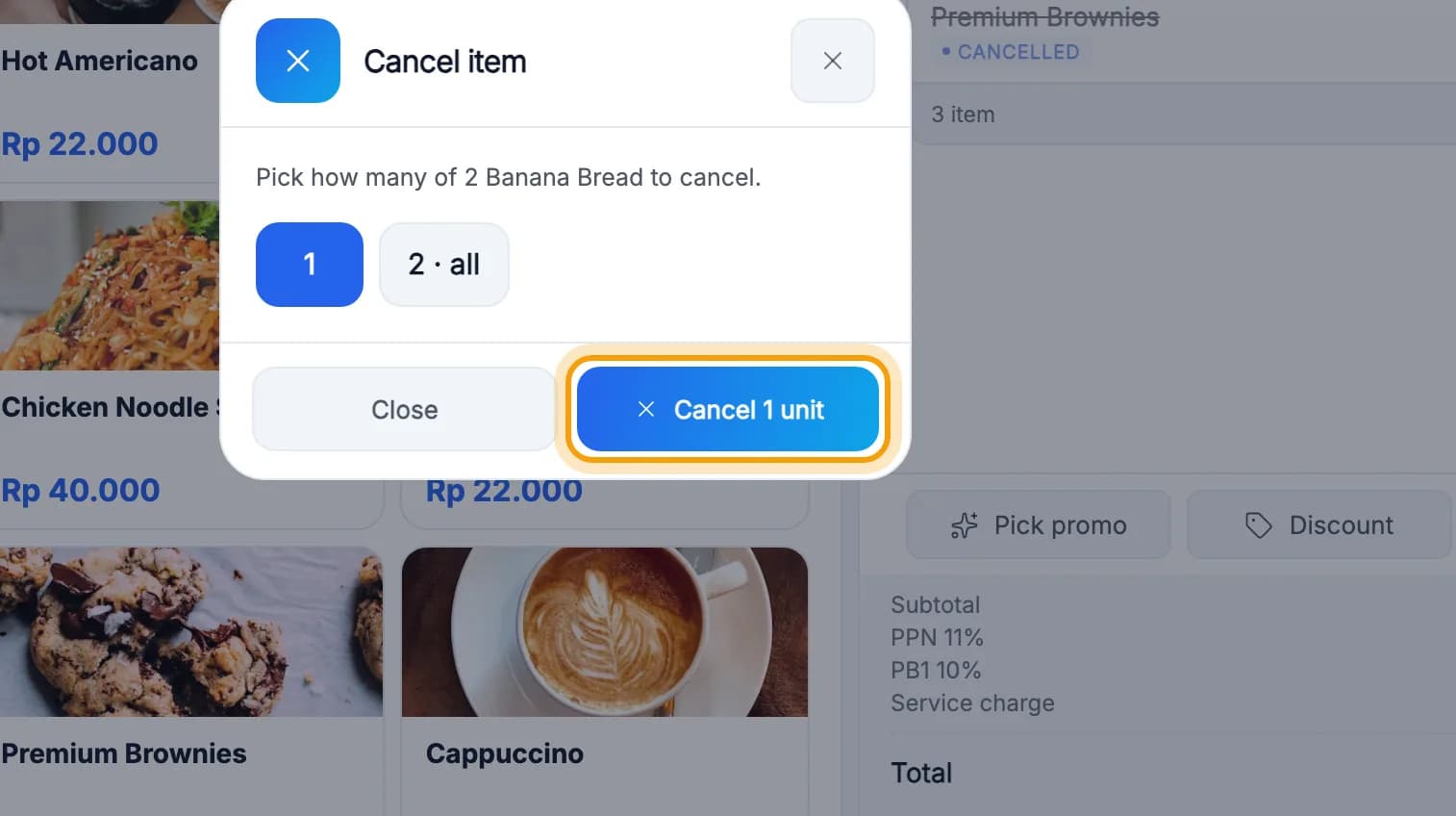
More than one of it? Choose how many to cancel, then tap Cancel 1 unit.
Note: Kitchen already cooking it? The item can't be cancelled from here. Cancel the whole order with a manager PIN (next section).
Cancel a whole order
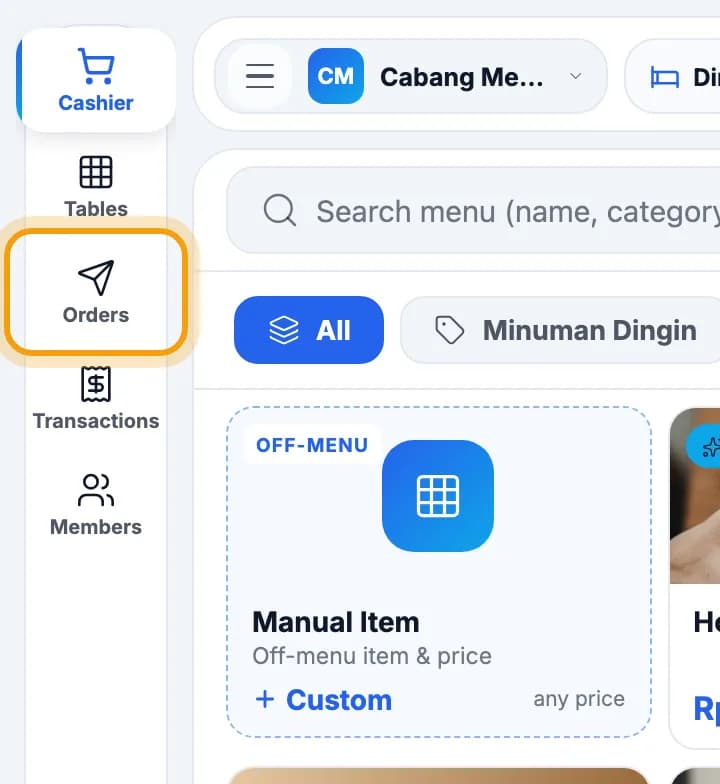
Tap Orders in the left menu.
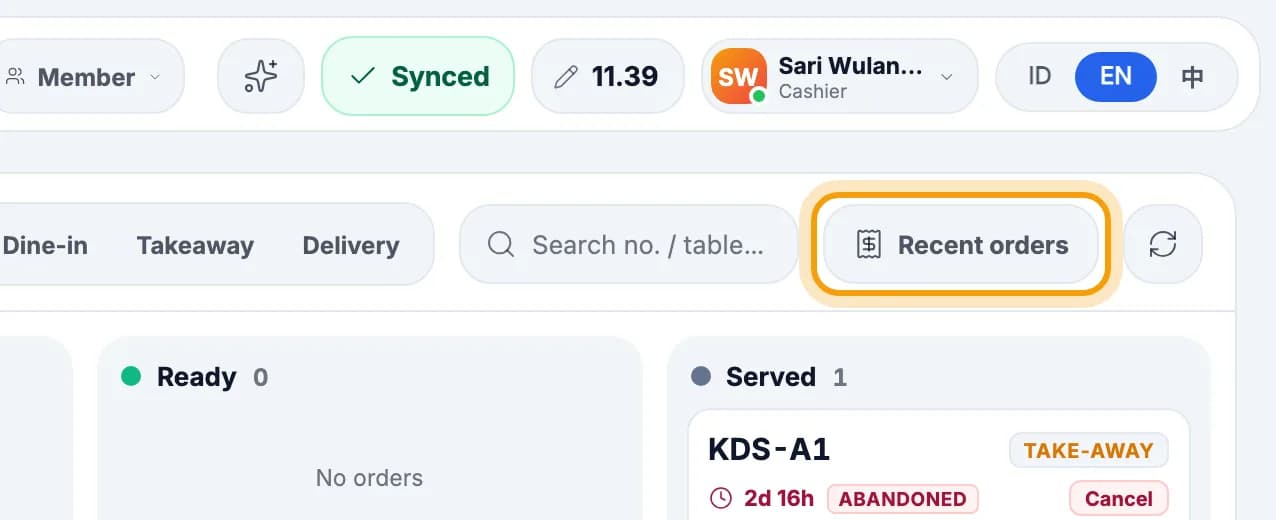
Tap Recent orders.
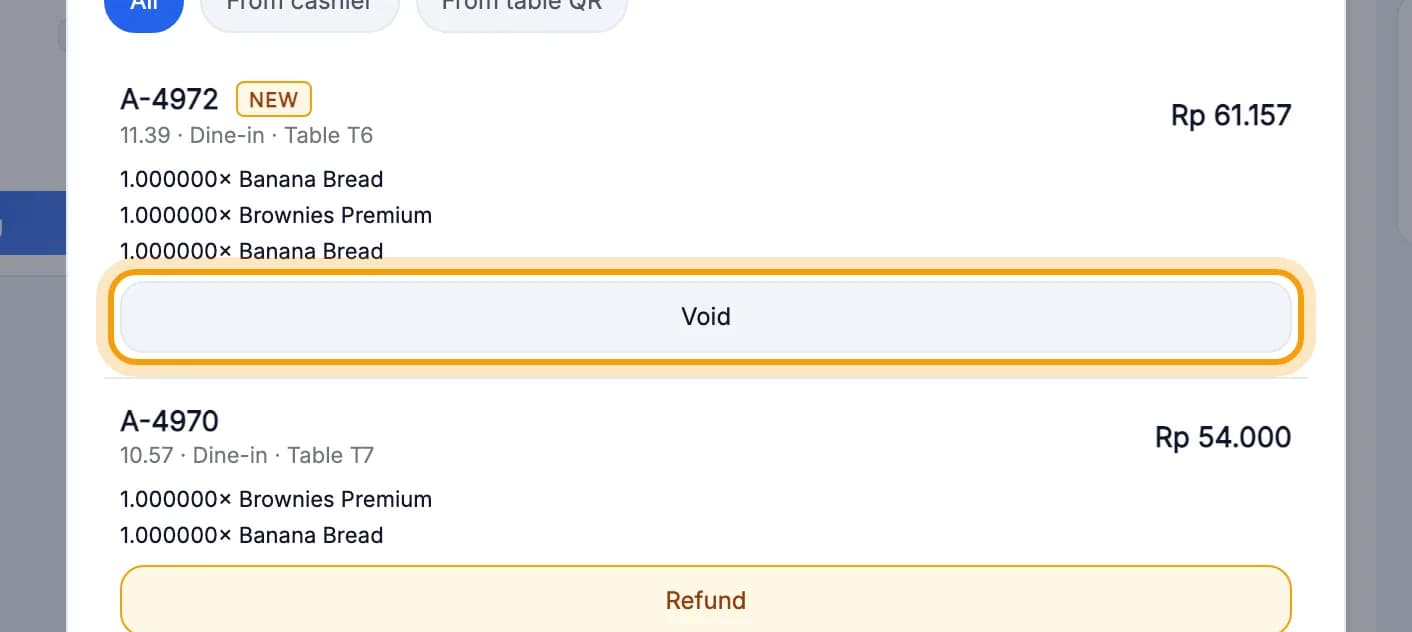
Tap Void on that order.A paid order can't be voided. Use Refund instead.
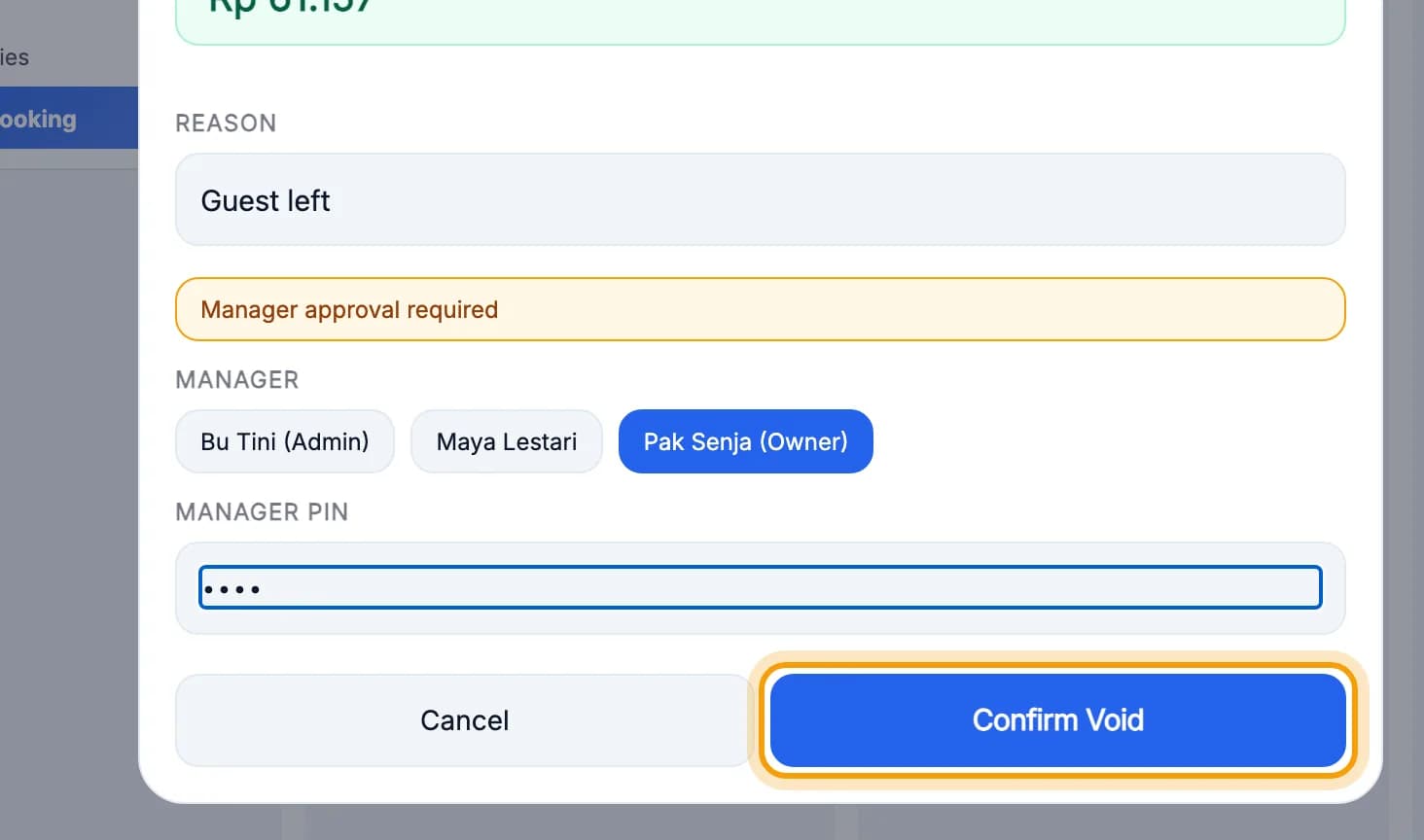
Type the reason, have a manager pick their name and enter their PIN, then tap Confirm Void.The table becomes free. The order is kept and marked Cancelled, not deleted.
Refund a paid sale
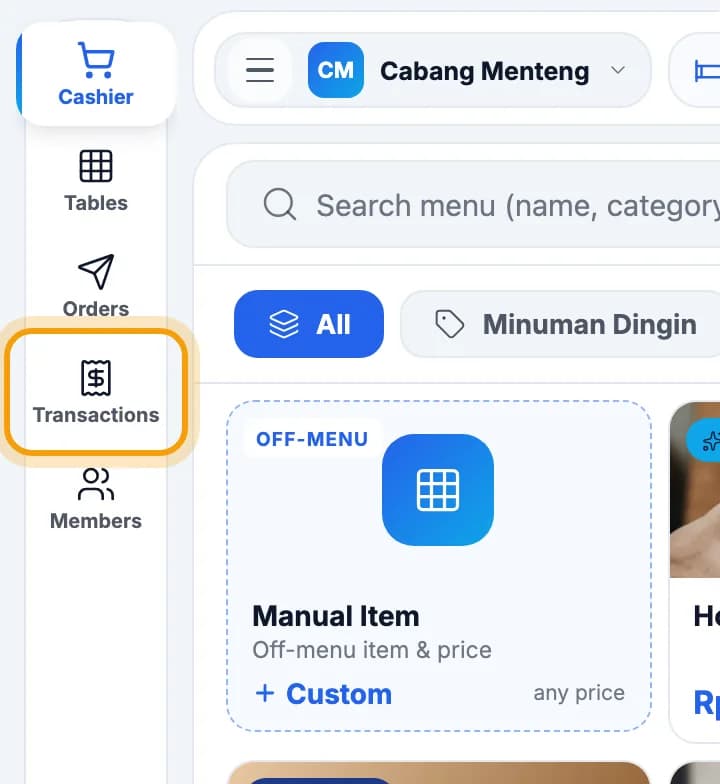
Tap Transactions in the left menu.
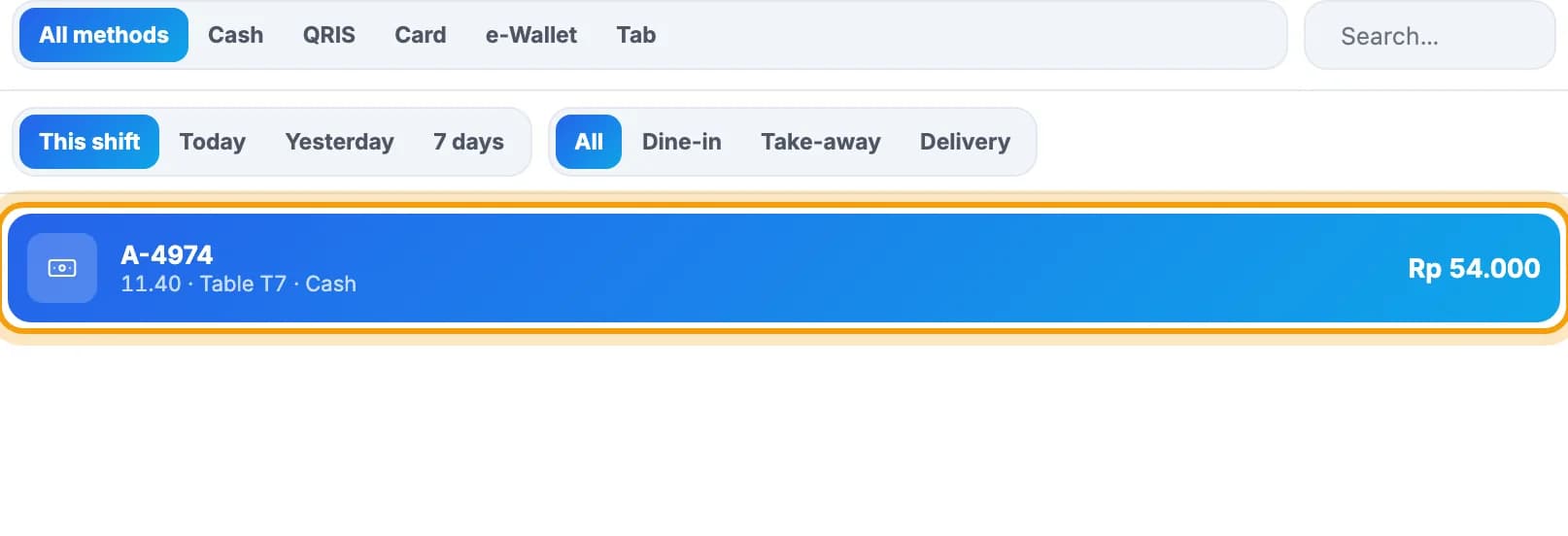
Tap the sale you want to refund.Older sale? Tap Today, Yesterday or 7 days, or search for its number.
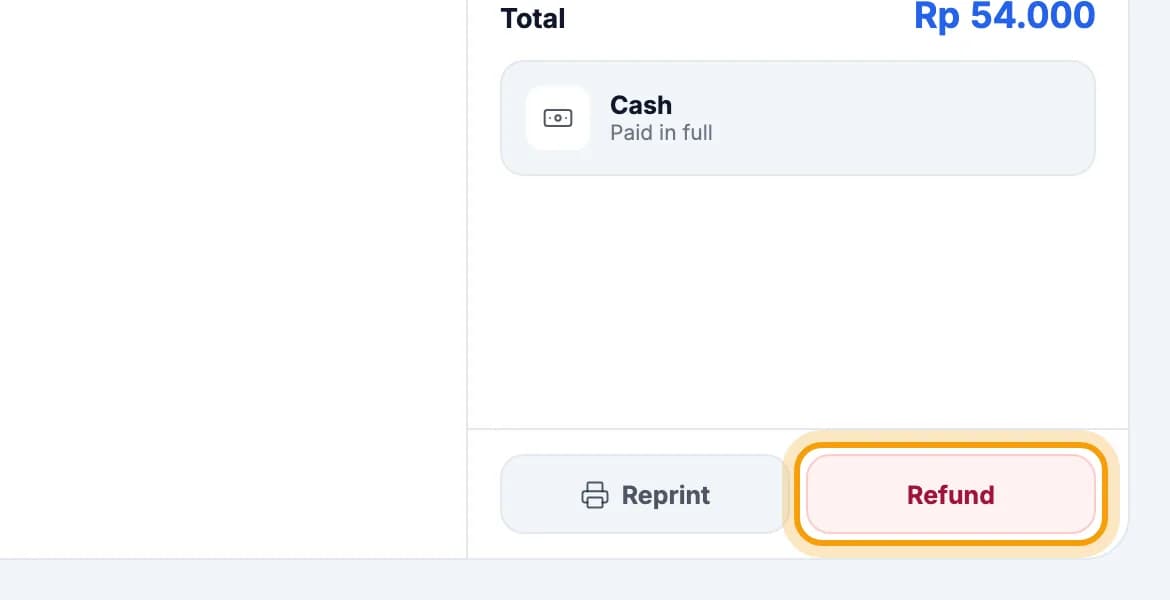
Tap Refund below the details.
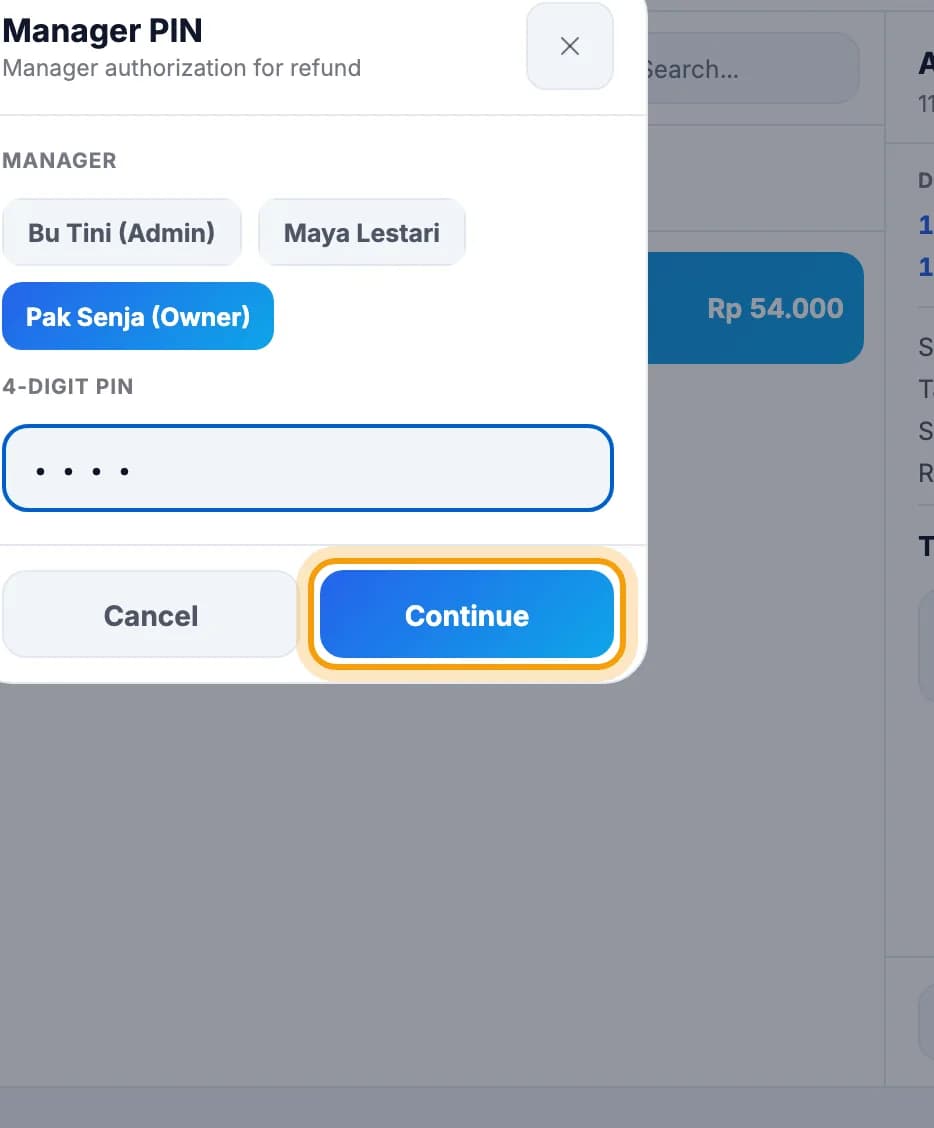
Have a manager pick their name and enter their PIN, then tap Continue.
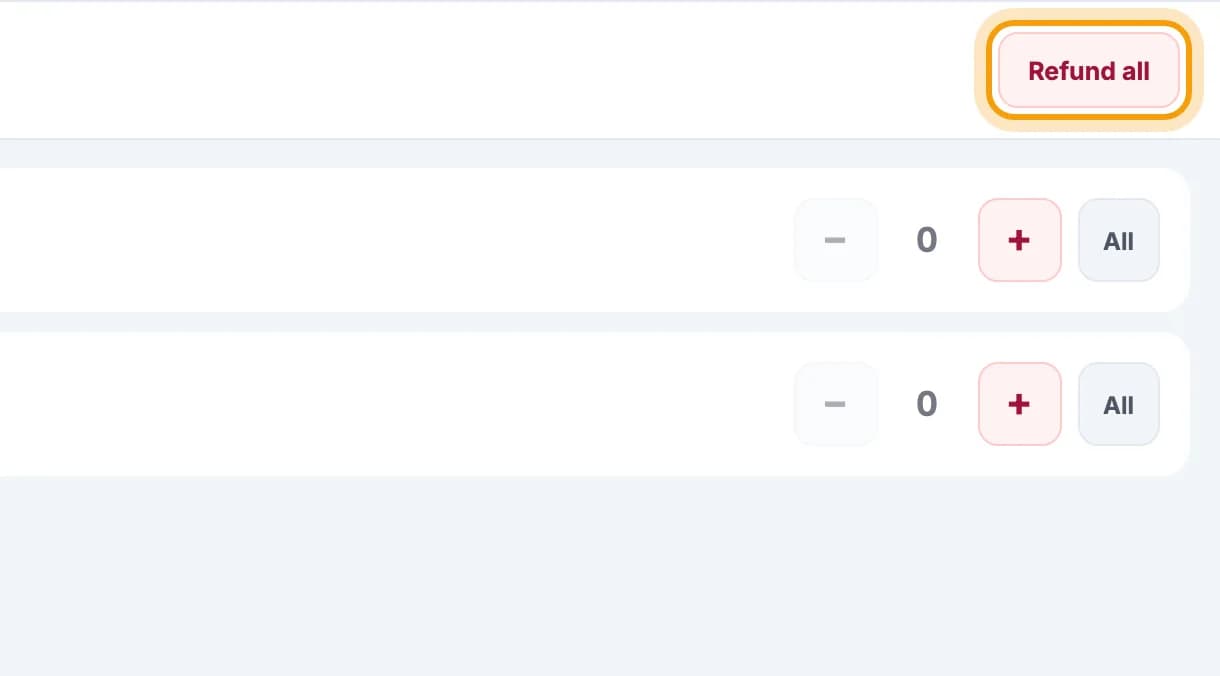
Choose the items being returned, or tap Refund all.
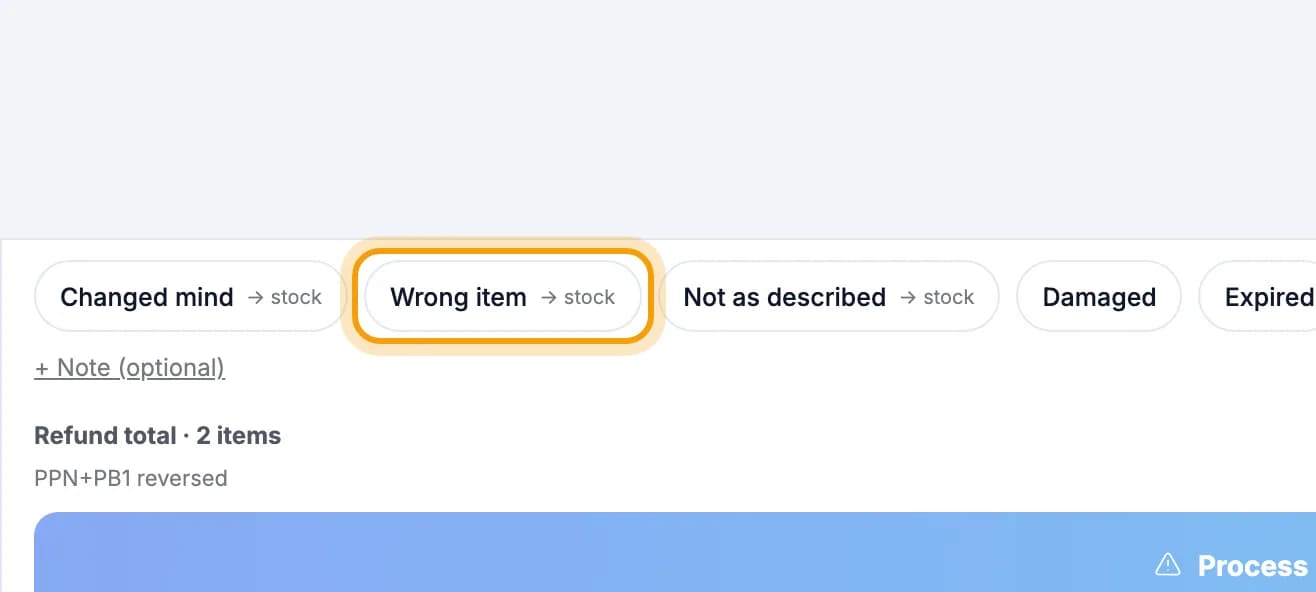
Pick a refund reason, for example Wrong item.
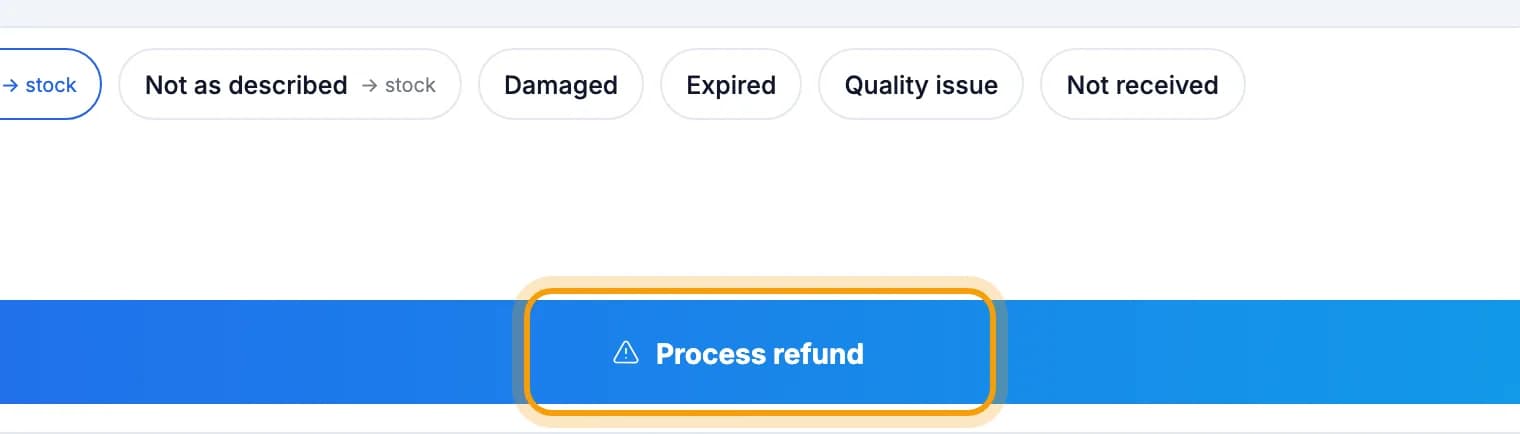
Tap Process refund, then hand the money back to the guest.
Tip: Refunds flow into your reports. Sales and tax are shown net of refunds, and refunds get their own line. Shift-close reports from earlier shifts don't change.
Note: Refunds are made on the cashier tablet only. The web admin shows every refund but can't create one.
Done.
Bookmark this page, or send a section's link to your staff.