When the internet is down
The till keeps selling, printing receipts and taking payment without internet. Everything is saved on the tablet and sent on its own when the connection comes back.
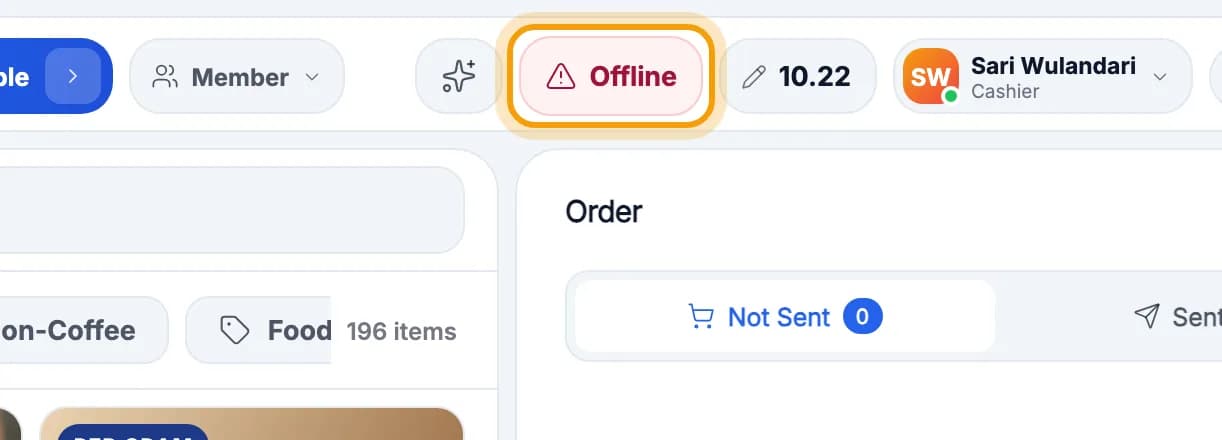
Know you are offline
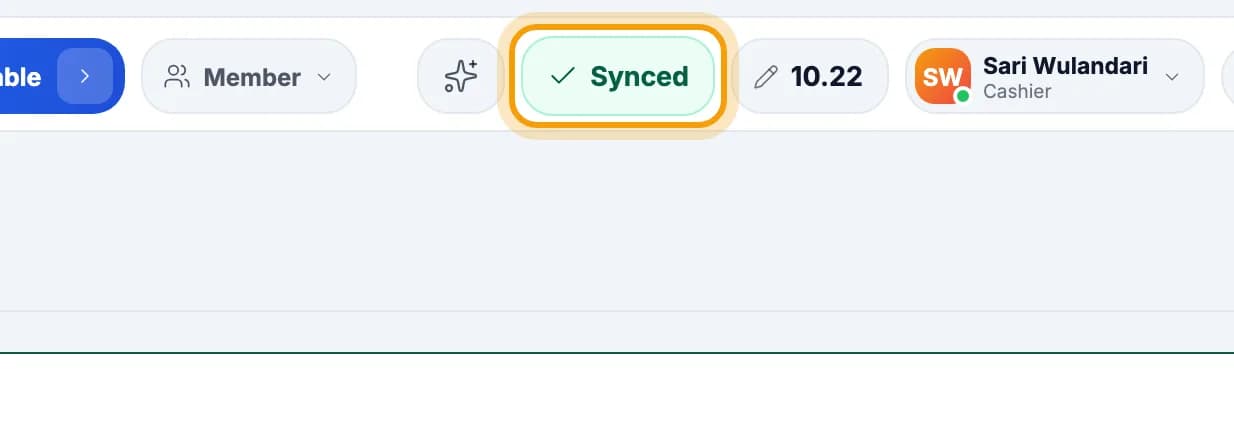
Look at the status button in the top bar. When the internet is down it turns red and says Offline.When all is well it is green and says Synced.
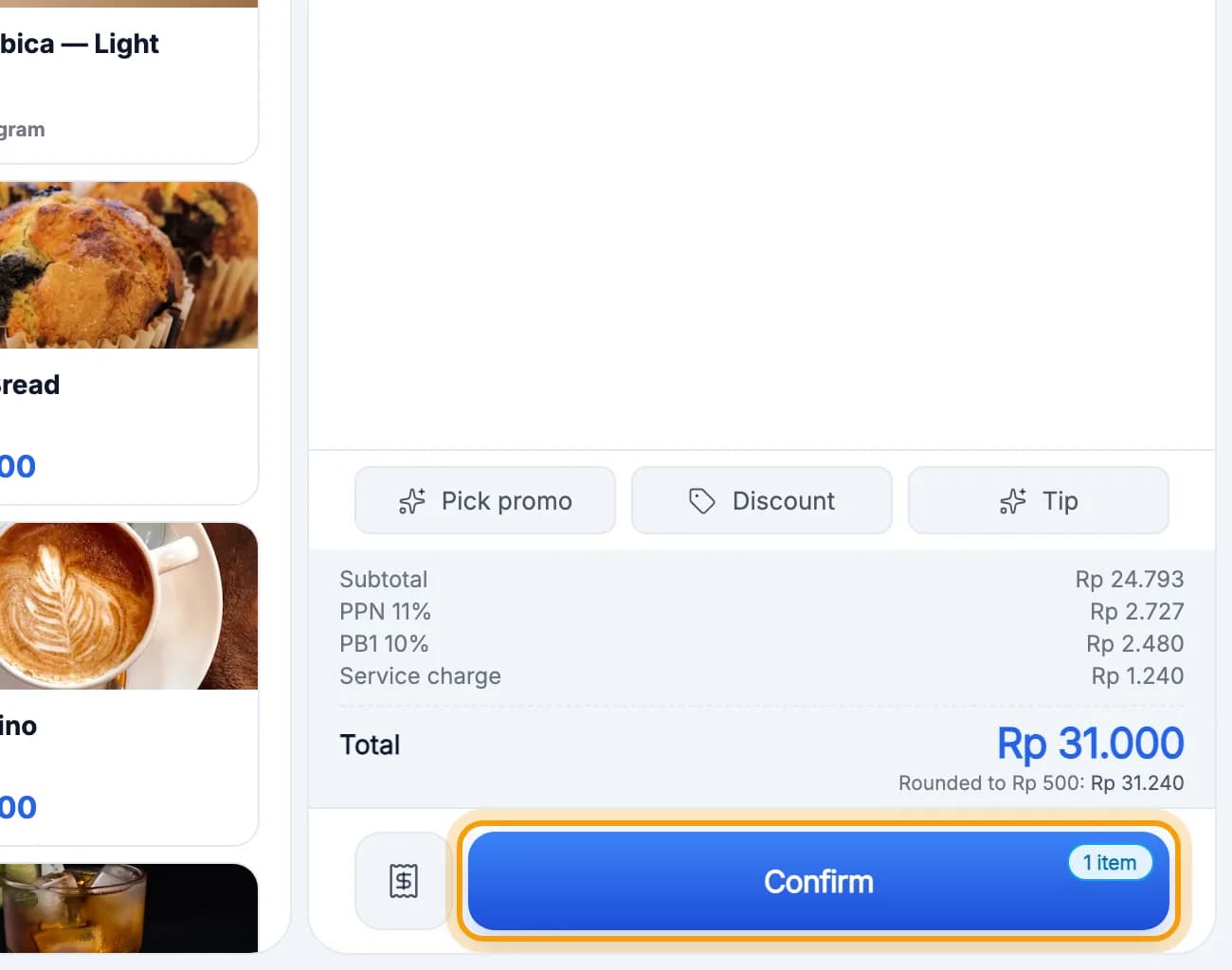
Keep selling
Enter the order, then tap Confirm as usual.The order is saved on the tablet. Same steps as Your first sale.
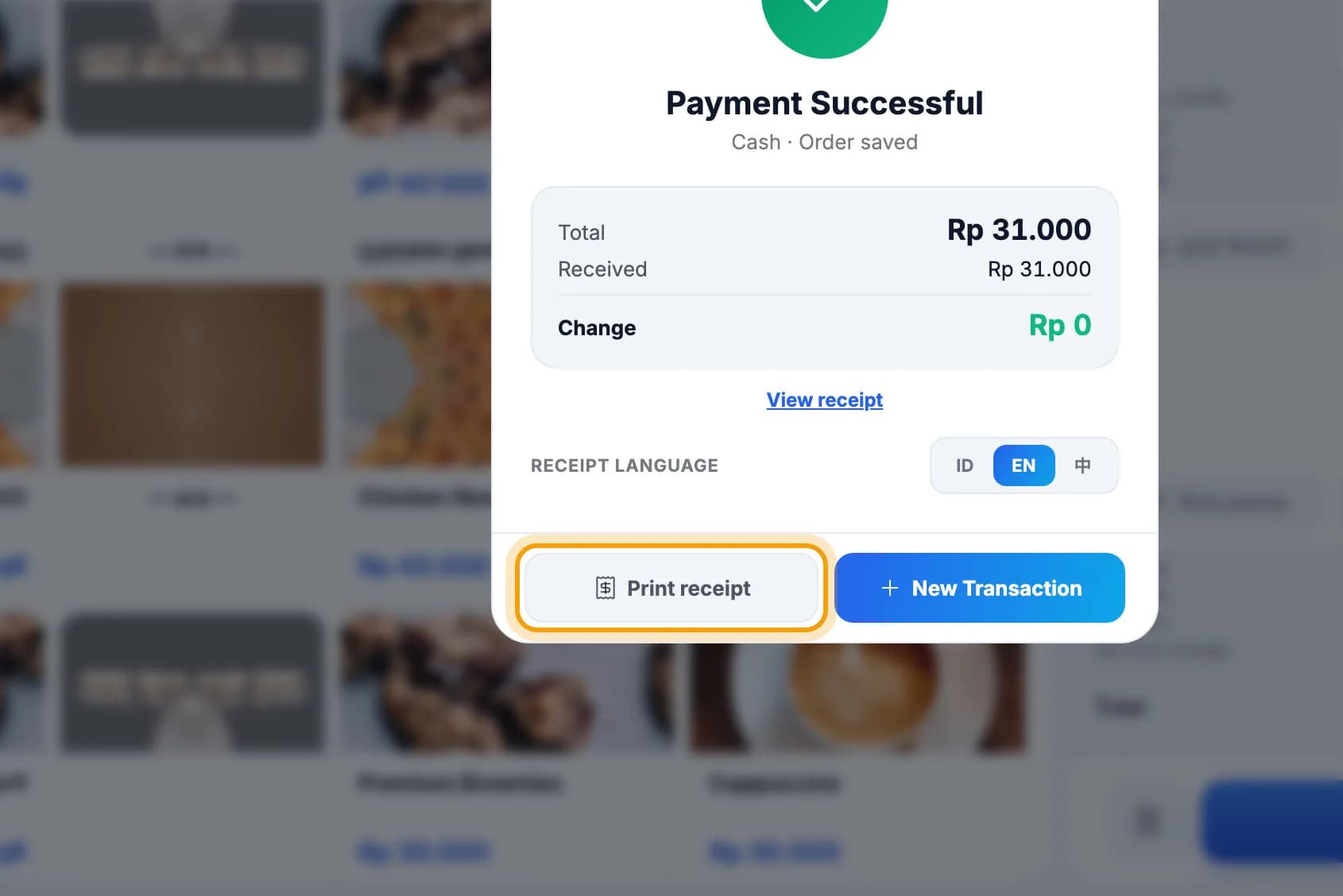
Take payment as usual, then tap Print receipt.Bluetooth and LAN printers keep printing without internet.
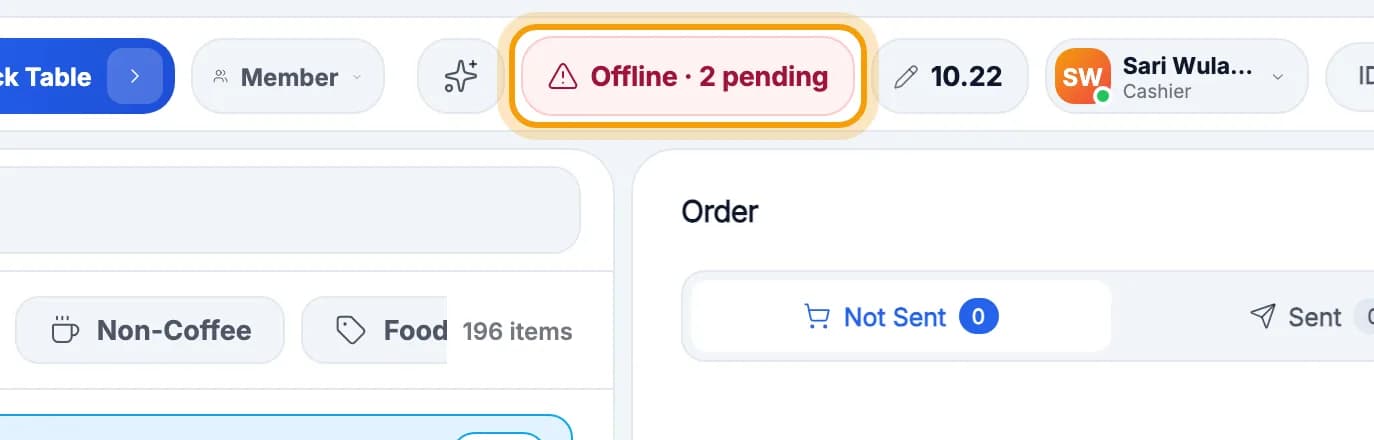
The number on the status button shows how many transactions are waiting to be sent, for example Offline · 2 pending.
Tip: While offline, use Cash or QRIS. Card, transfer and member points come back once you are online.
Check the queue & resend
Tap the status button to open the Sync screen. It lists every transaction not sent yet.Each row says PENDING until it has been sent.
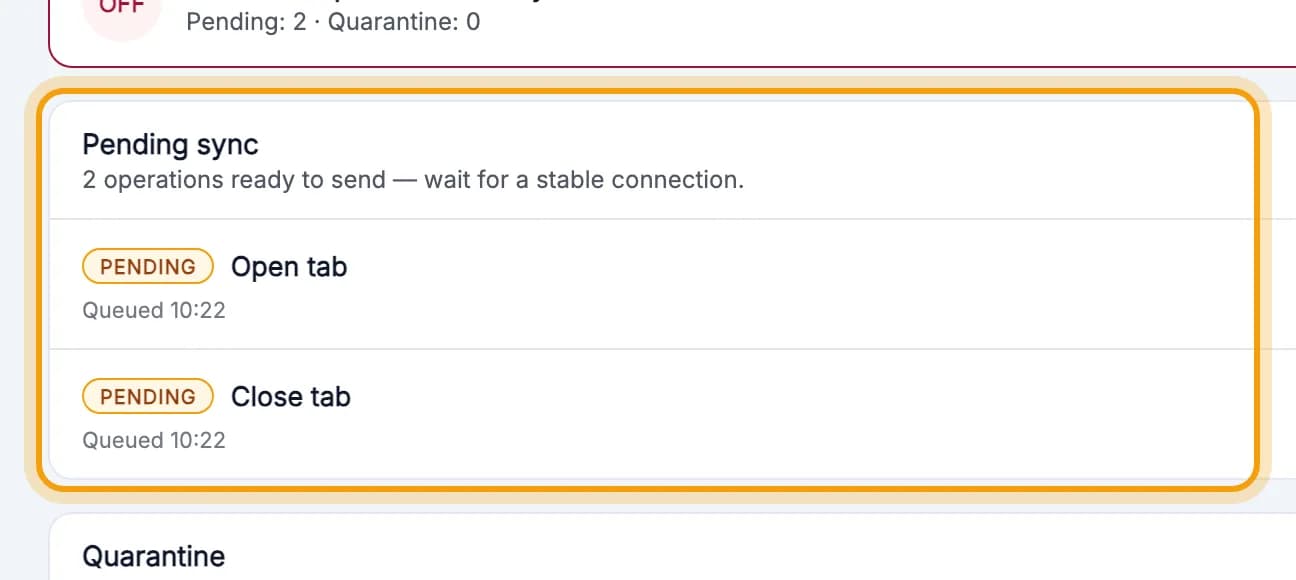
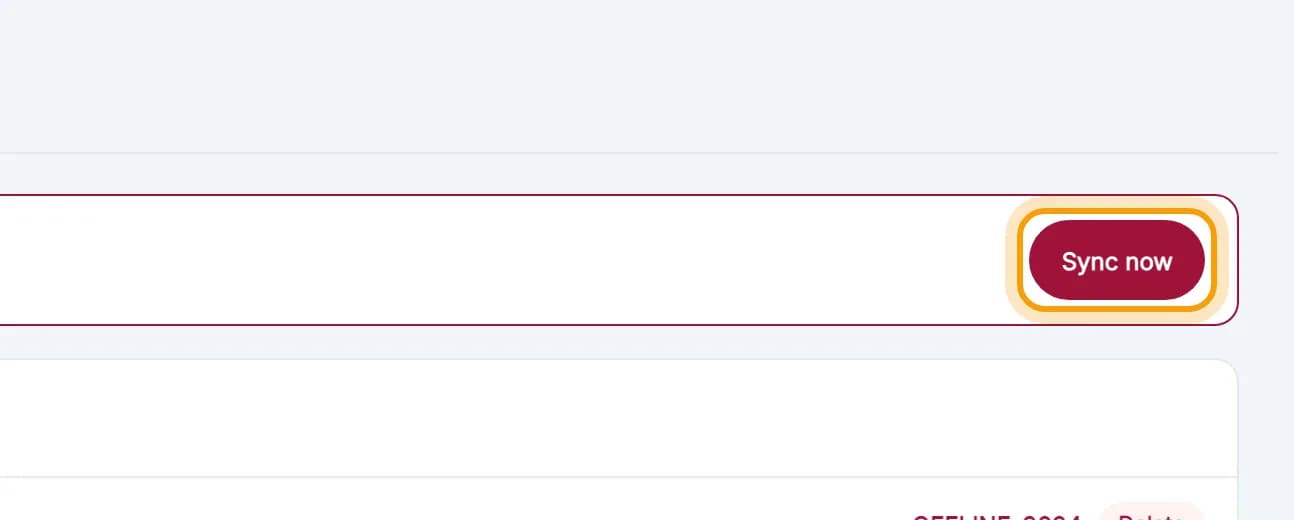
Internet back? The queue sends itself. To hurry it, tap Sync now.
The status button turns green again: Synced. Every transaction is now in your reports.
Note: Don't tap Delete in the queue. A deleted transaction never reaches the server and is missing from your reports.
Tip: Status button shows ⚠ 1 failed after a guest paid? Do not charge the guest again: the cash is in the drawer, but the payment was not recorded. Open Tables, tap that table, tap Continue order, then Pay tab once more with the same payment method. It can happen when you take payment a few seconds after Confirm on a slow connection.
What to avoid
Don't sign out while anything is still waiting. If this warning appears, tap Sync first.Still offline? Tap Cancel and wait for the internet to come back.
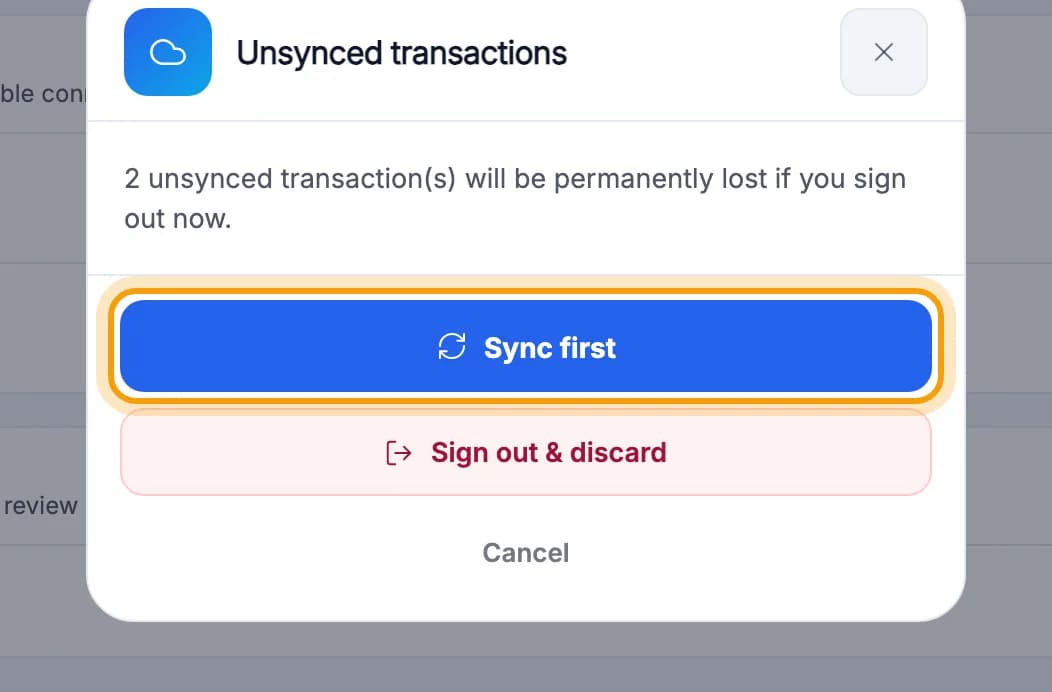
Note: Sign out & discard deletes unsent transactions for good. Don't clear the app's data or uninstall it either until the status button says Synced.
Tip: Wait for Synced before you close the books, so the report has every sale.
Done.
Bookmark this page, or send a section's link to your staff.