Customers, promos & points
Sign customers up as members, attach them to orders, give promos and let them pay with points. All from the till; the setup lives in the admin.
Members at the till
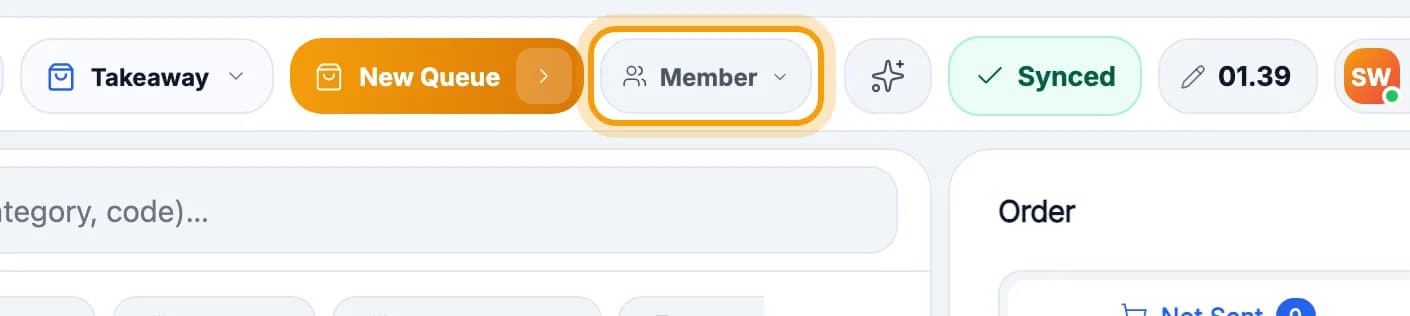
Tap Member in the top bar.Any time: before or after you add items.
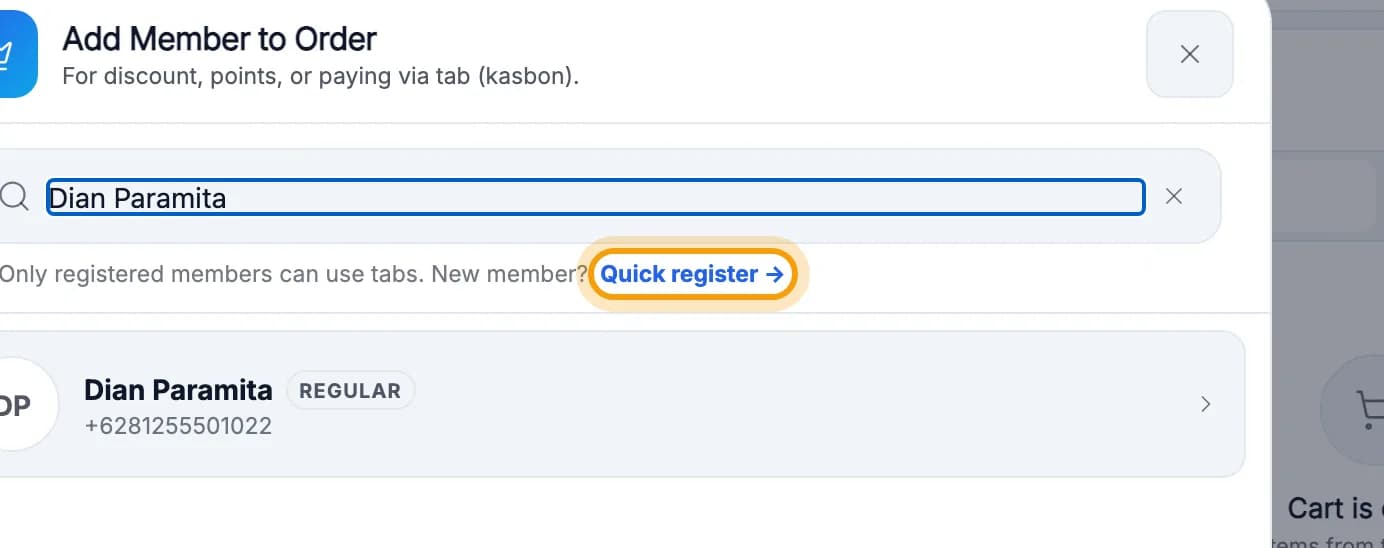
Type the guest's name or phone number. Not registered yet? Tap Quick register →.The Create new member button below does the same.
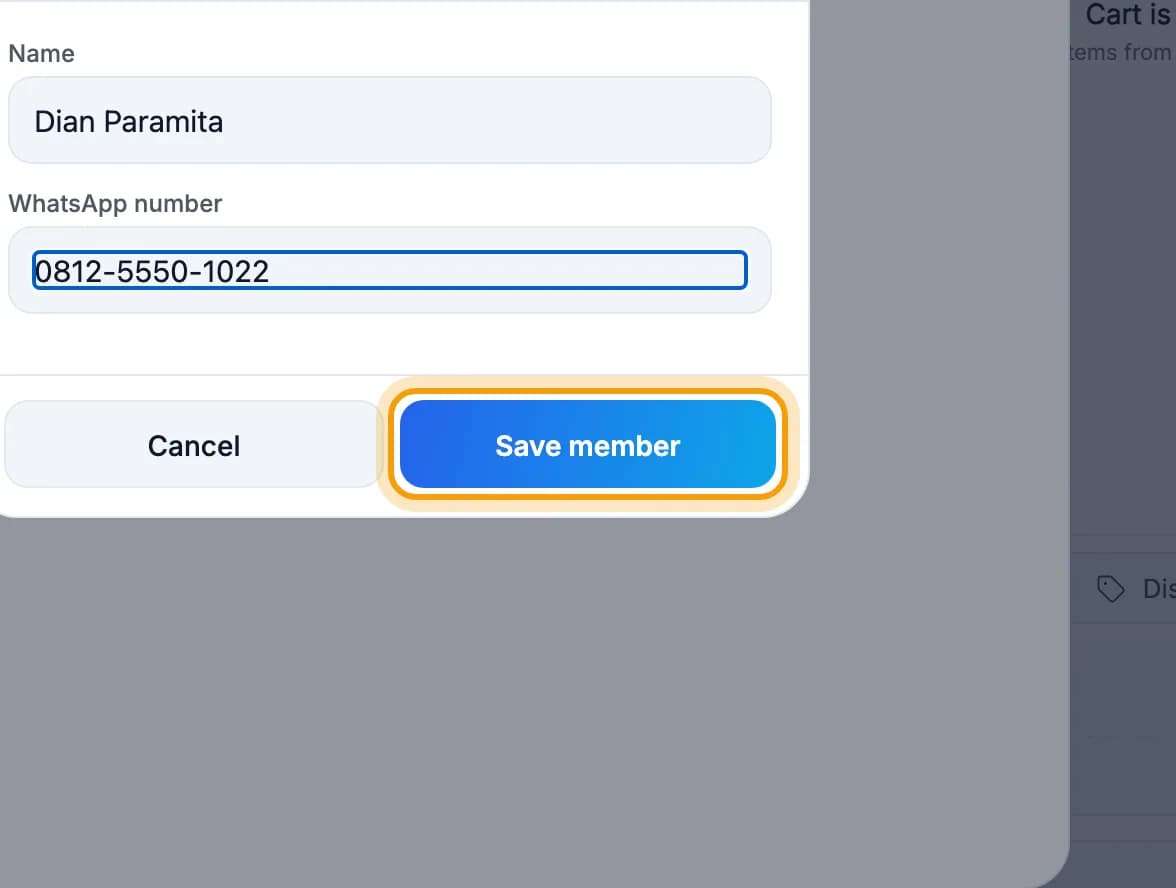
Fill in Name and WhatsApp number, then tap Save member.The new member is attached to this order straight away.
Already a member? Tap Member, type a name or phone number, then tap their name.Each row shows the member's points.
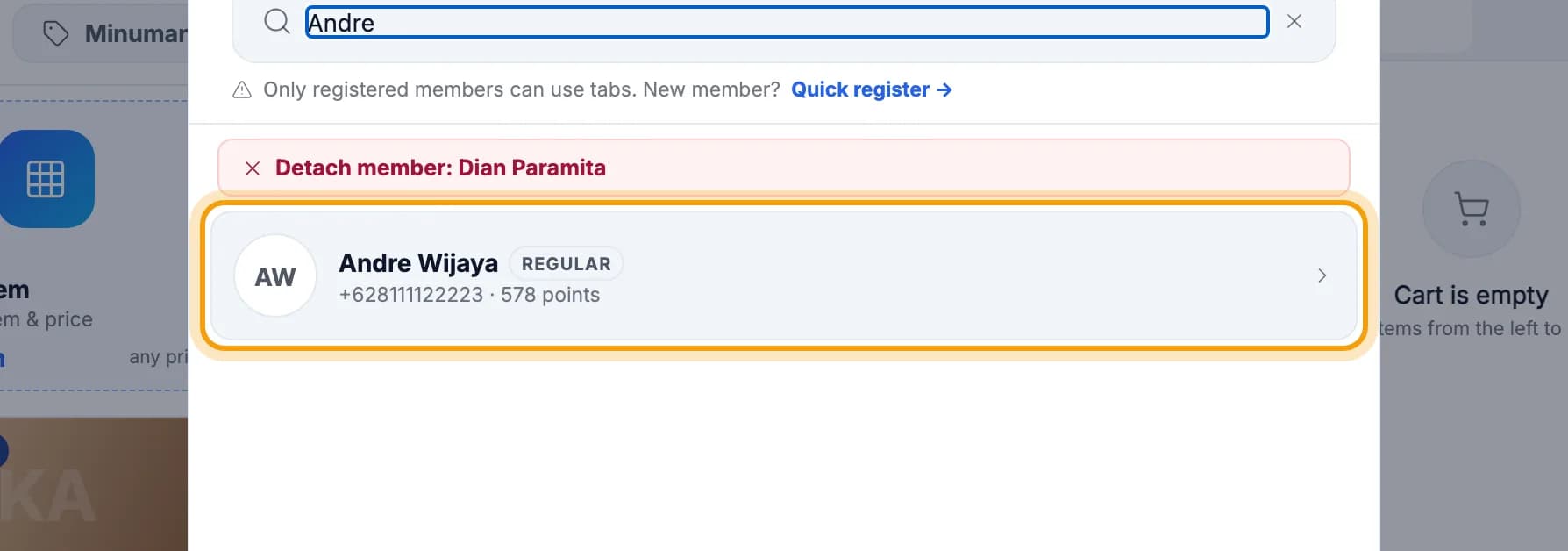
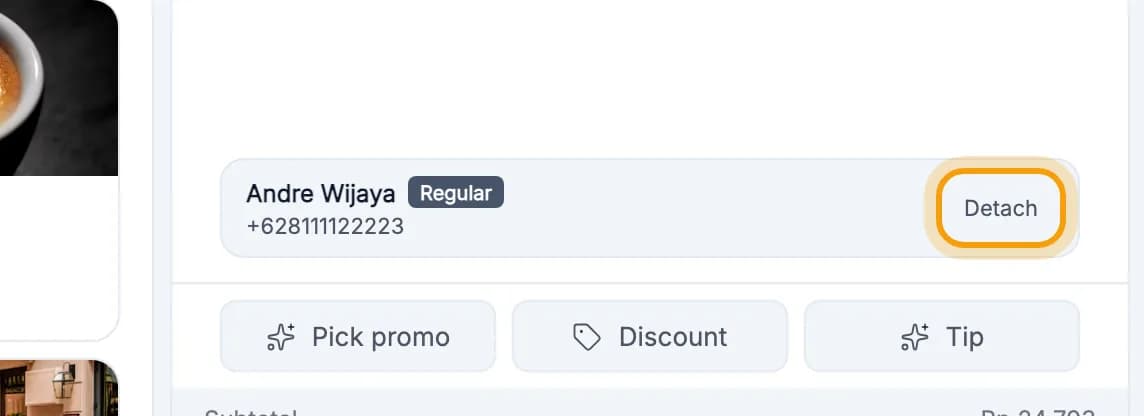
Picked the wrong one? Tap Detach on the member card in the Order column.
Tip: Points are added automatically. Every order paid with a member attached earns that member points. The owner sets the points rule in the admin, under Settings.
Use a promo at the till
Once the items are in, tap Promo & discount under the Order column.
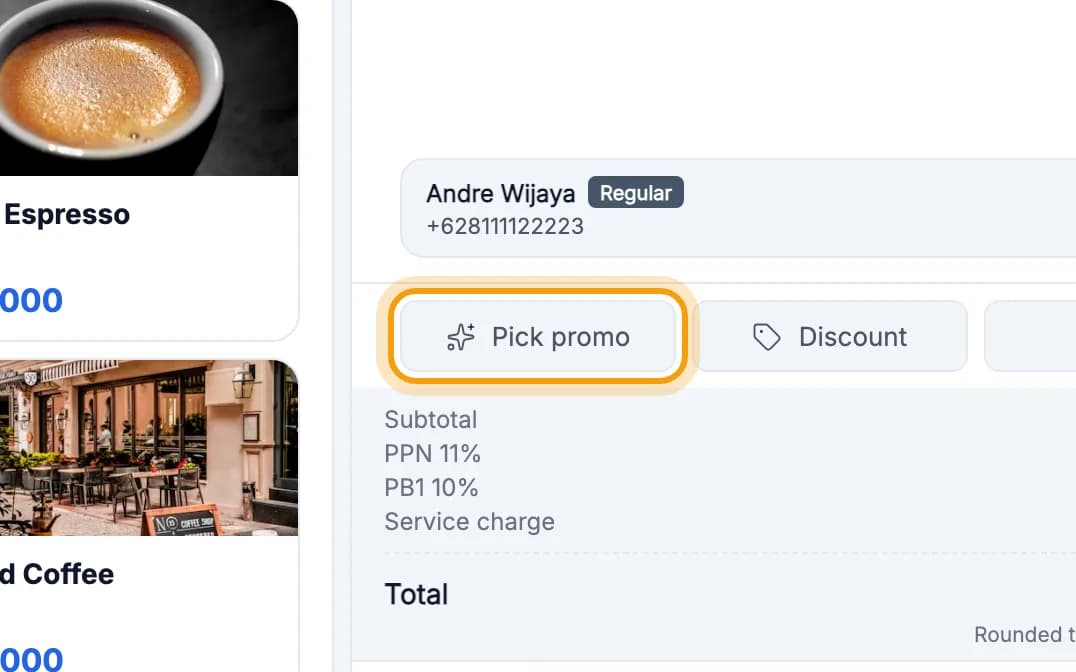
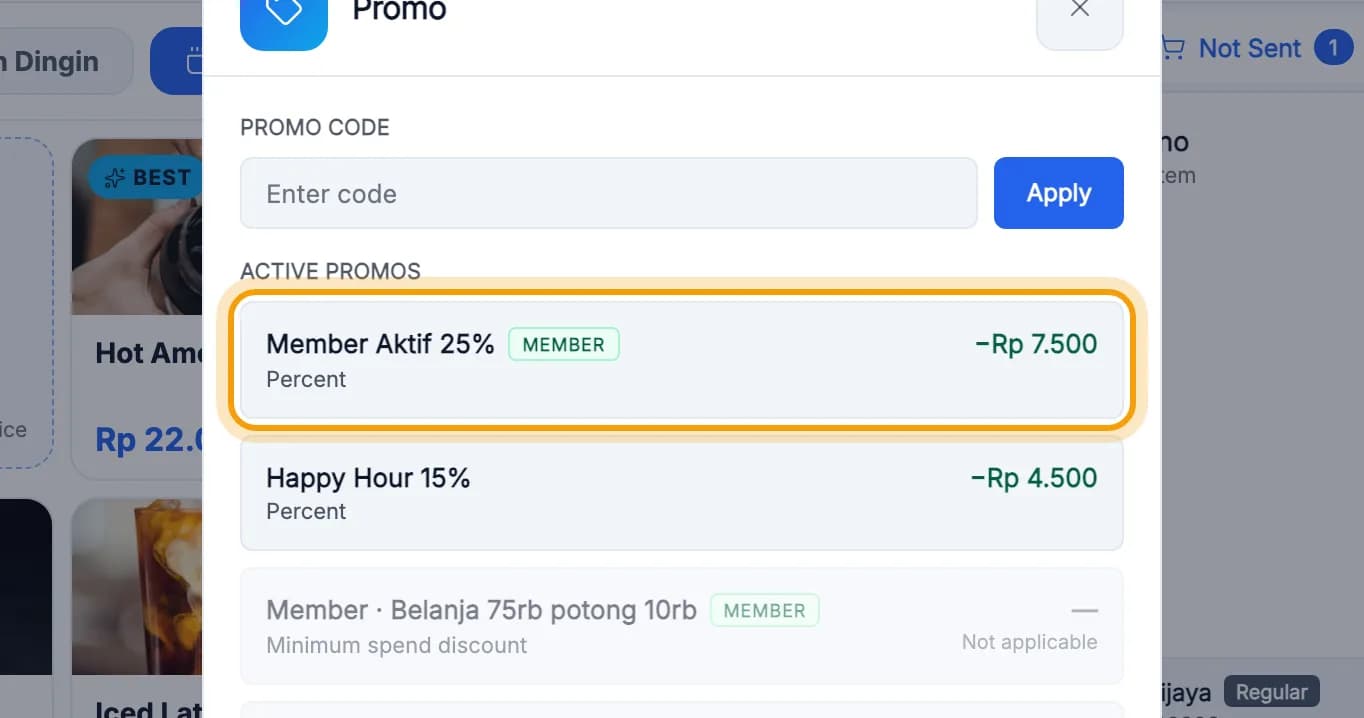
Tap the promo that applies.Have a coupon code? Type it in the Enter code box, then tap Apply.
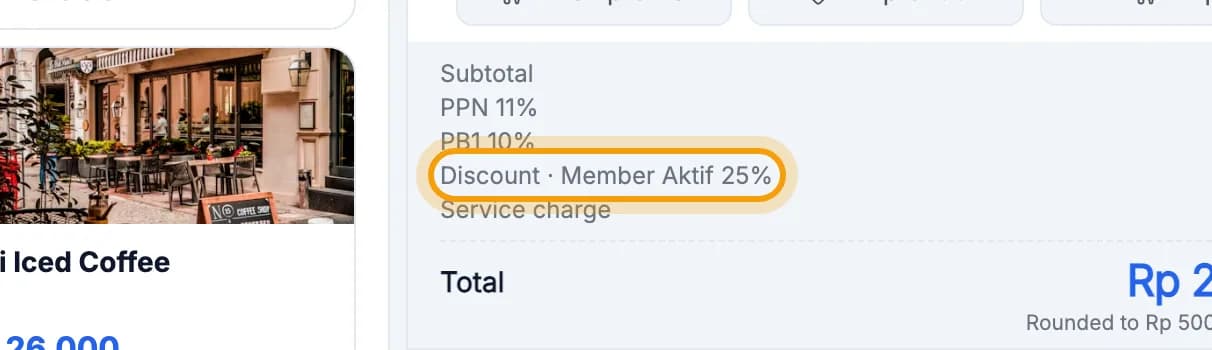
Check the amount on the Discount line before you charge.
Note: Promos marked MEMBER need a member. Attach the member first, otherwise the promo shows Not applicable.
Pay with points
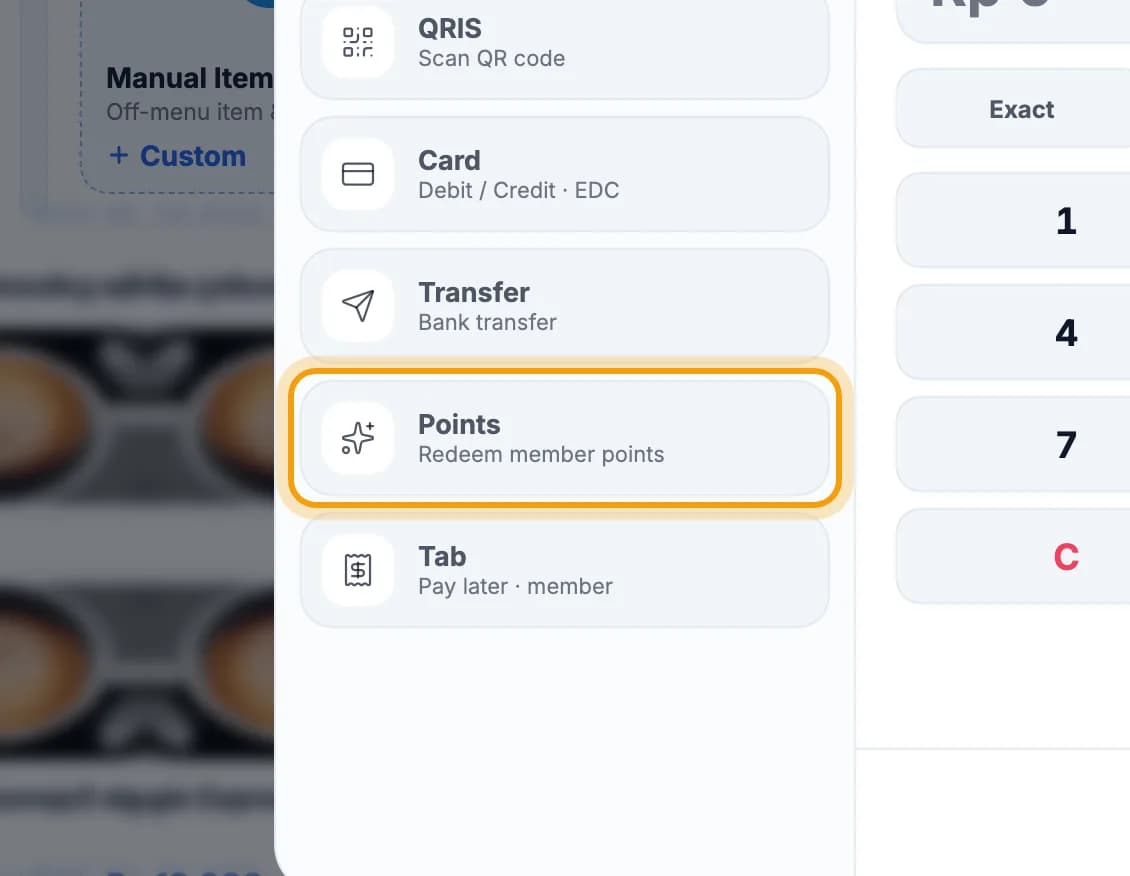
Tap Pay tab, then choose Points.Points only appears when the member has enough points for the whole bill.
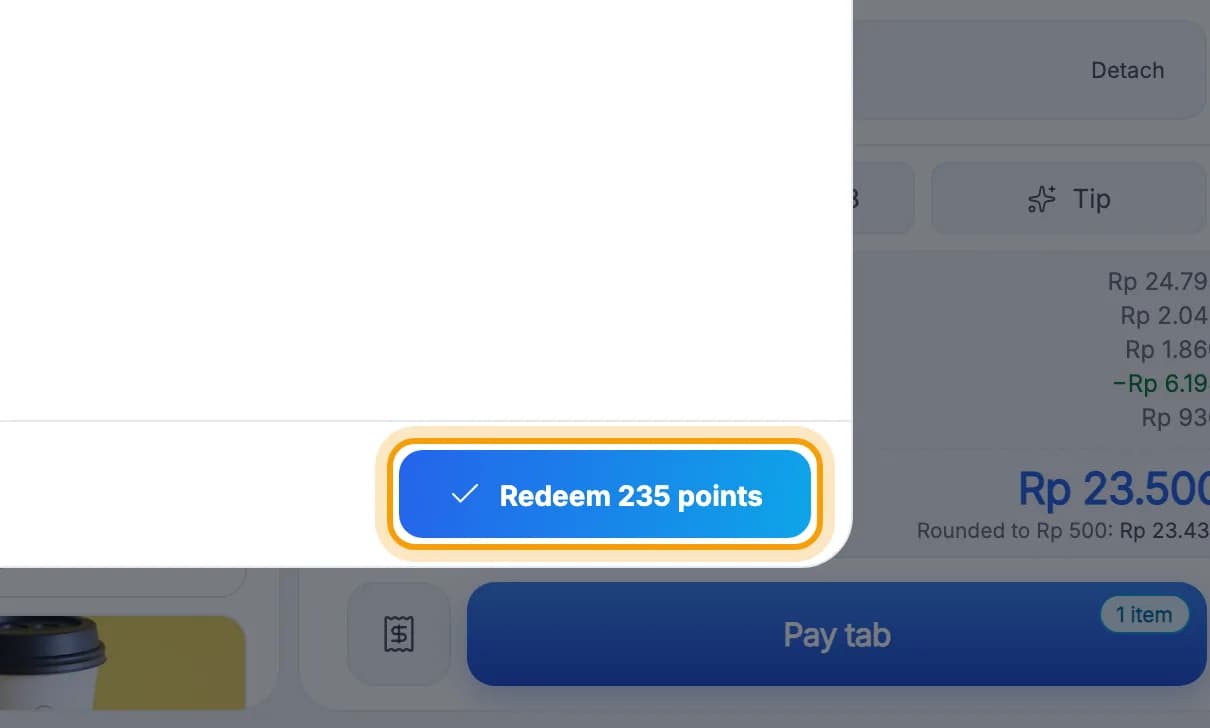
Tap Redeem … points.The number is how many points this bill uses.
In the admin: customers & promos
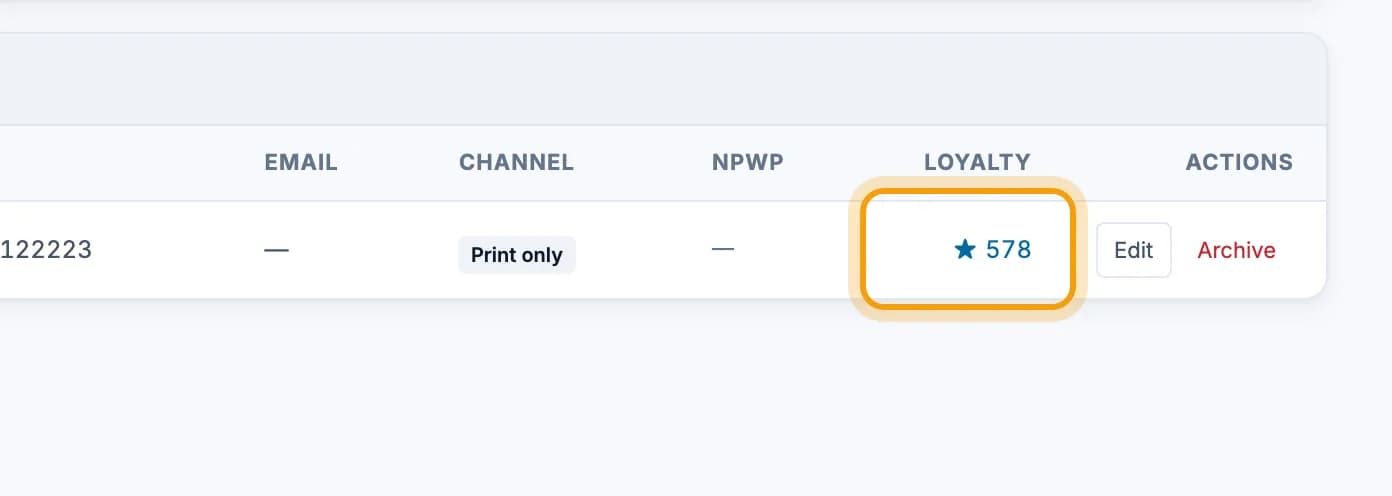
In the admin, open Customers and search by name or phone number. The Loyalty column shows each member's points.Members registered at the till show up here. You can also add customers under Add customer.
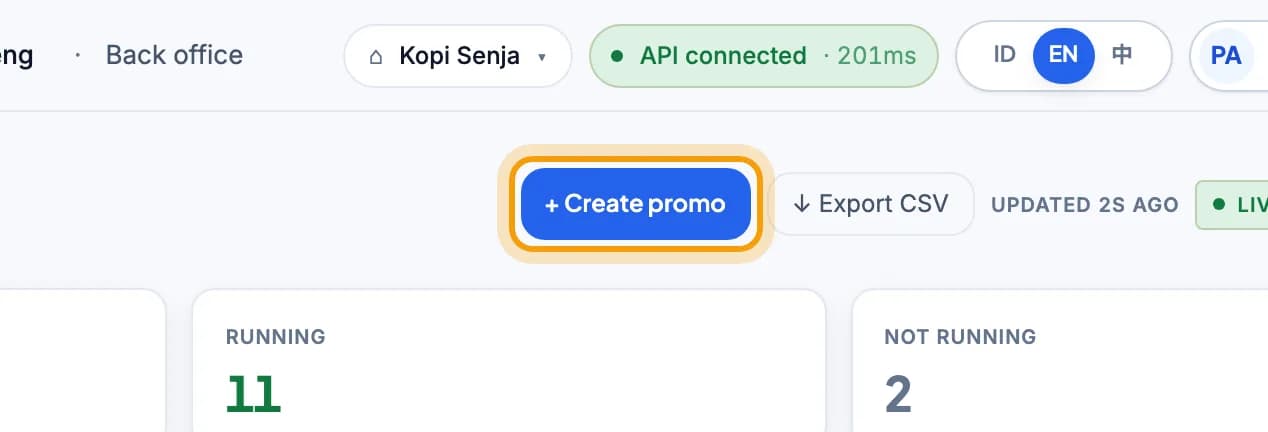
Open Promotions, then click + Create promo.Promotions is in the Catalog & Pricing menu.
Choose a promo type, for example % off.Each card has an example. Buy X Get Y and Bundle price pick their products from your menu.
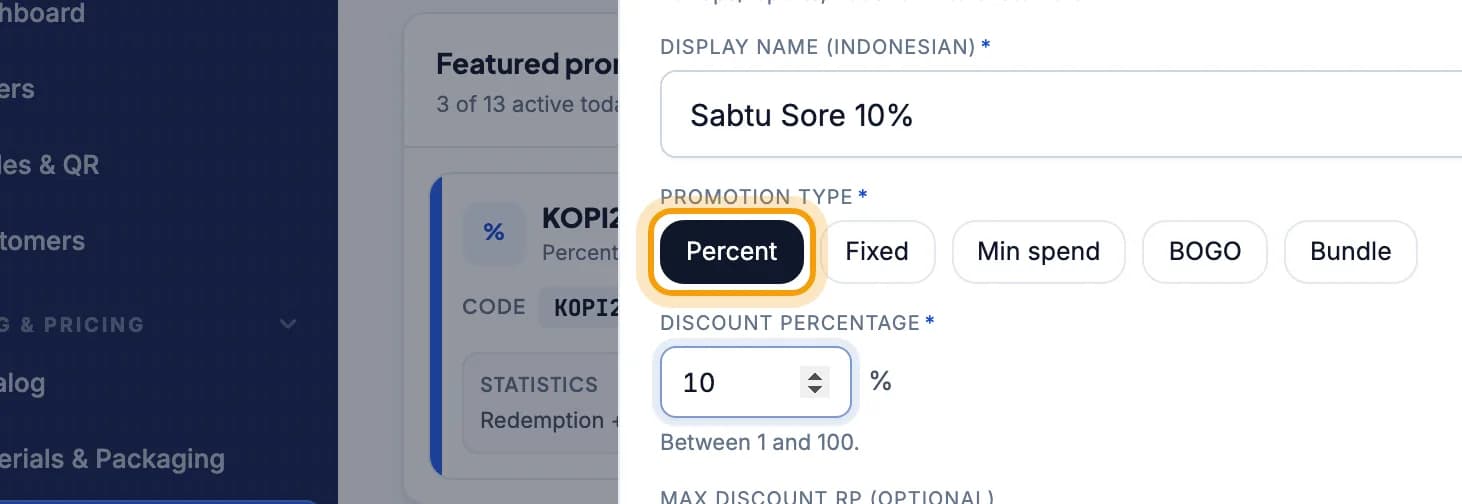
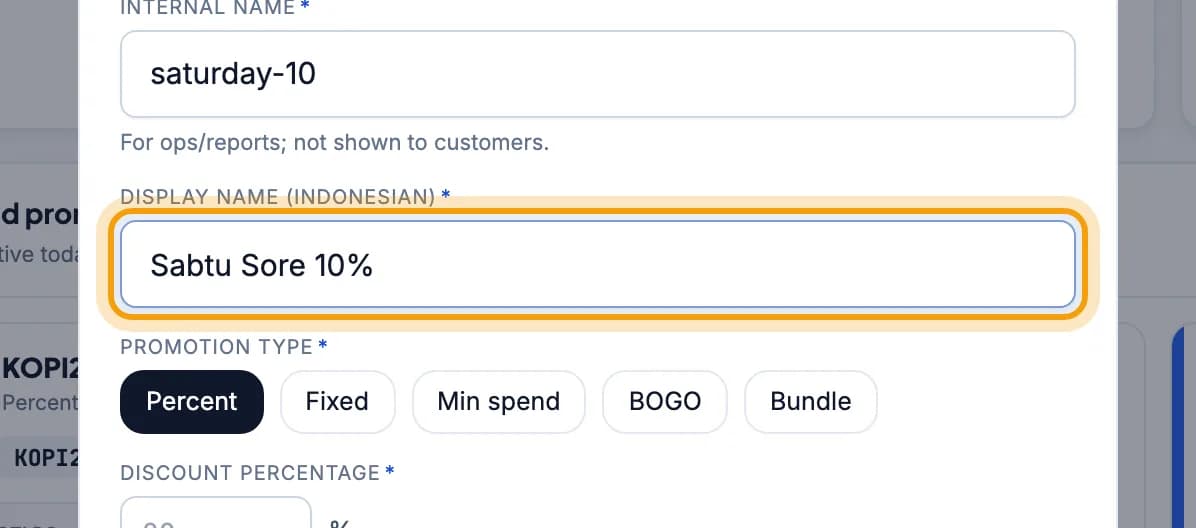
Enter the discount, then the Promo name. The cashier sees this name in the promo list and in the cart.For Buy X Get Y and Bundle price the name fills itself in from the rule (for example “Beli 1 Gratis 1”); change it if you like. The worked example shows what comes off.
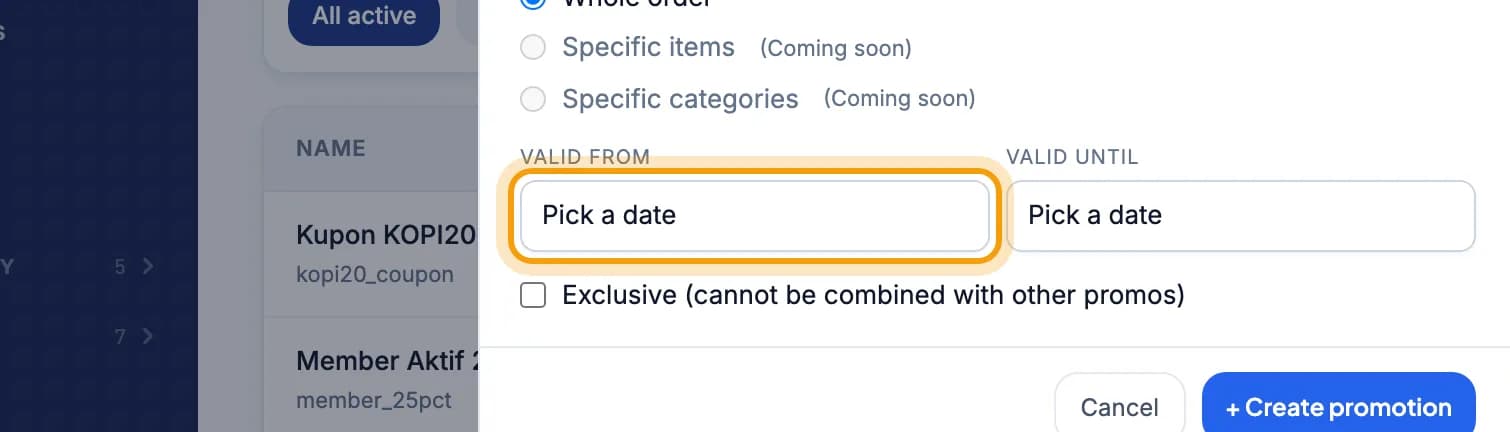
Under When it runs, leave Always, or click Pick dates and fill in From and Until.Want a promo that needs a code? Tick Only with a coupon code below it. On the F&B tablet the cashier must type the code. On the phone and the retail till this promo can still be picked without it.
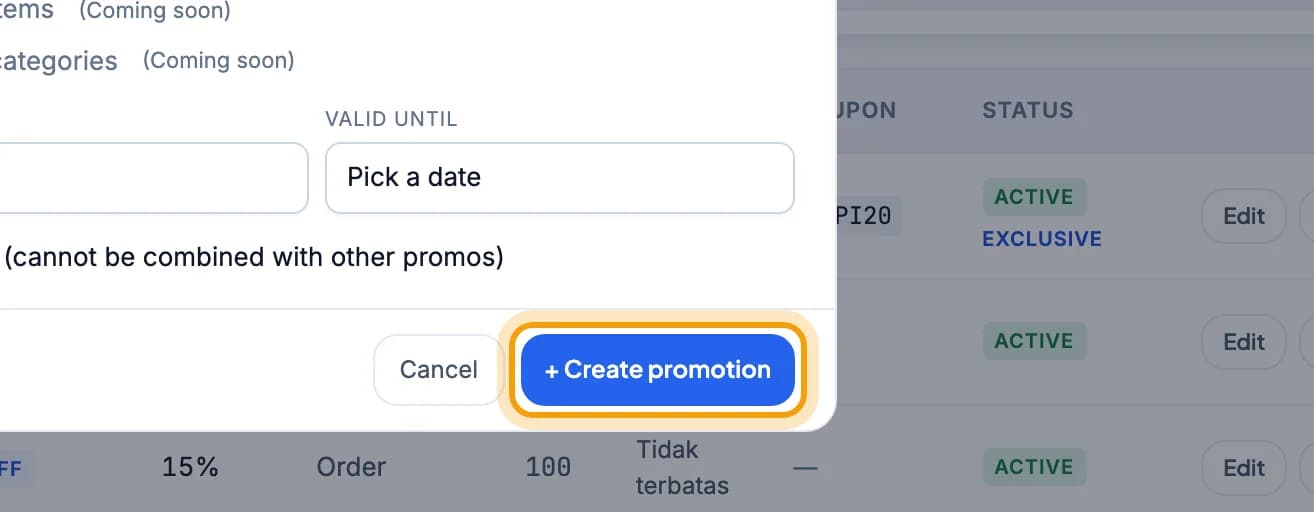
Click Create promo. The promo then shows up under Promo & discount at the till.
Tip: The cashier picks a promo in the cart; it never applies by itself, and one sale uses one promo. Want to change it later? Click Edit on that promo's row.
Done.
Bookmark this page, or send a section's link to your staff.