Shop till
Scan barcodes, use wholesale prices, park a sale and take payment. For shops that signed up as Retail.
Scan & find items
Tap the Scan barcode or search name / SKU… box, then scan the item's barcode.A USB or Bluetooth scanner types the code and presses Enter for you.
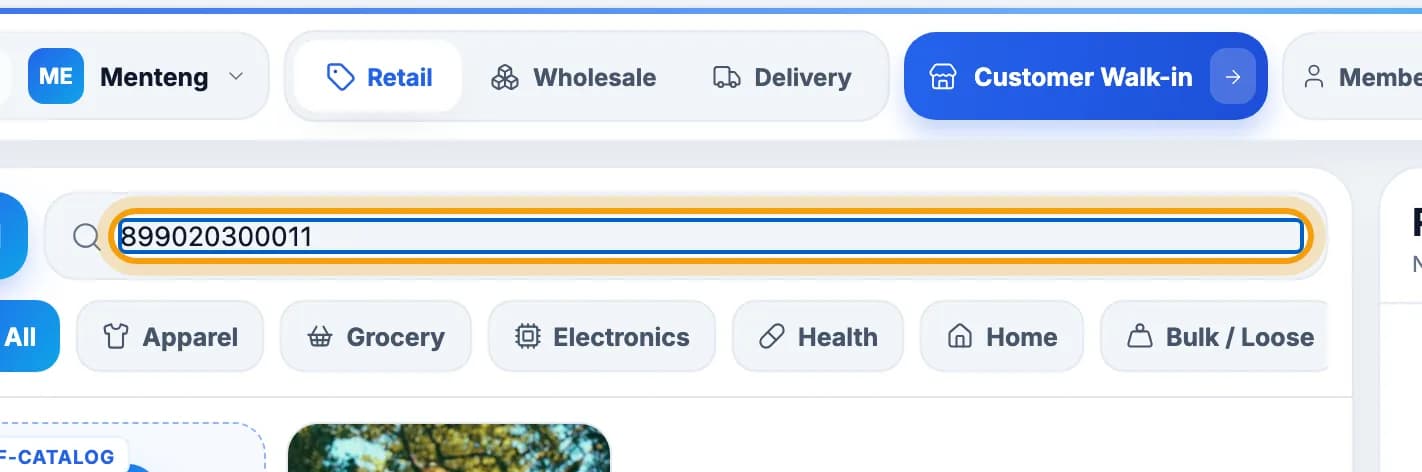
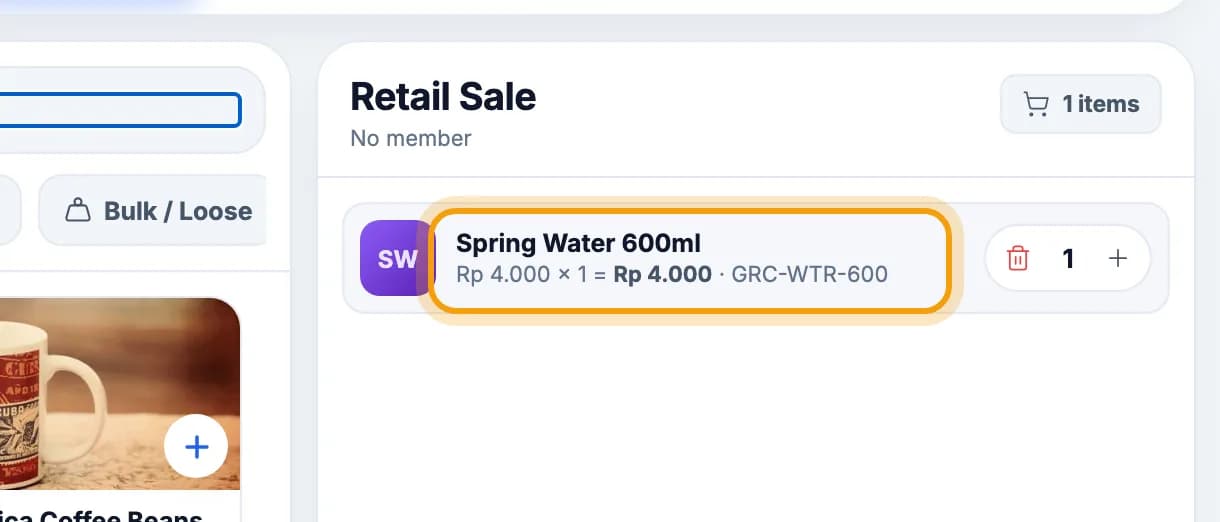
The item lands in the cart. Scan the same item again to add one more.
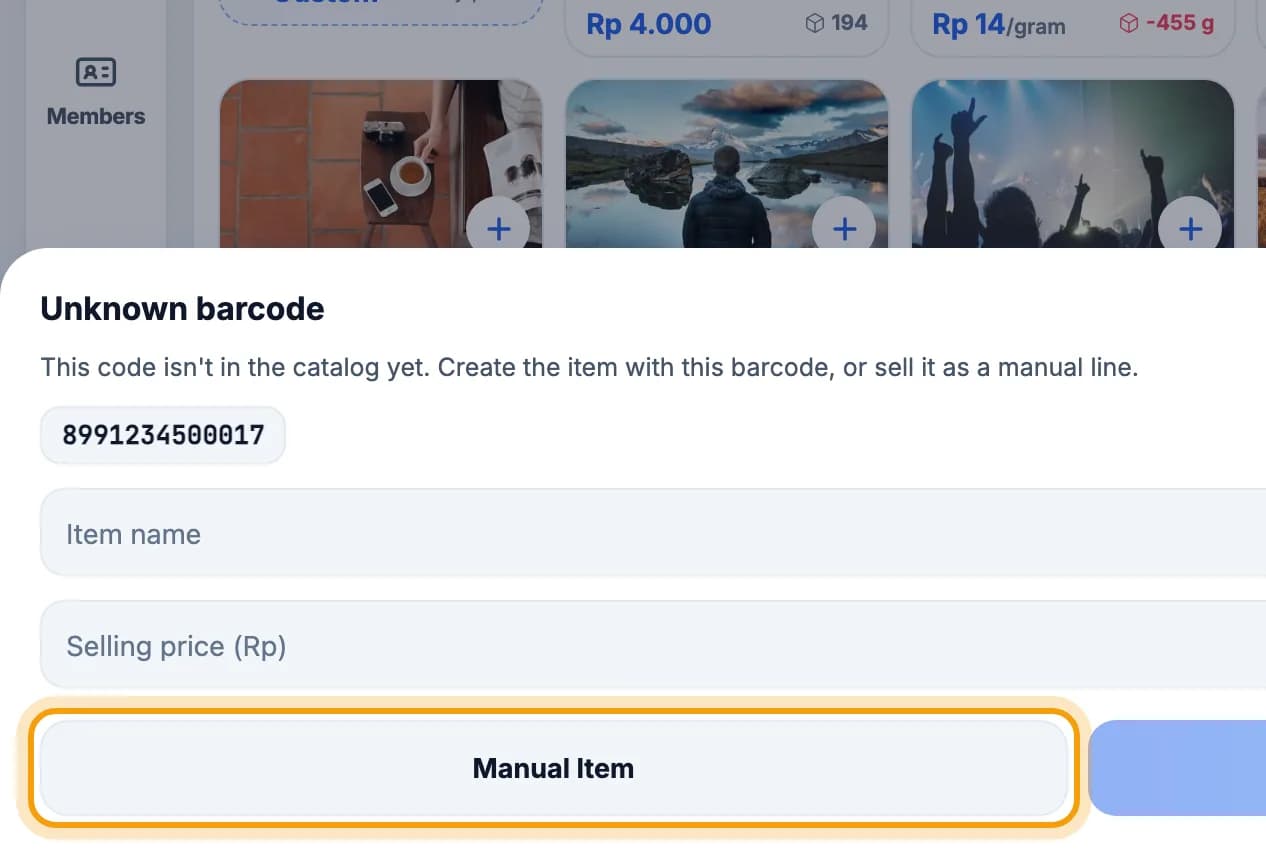
See Unknown barcode? Fill in a name and price, then tap Manual Item.The owner can also tap Save & Add to put the item in the catalog.
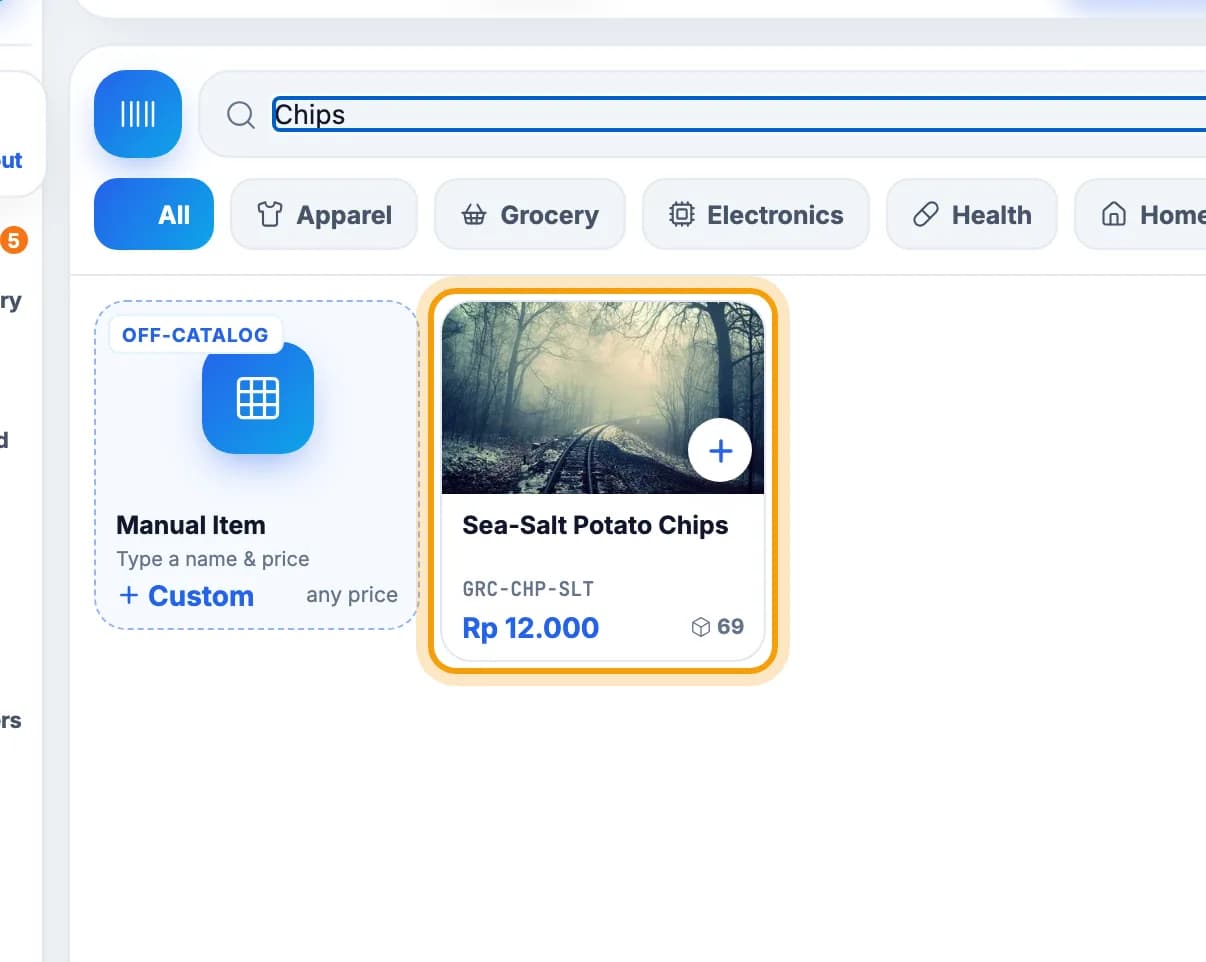
No barcode? Type the item name in the same box, then tap its card.
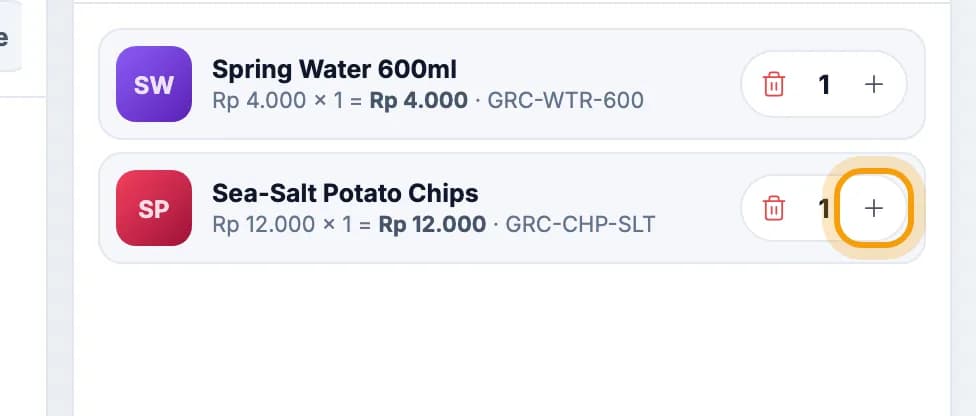
Change the quantity with + on the cart line.The bin icon next to it removes the line.
Wholesale prices & members
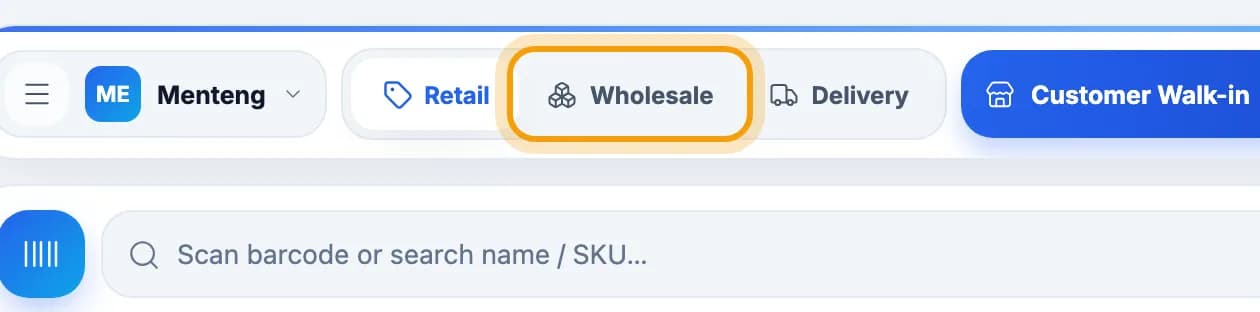
Wholesale customer? Tap Wholesale in the top bar.Tap Retail to go back to normal prices.
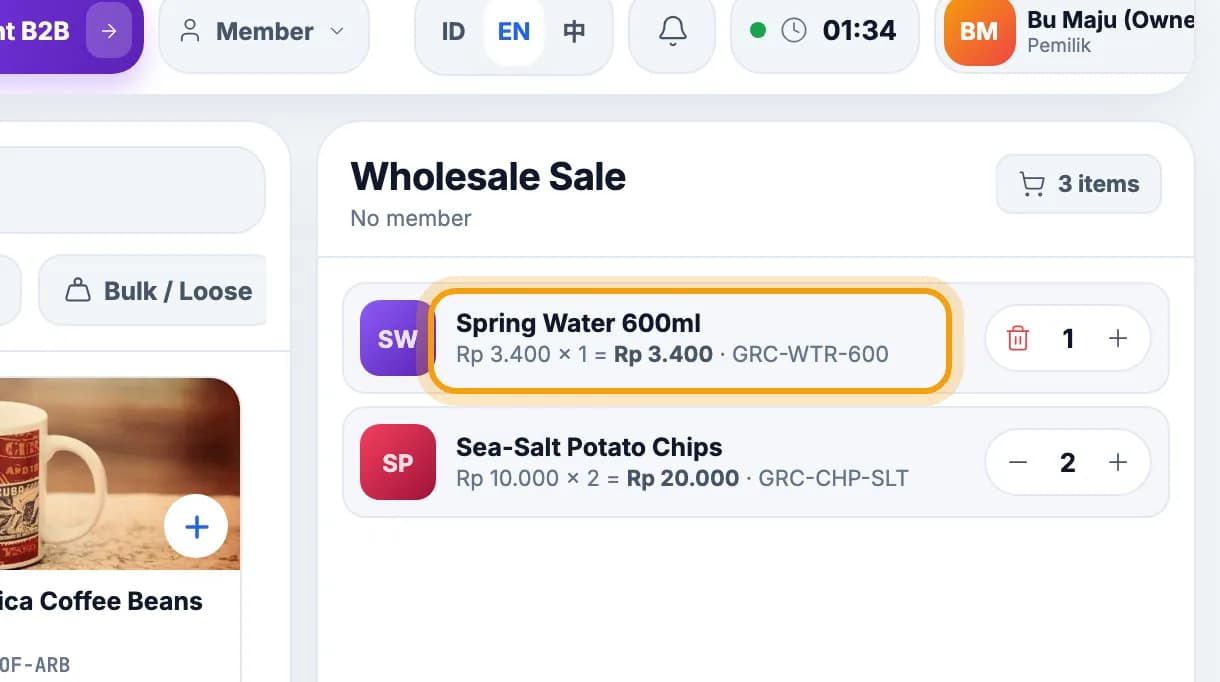
Check the prices: the cart turns into a Wholesale Sale with wholesale prices.Items without a wholesale price keep their normal price.
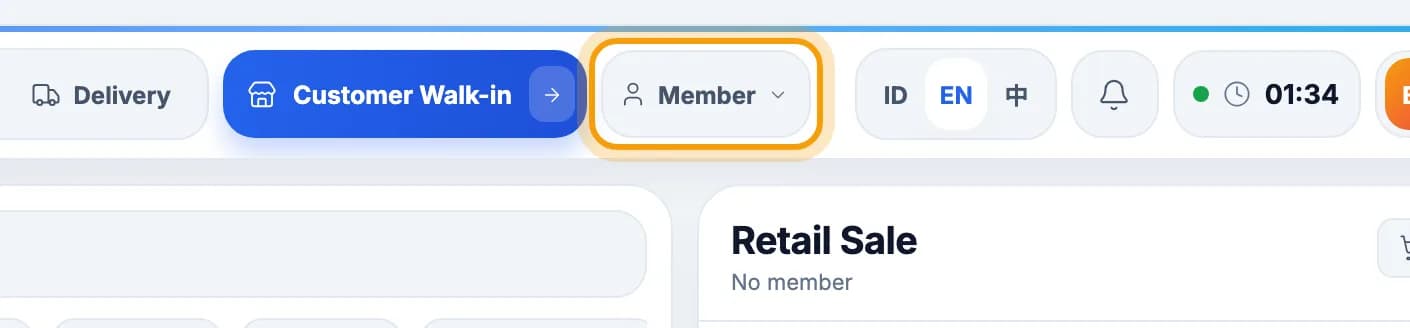
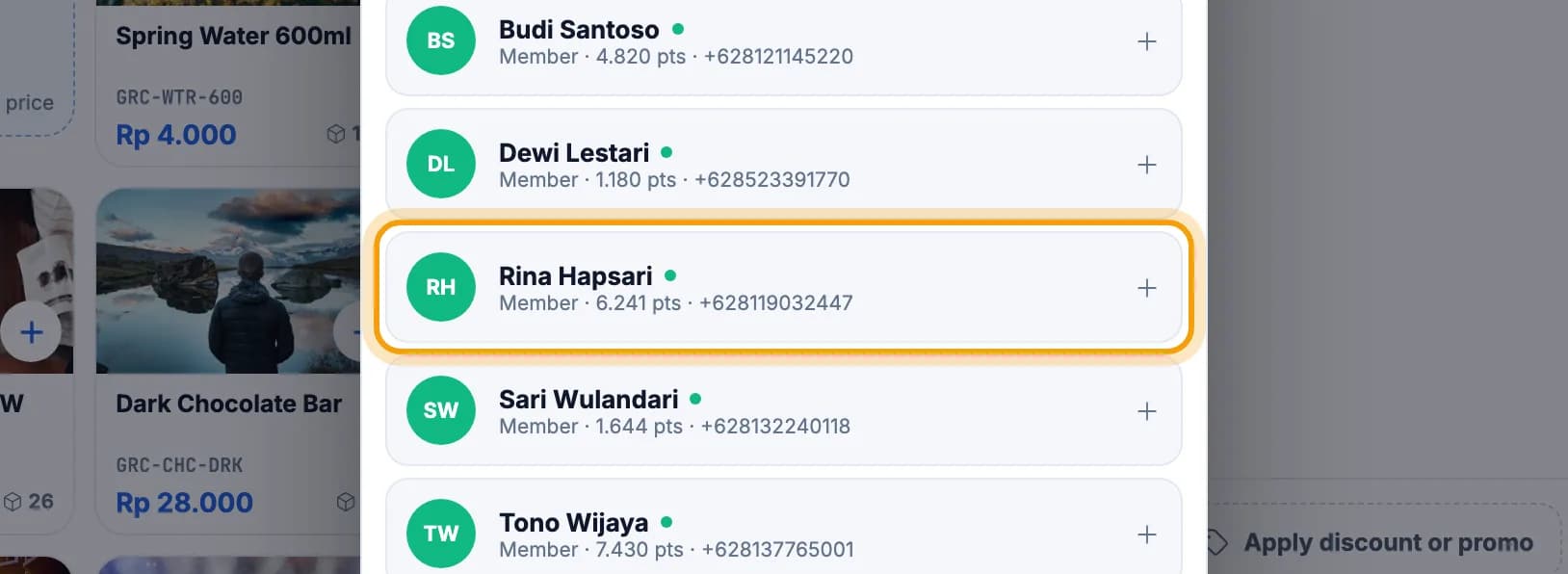
Member customer? Tap Member in the top bar.
Type a name or phone number, then tap the member's name.Not registered yet? Tap New member under the list.
Tip: The owner sets each item's wholesale price in the admin Catalog. For members and points, see Customers, promos & points.
Park a sale
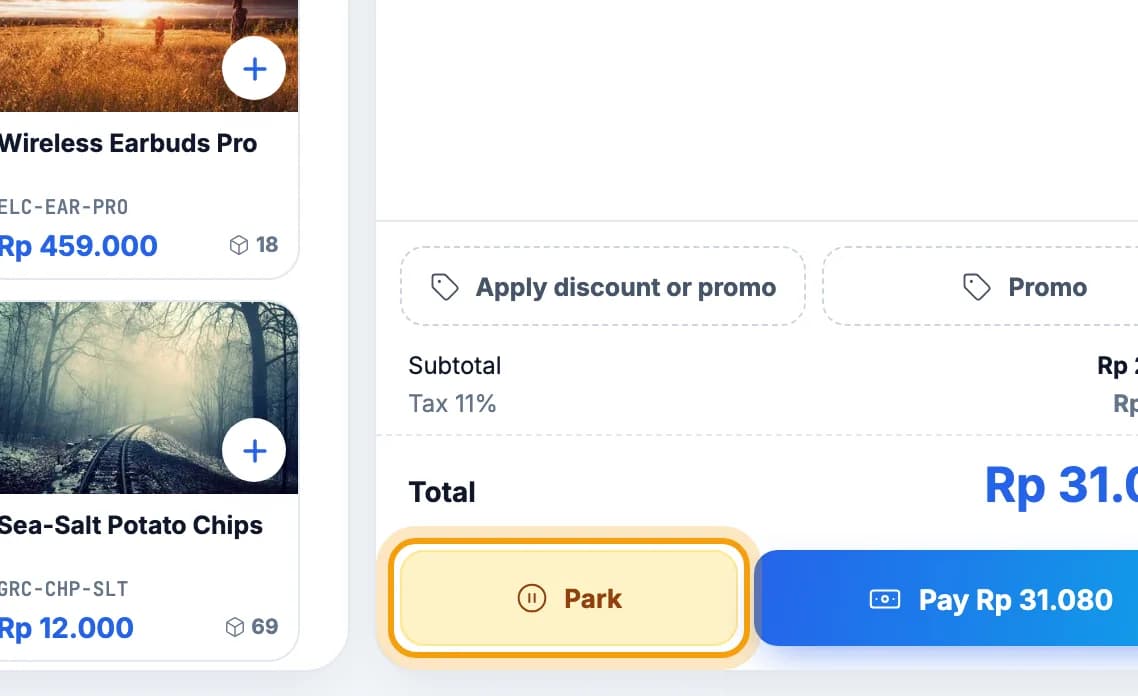
Customer still shopping? Tap Park.The cart is saved and the screen moves to Parked Sales.
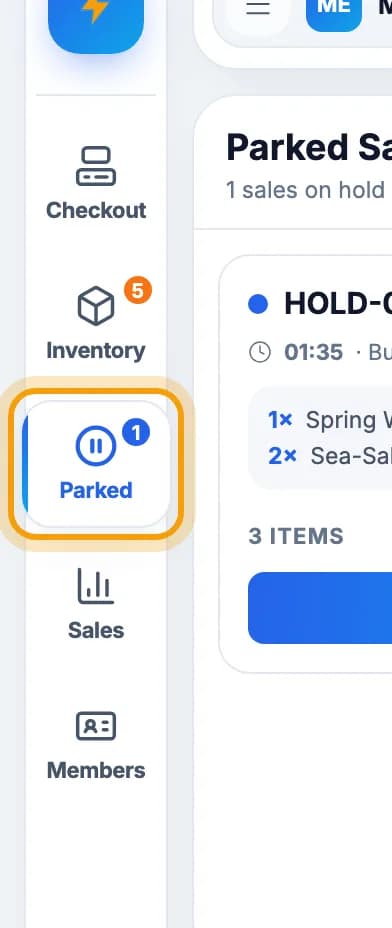
Serve the next customer. To carry on, open Parked in the left menu.The number on the icon is how many sales are parked.
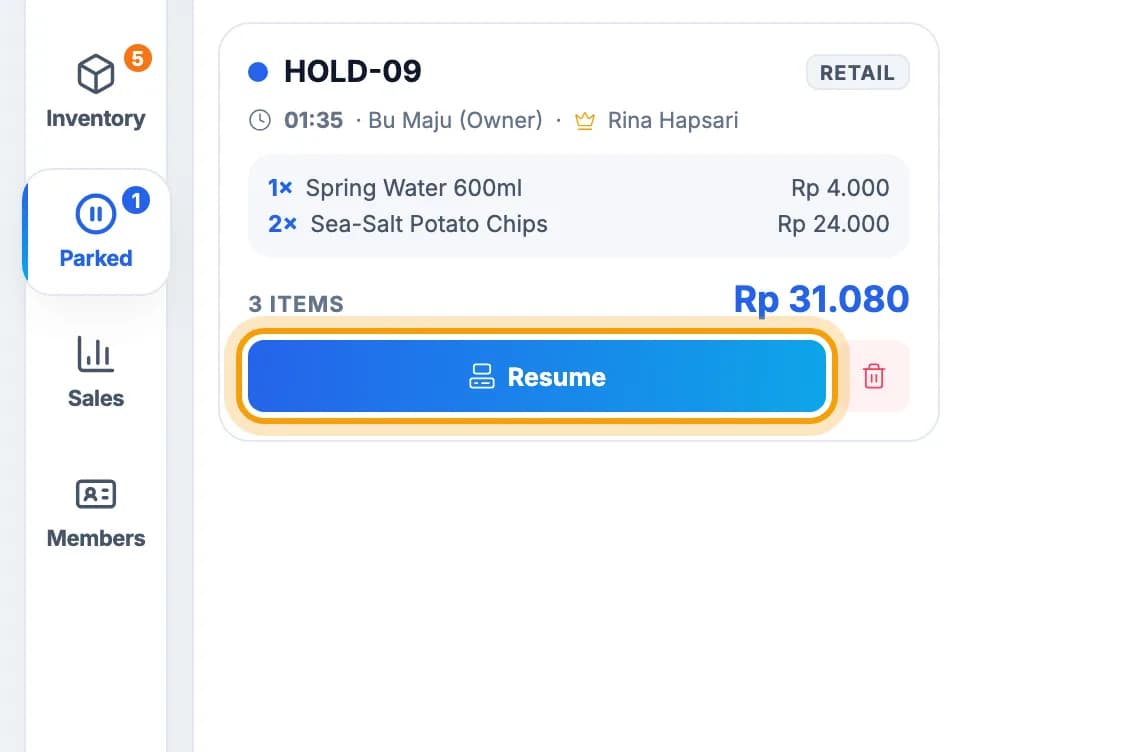
Tap Resume on that sale.
Note: Empty the cart before you resume. A parked sale can't be opened while the cart still has items. Parked sales are also kept on this tablet only.
Take payment
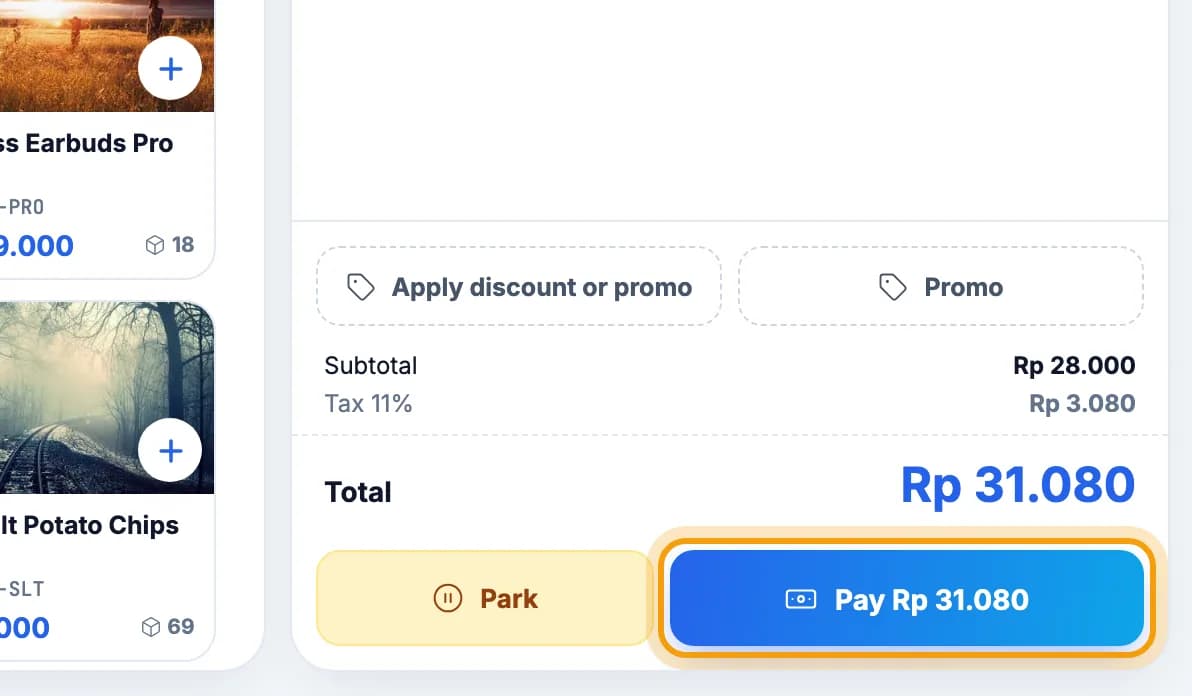
Tap Pay Rp … under the cart.
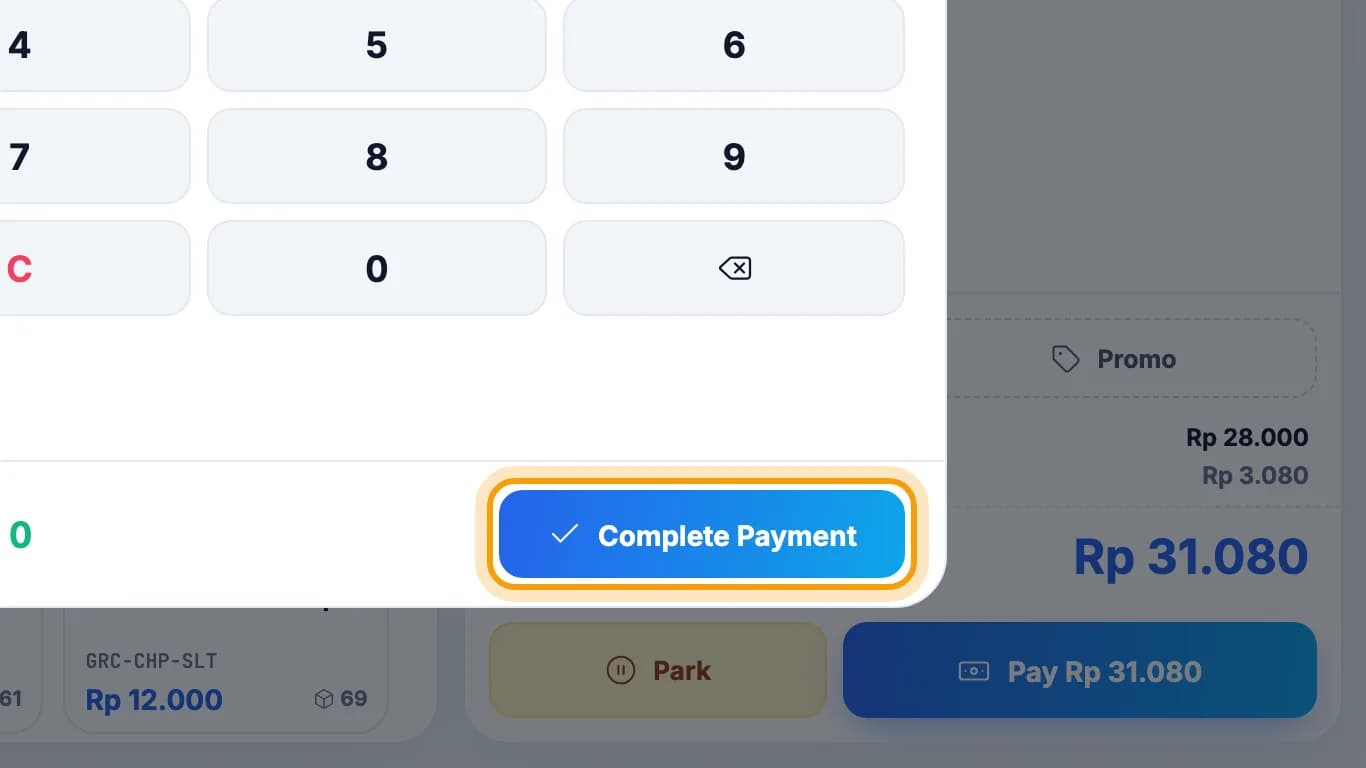
Choose Cash, tap Exact or the amount handed over, then Complete Payment.Other ways to pay are in Payments.
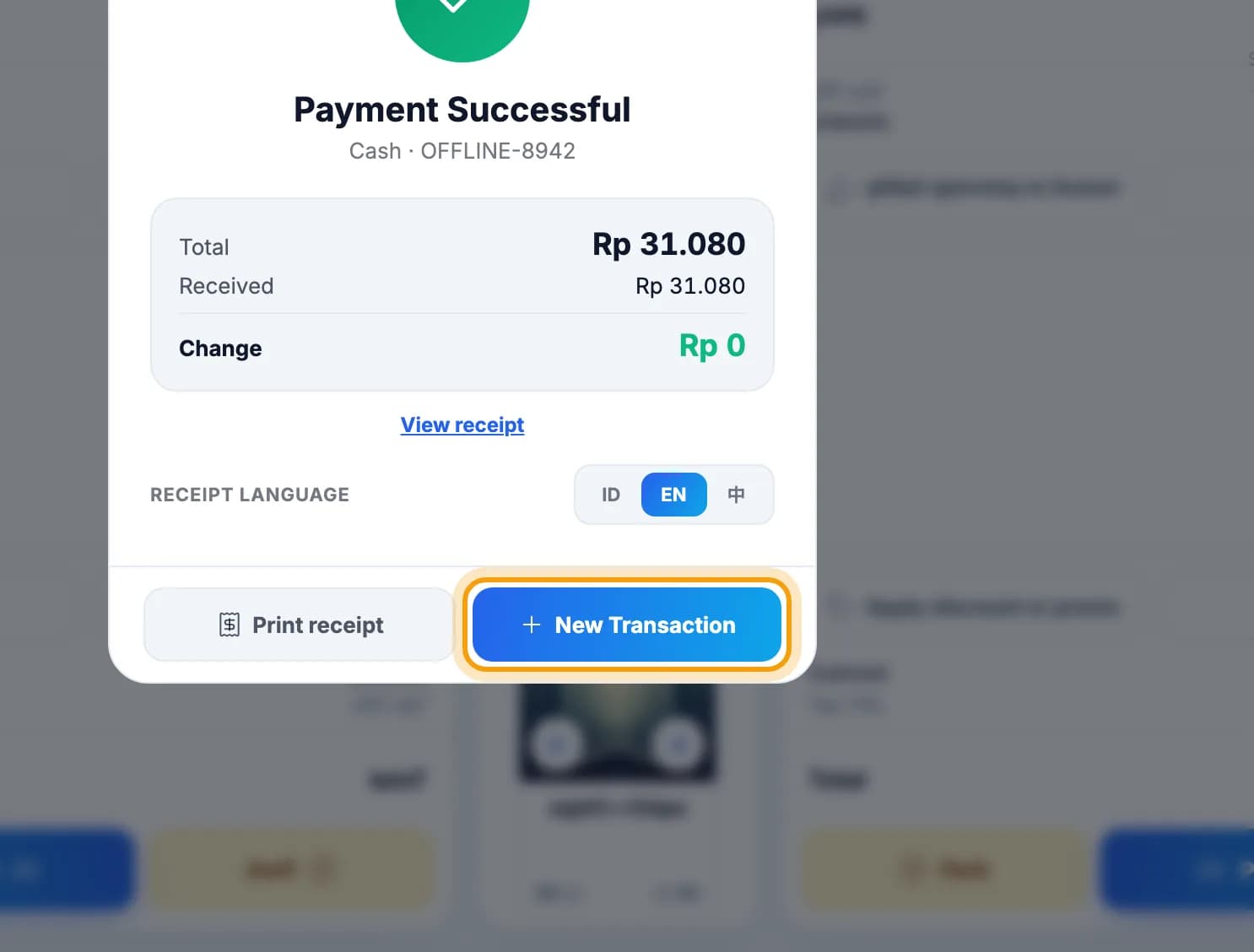
Tap Print receipt if needed, then New Transaction.
Check stock
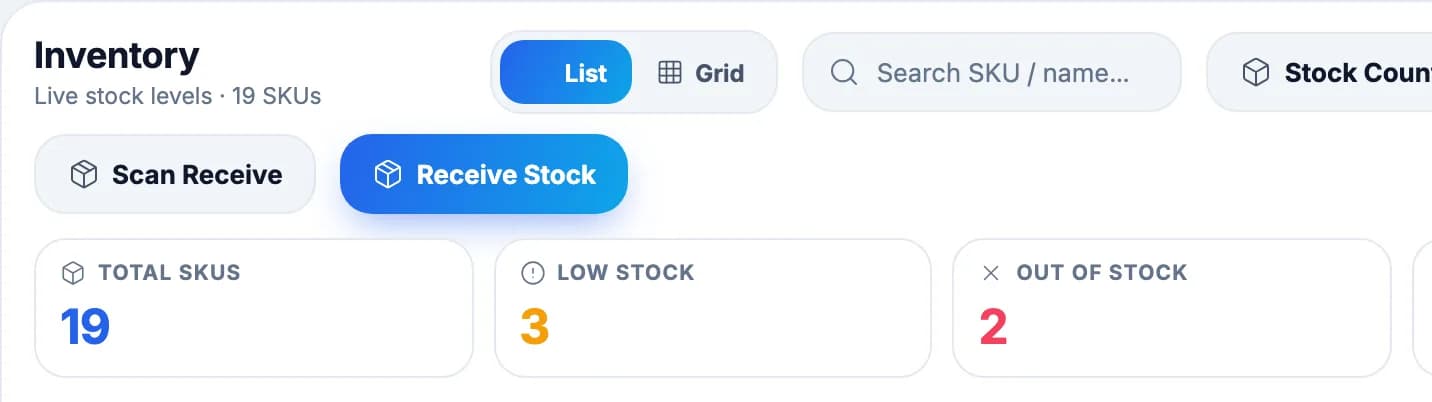
Tap Inventory in the left menu to see how many of each item you have.The Low Stock and Out of Stock cards show what to reorder. Receiving goods and stock counts: Stock & purchasing.
Done.
Bookmark this page, or send a section's link to your staff.