Menu & products
Set up categories, add items with a price and photo, add sizes and toppings, and mark what has run out. All from the Back Office in your browser.
Create a category
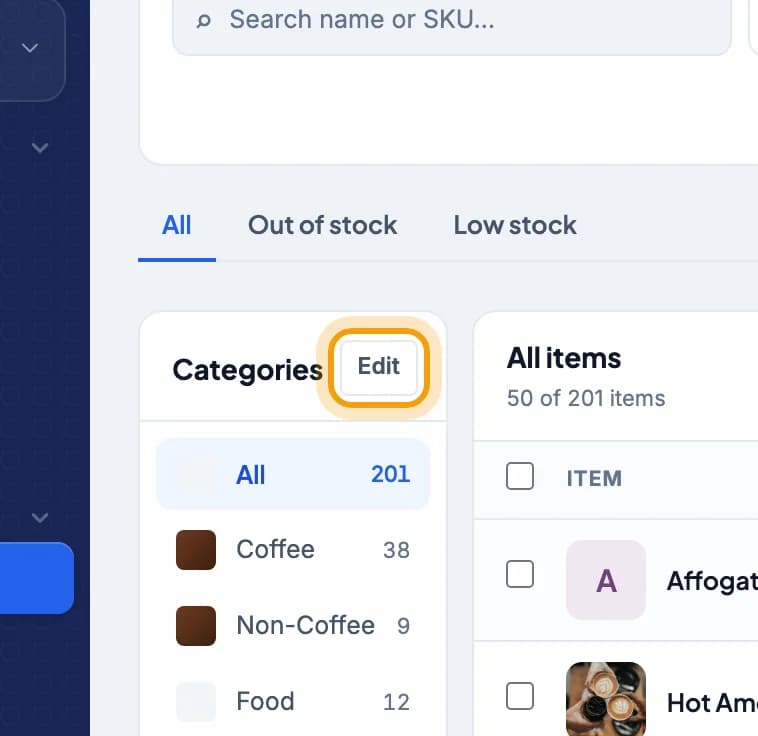
Open Catalog, then tap Edit in the Categories column.Catalog is in the left menu, under Catalog & Pricing.
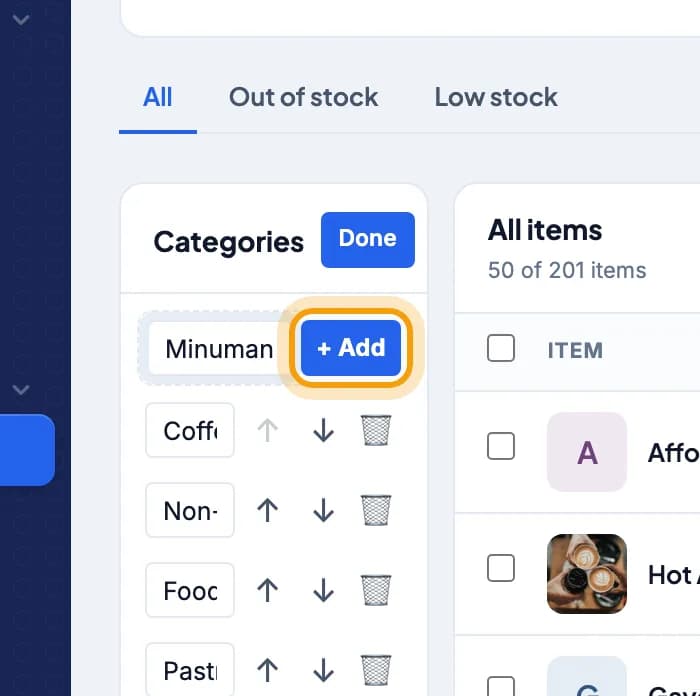
Type the category name, for example Minuman Dingin, then tap + Add.The up and down arrows set the order on the till. Tap Done when you finish.
Add an item
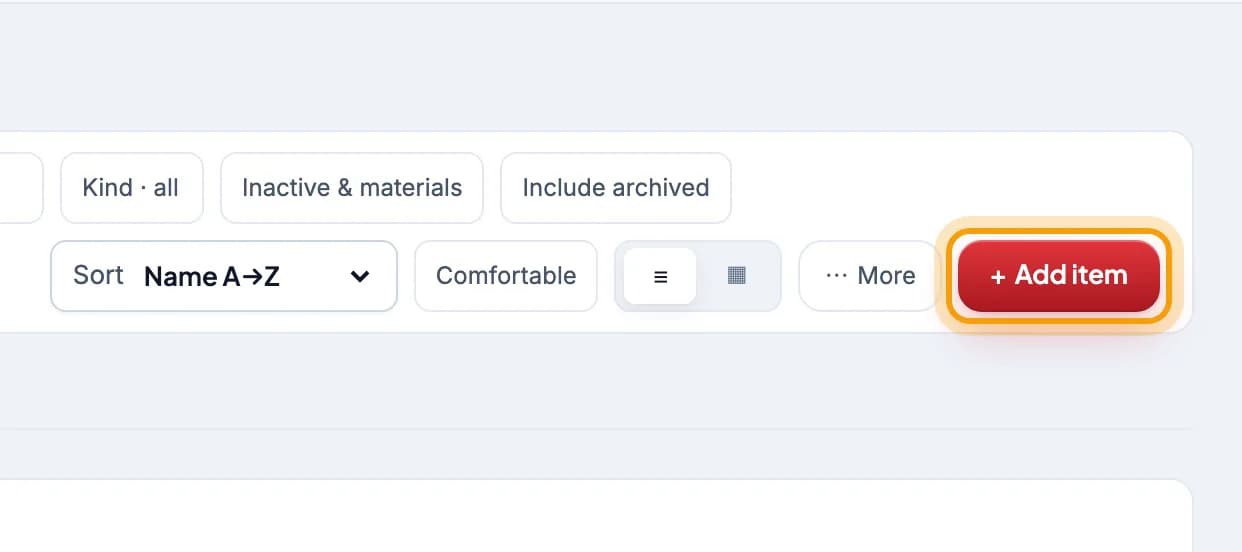
Tap + Add item.
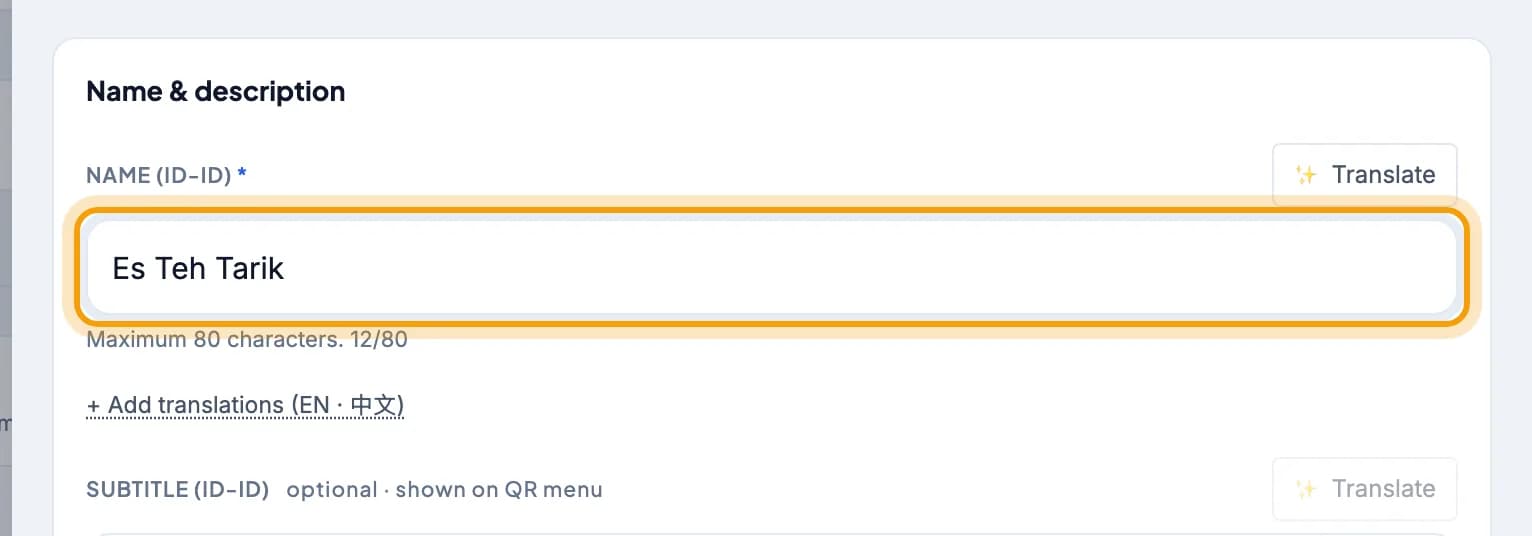
Type the item name in Name (id-ID).Tap + Add translations (EN · 中文) if your QR menu also needs an English or Chinese name.
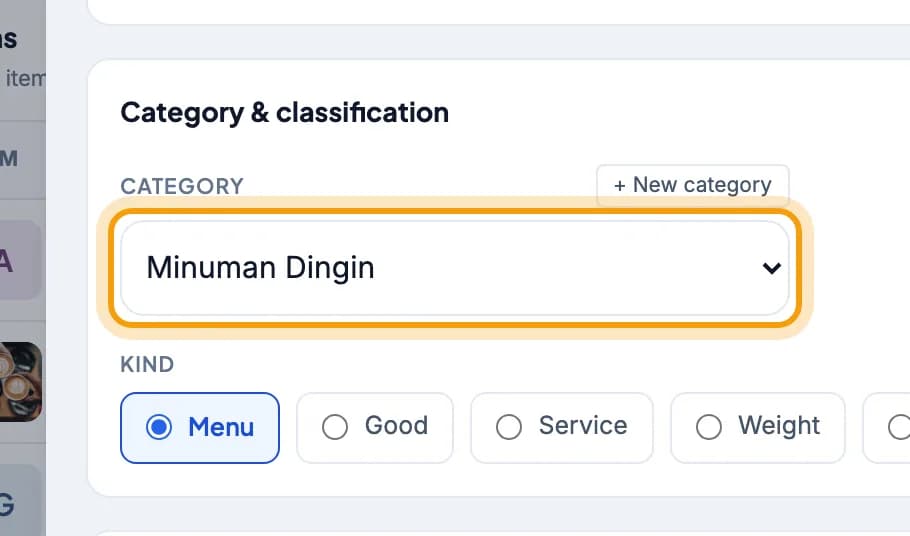
Pick the Category.Category missing? Tap + New category above this field.
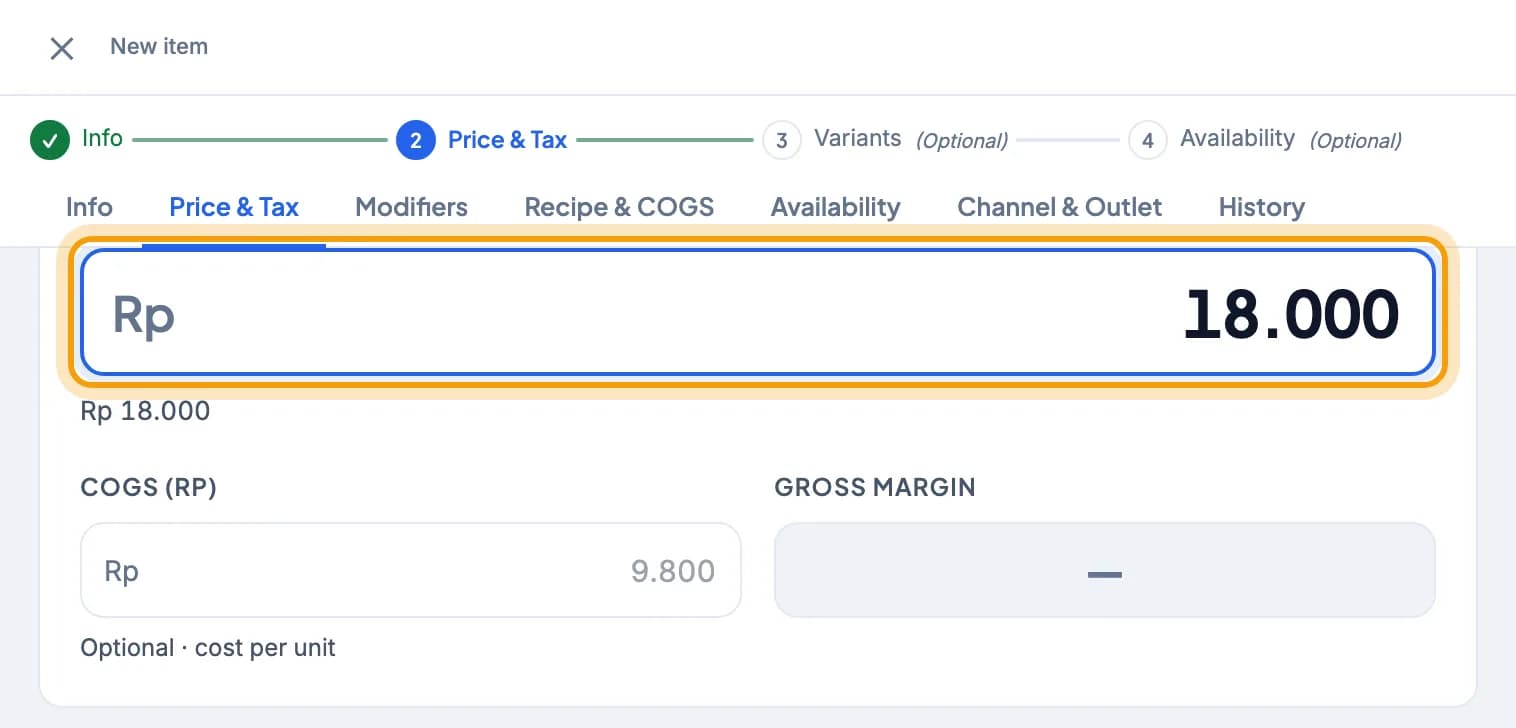
Open the Price & Tax tab and fill in the Price.Type digits only, no dots. PPN and PB1 are set on the same tab.
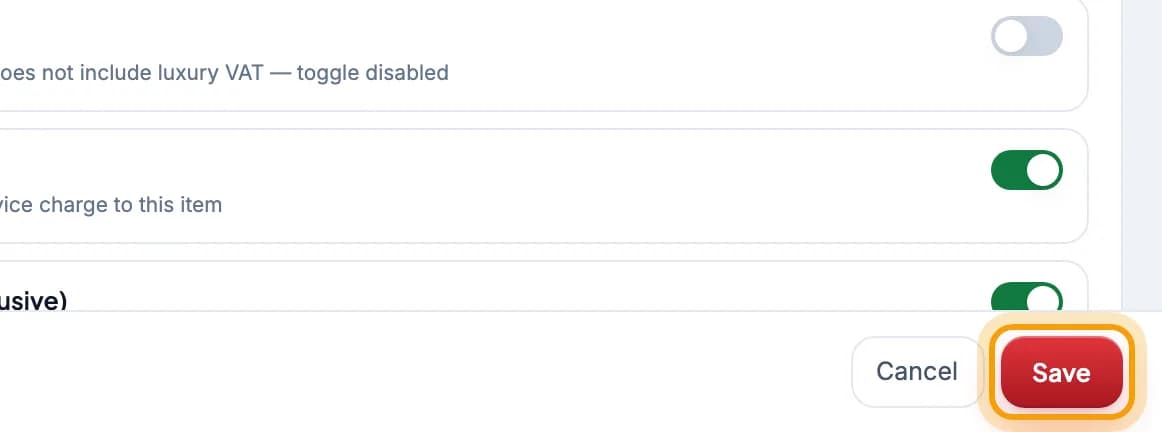
Tap Save.The item shows up on the till right away.
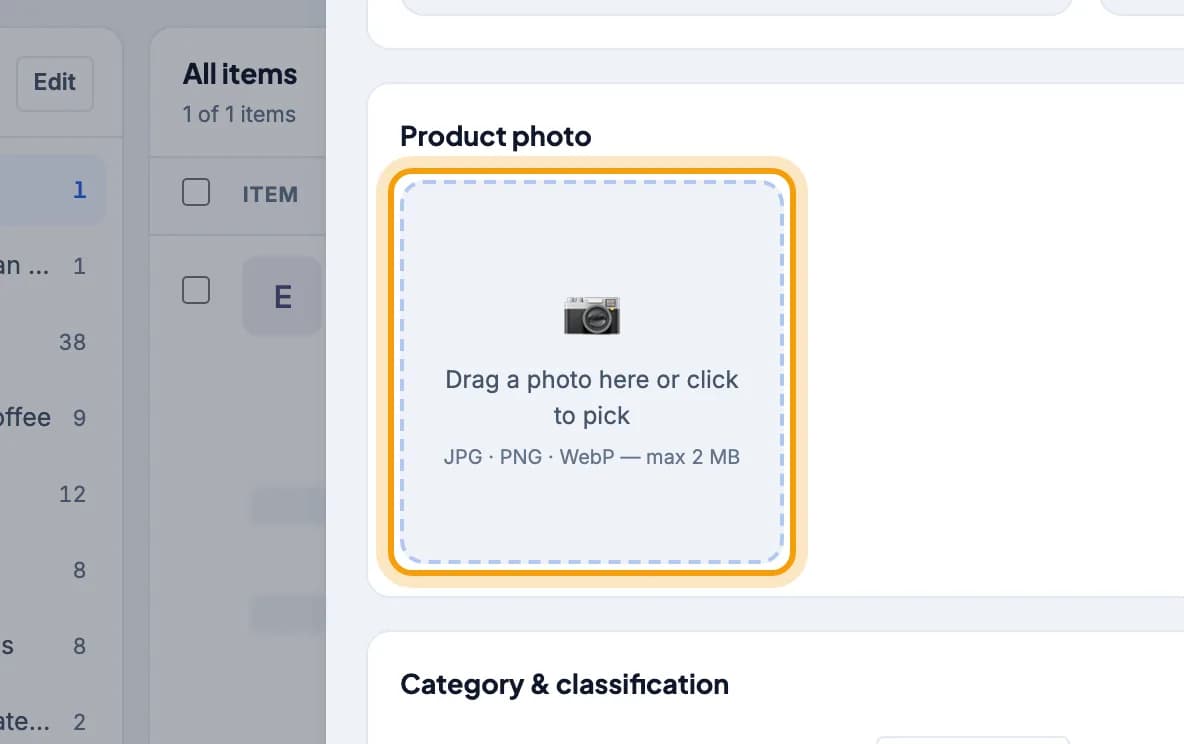
Want a photo? Tap the item in the list, then tap the Product photo box.You can upload a photo once the item is saved. JPG, PNG or WebP, up to 2 MB.
Tip: Prefer the tablet? Owners and managers can add and edit items from Manage Menu in the side menu of the cashier app.
Sizes & toppings
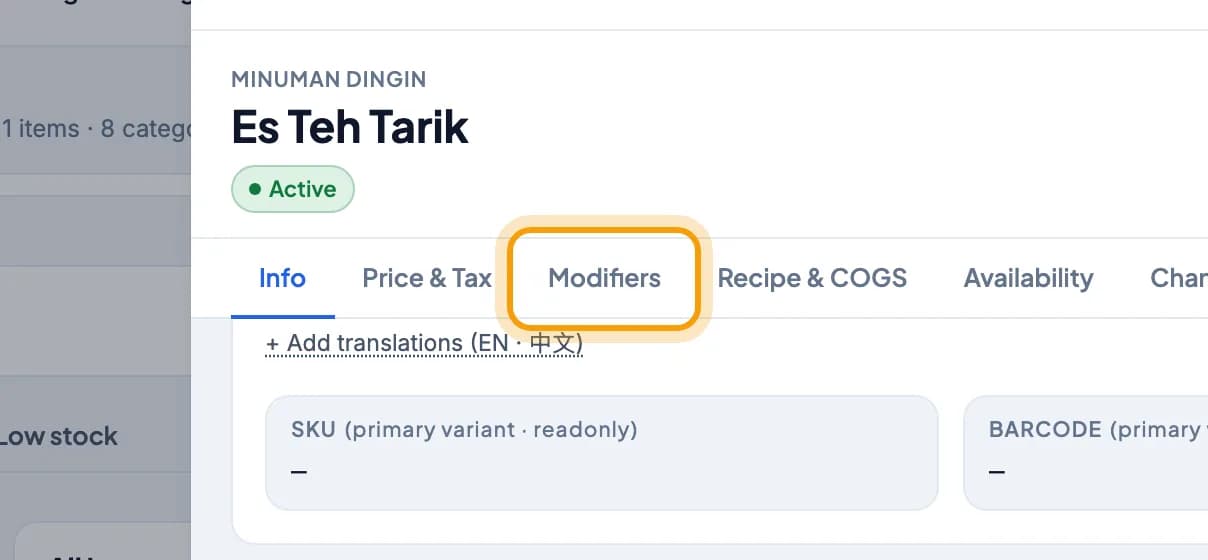
Open the item, then tap the Modifiers tab.
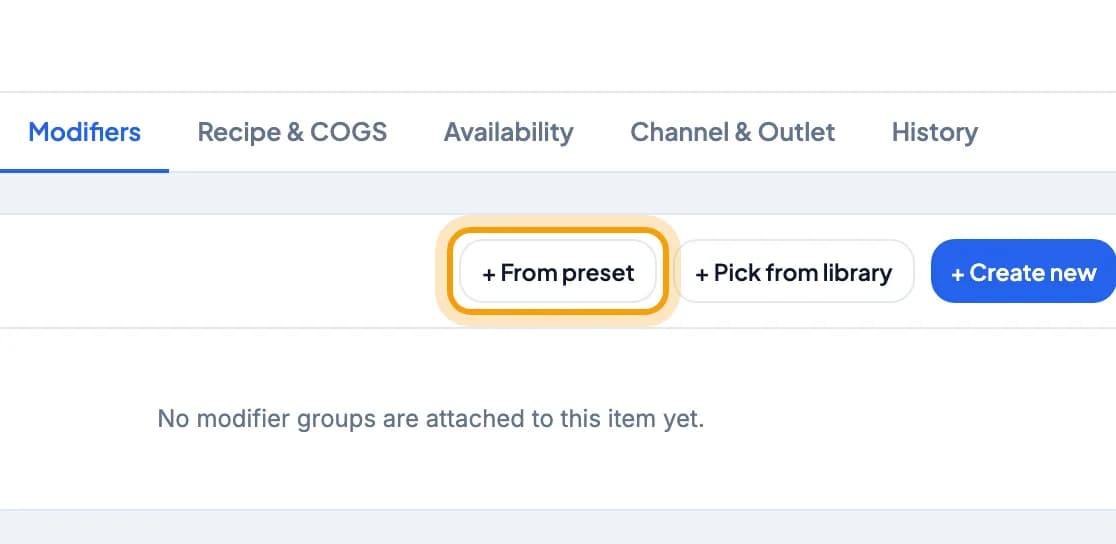
Tap + From preset.Want your own options? Tap + Create new.
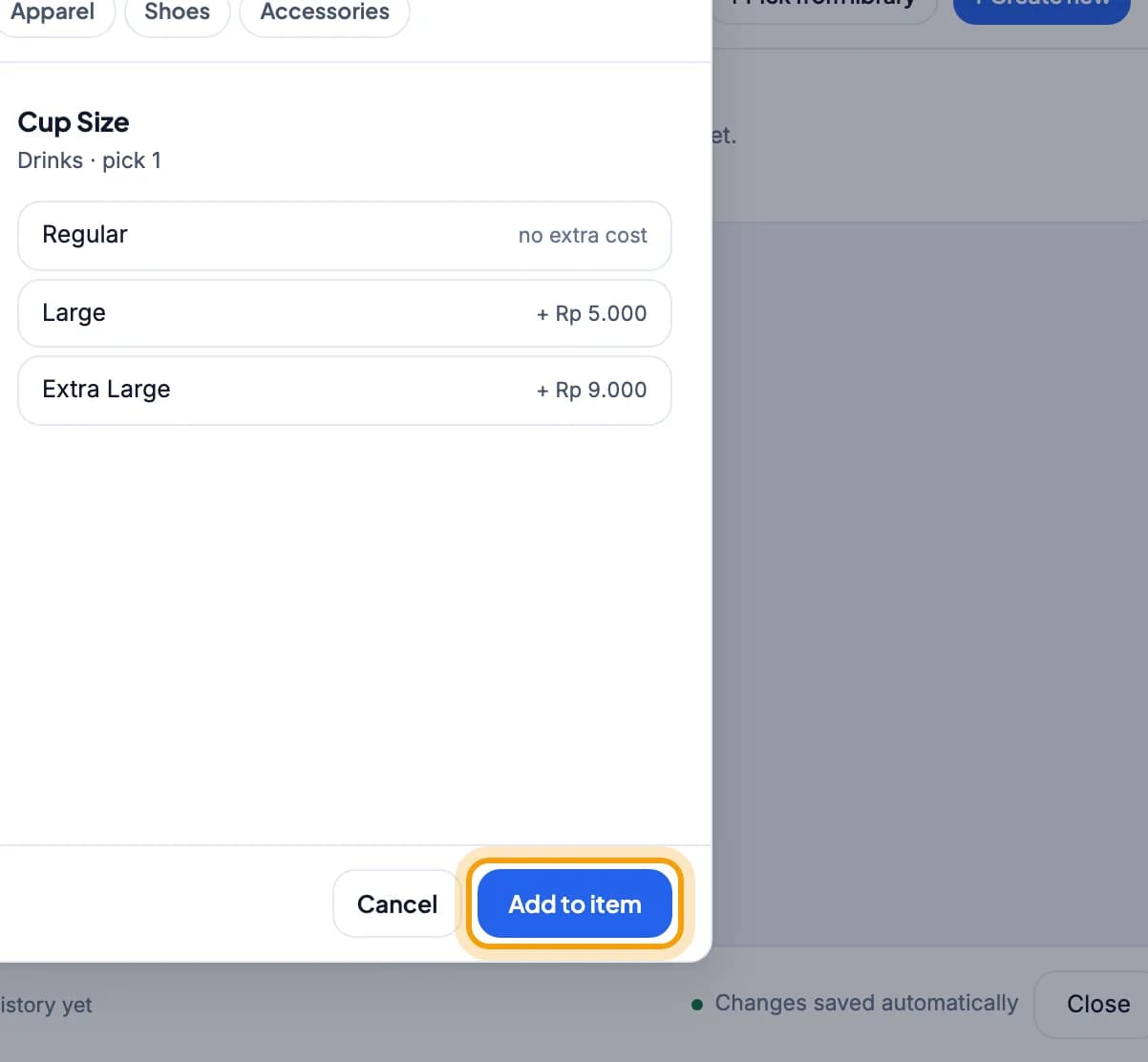
Pick a preset, for example Cup Size, then tap Add to item.A required preset must be chosen by the cashier before the order goes in. You can change the extra prices later.
Tip: Changes on the Modifiers tab save immediately. No need to tap Save.
Sold out or hidden items
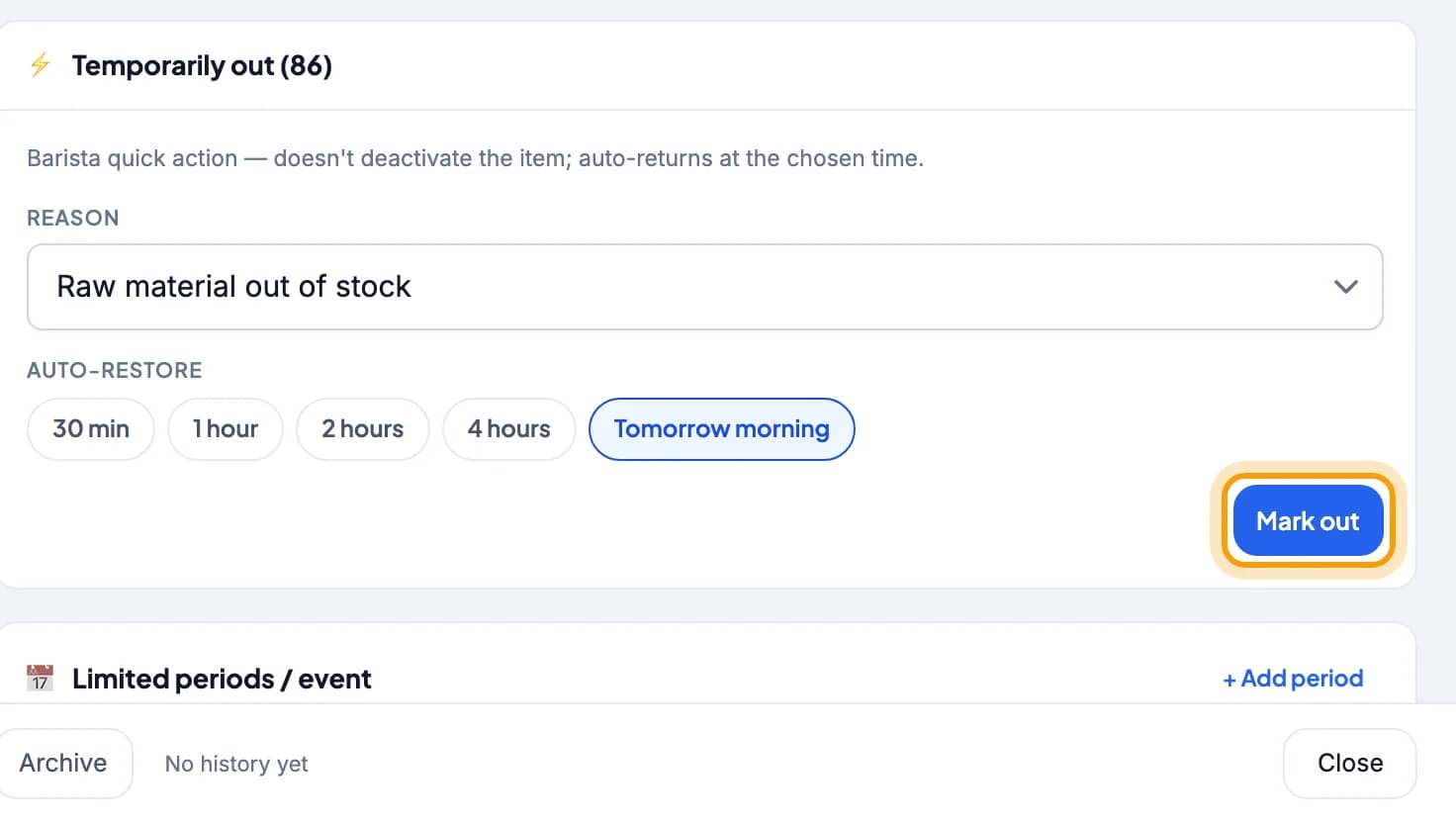
On the Availability tab, choose when the item comes back, then tap Mark out.The item disappears from the till and the QR menu, then comes back on its own at the time you chose.
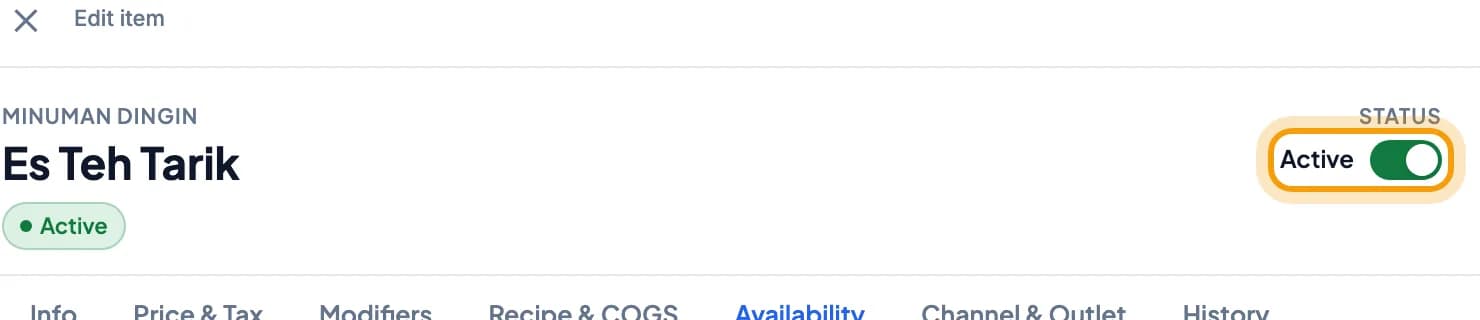
Stopped selling it for good? Switch off Active in the top-right corner.The item leaves the till but its data stays. Switch it back on any time.
Move from another POS app
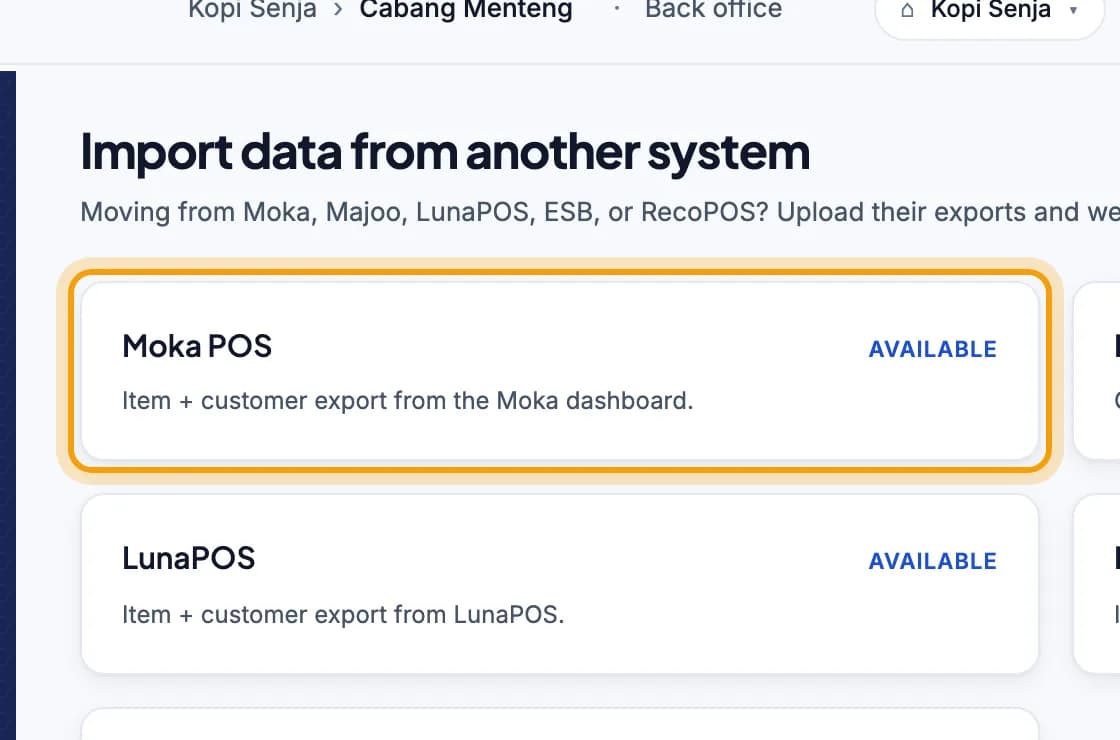
Open Import data in the left menu, then tap your old app, for example Moka POS.Moka POS, Majoo, LunaPOS, ESB and RecoPOS are supported.
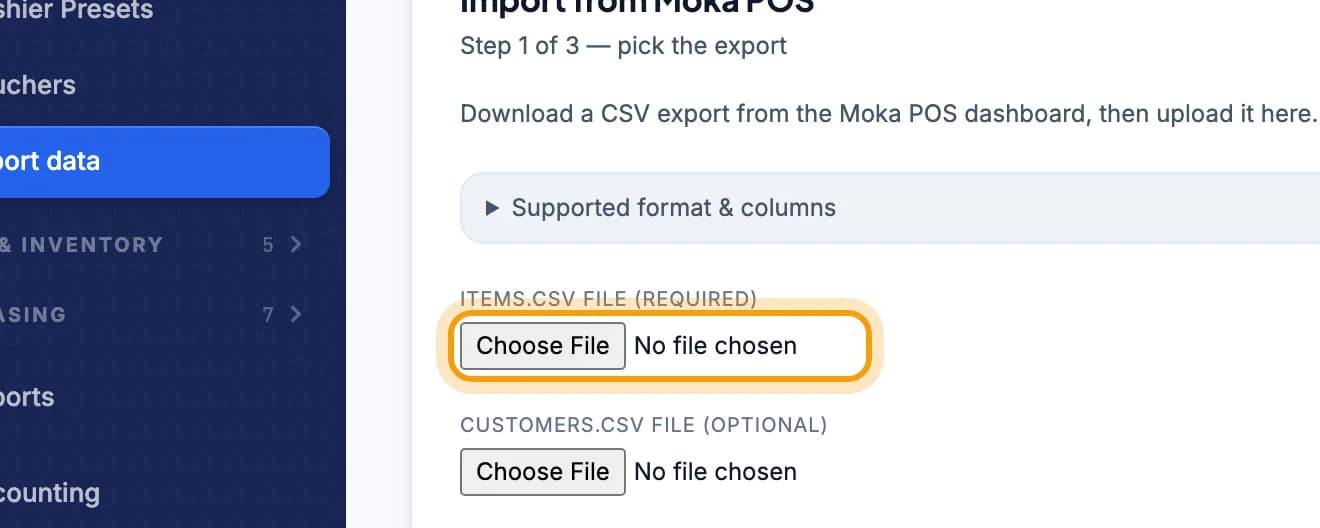
Choose the export file from your old app, then tap Continue to preview.Tick I have downloaded the export from Moka POS. first. Check the preview, then tap Confirm import.
Tip: Menu in a spreadsheet? In Catalog, tap ⋯ More then Import CSV.
Done.
Bookmark this page, or send a section's link to your staff.