Stock & purchasing
Watch for stock running low, order from your supplier, receive the goods, then recount your stock. All from the Back Office in your browser.
Check stock & low-stock limits
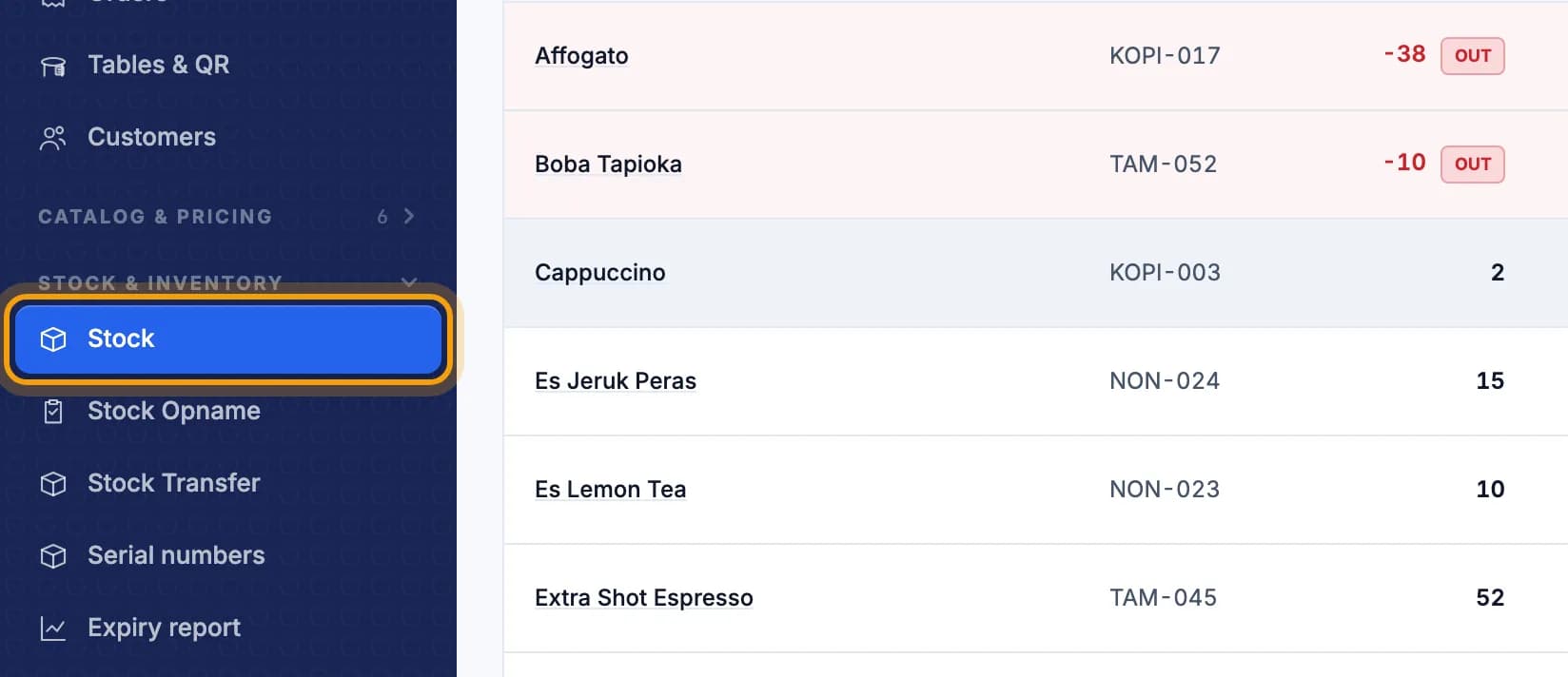
Open Stock & Inventory, then tap Stock.A red number marked OUT means the stock is zero or below.
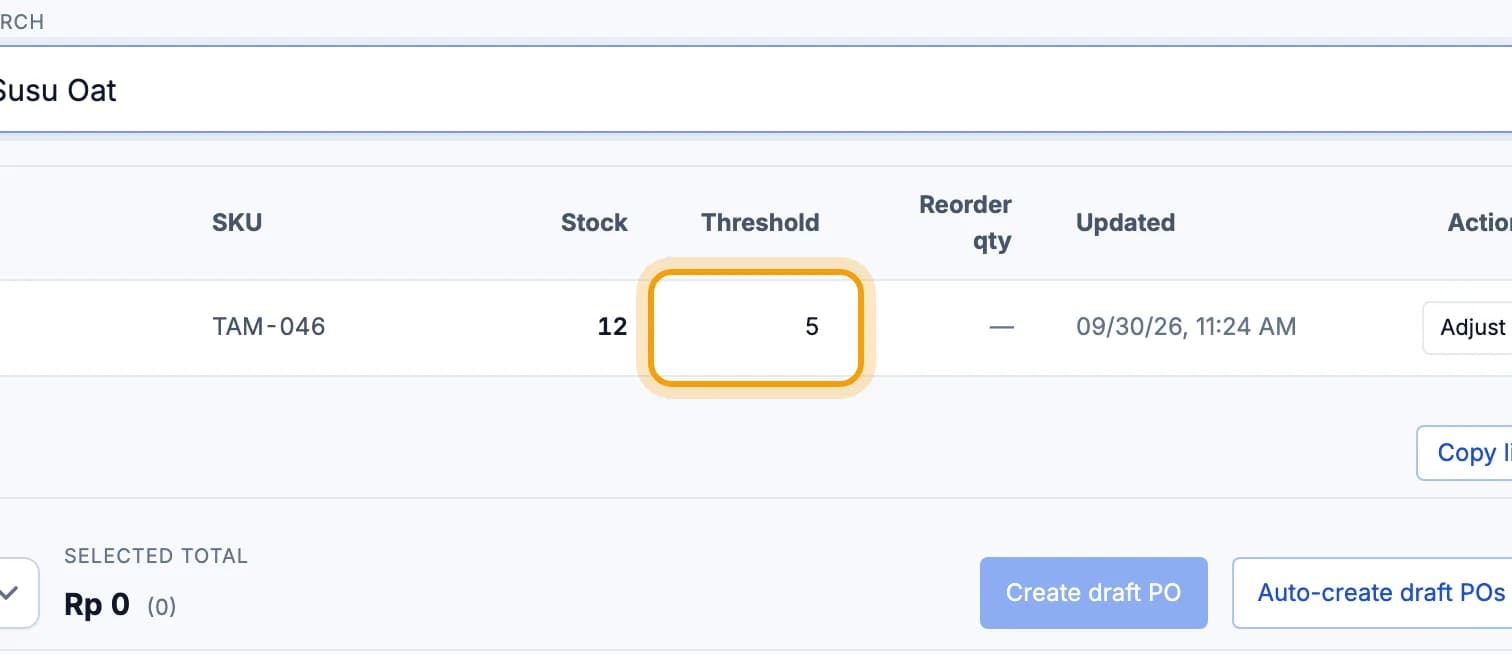
Tap the number in the Threshold column to set when stock counts as low.Example: enter 5 and the item counts as low at 5 or fewer.
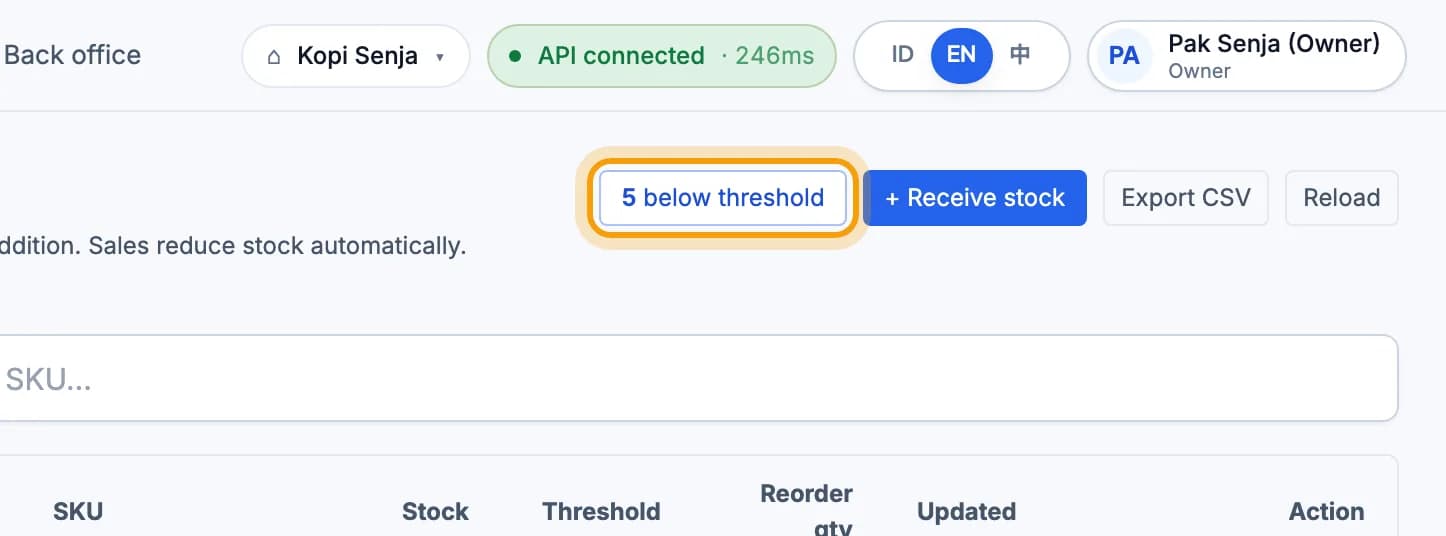
Tap the … below threshold button to see what needs ordering.The number is how many items are low. The button only shows when there are some.
Tip: Only items with Track stock switched on show here. Turn it on in the item's Info tab, see Add an item.
Order from a supplier (PO)
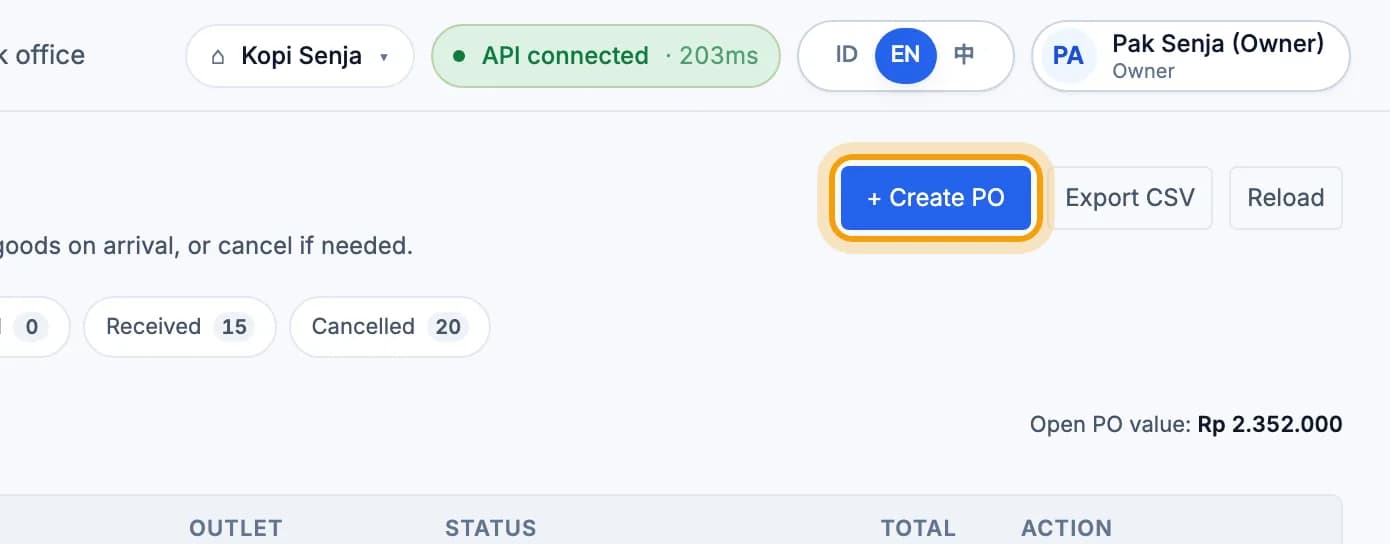
Open Purchasing › Purchase orders, then tap + Create PO.
Pick the Outlet and the Supplier.Supplier not listed? Add it first under Purchasing › Suppliers › + New supplier.
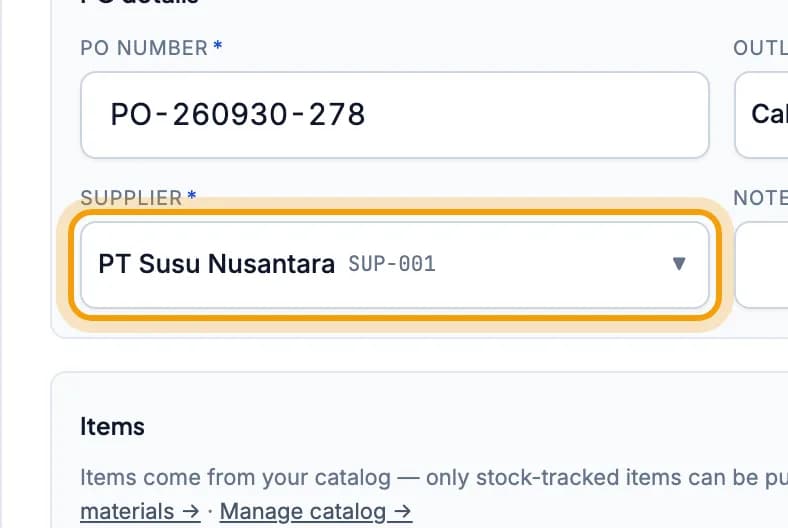
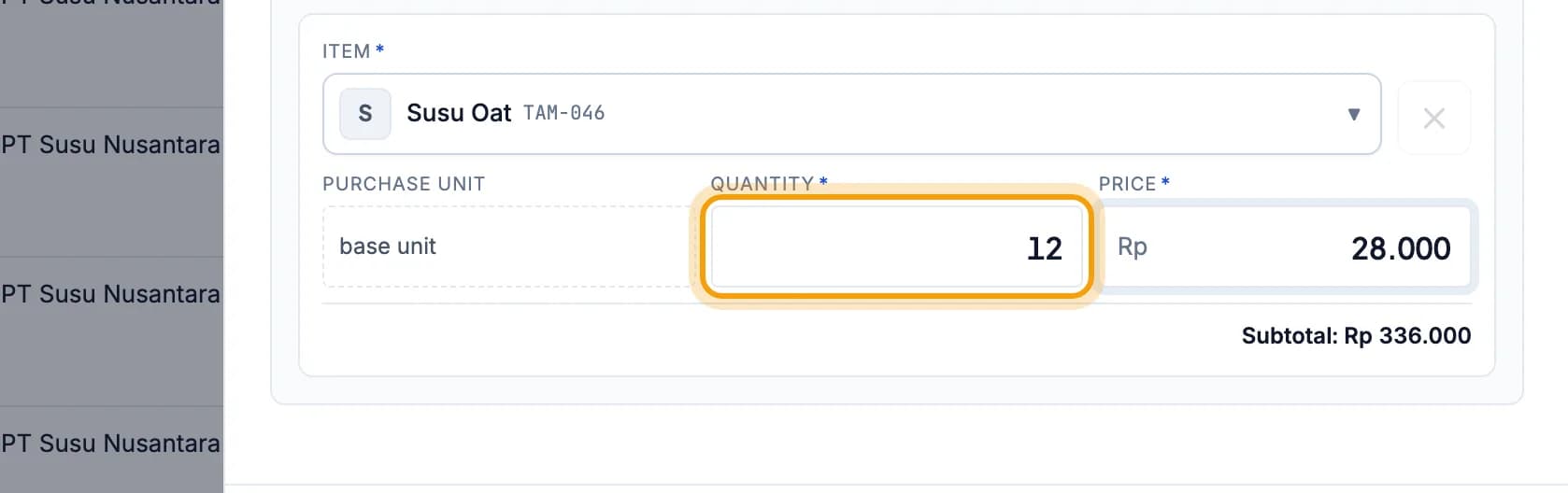
Search for the goods, then fill in the Quantity and the unit Price.Need more goods? Search again and a new row is added.
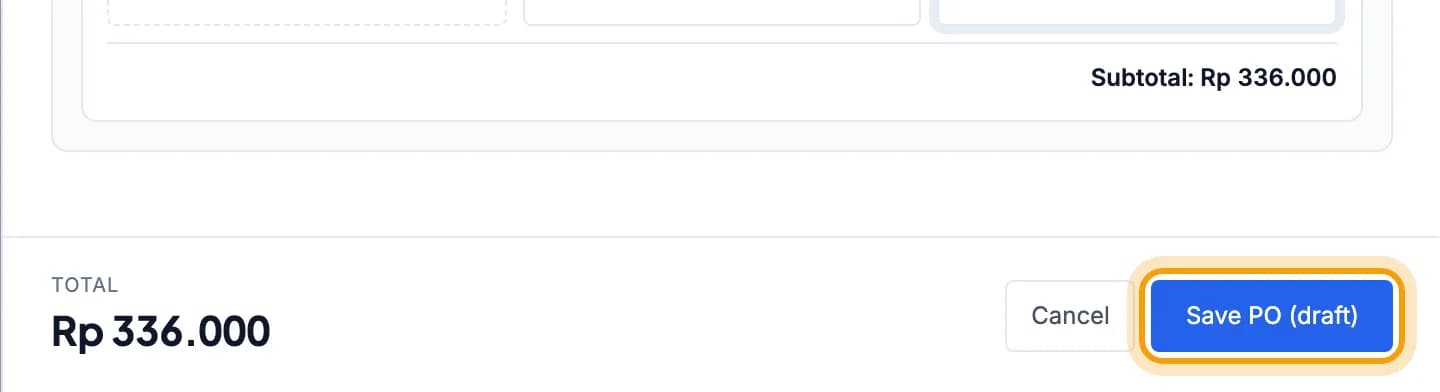
Tap Save PO (draft).
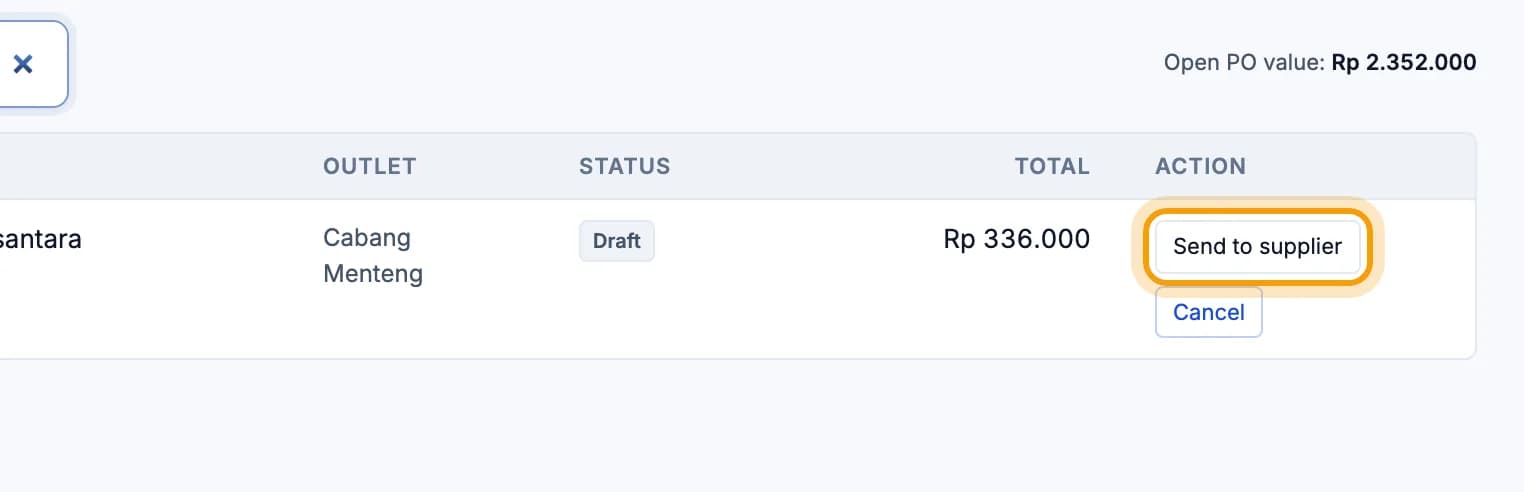
Placed the order? Tap Mark as sent on that PO's row.This only changes the PO status. You still send the order yourself by WhatsApp or phone.
Receive goods
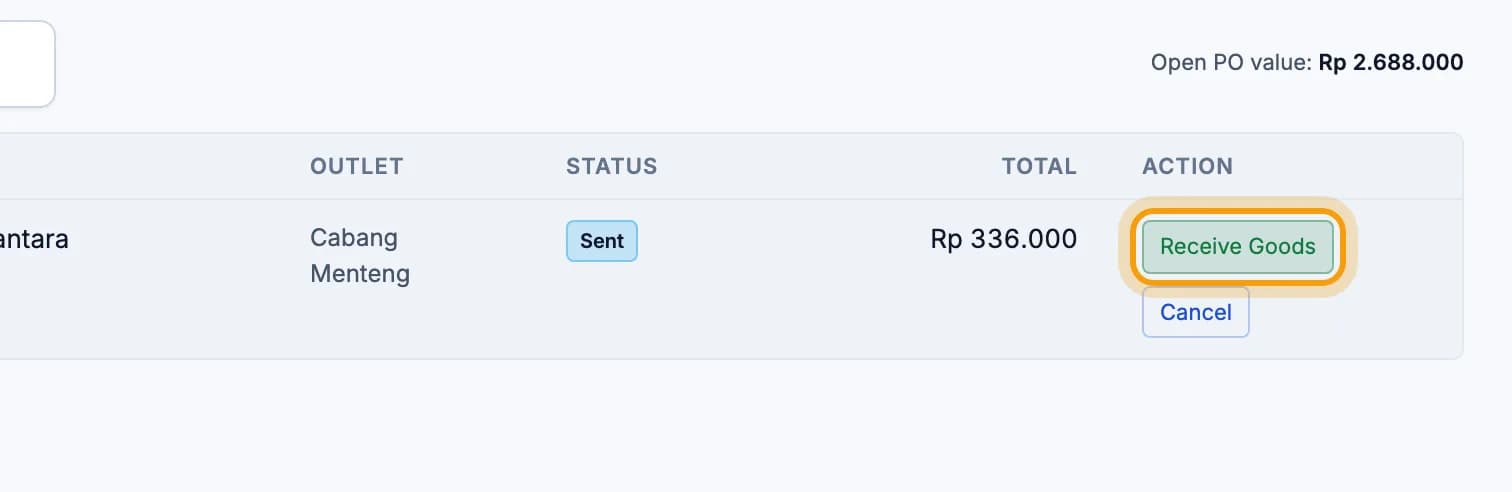
Goods arrived? Tap Receive Goods on the PO's row.
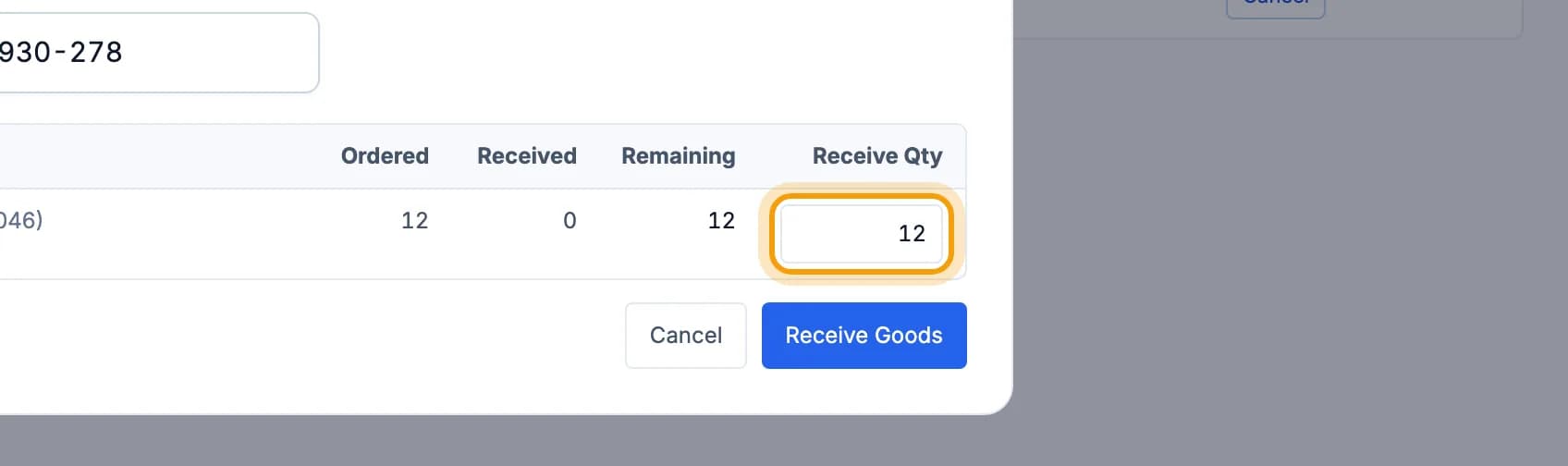
Check Receive Qty against what arrived, then tap Receive Goods.Only part arrived? Enter what came. The rest can be received later.
Tip: Bought without a PO? On the Stock page, tap + Receive stock and record the goods directly.
Stock count (stock opname)
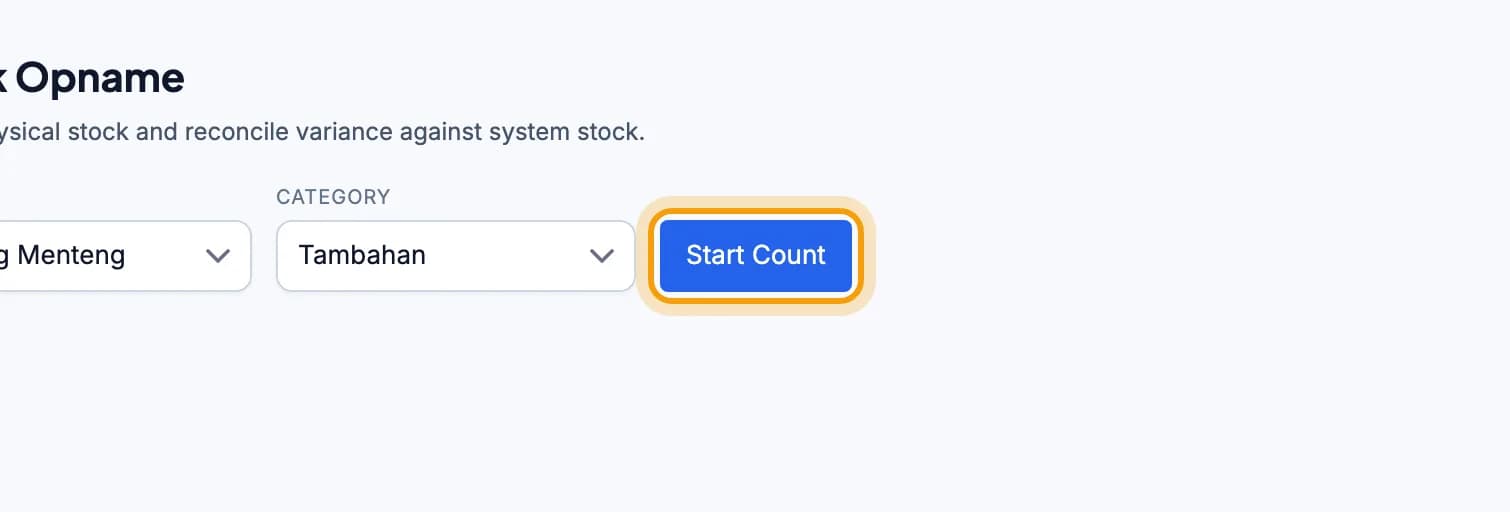
Open Stock Opname, pick a category, then tap Start Count.One category at a time keeps the list short and quick to count.
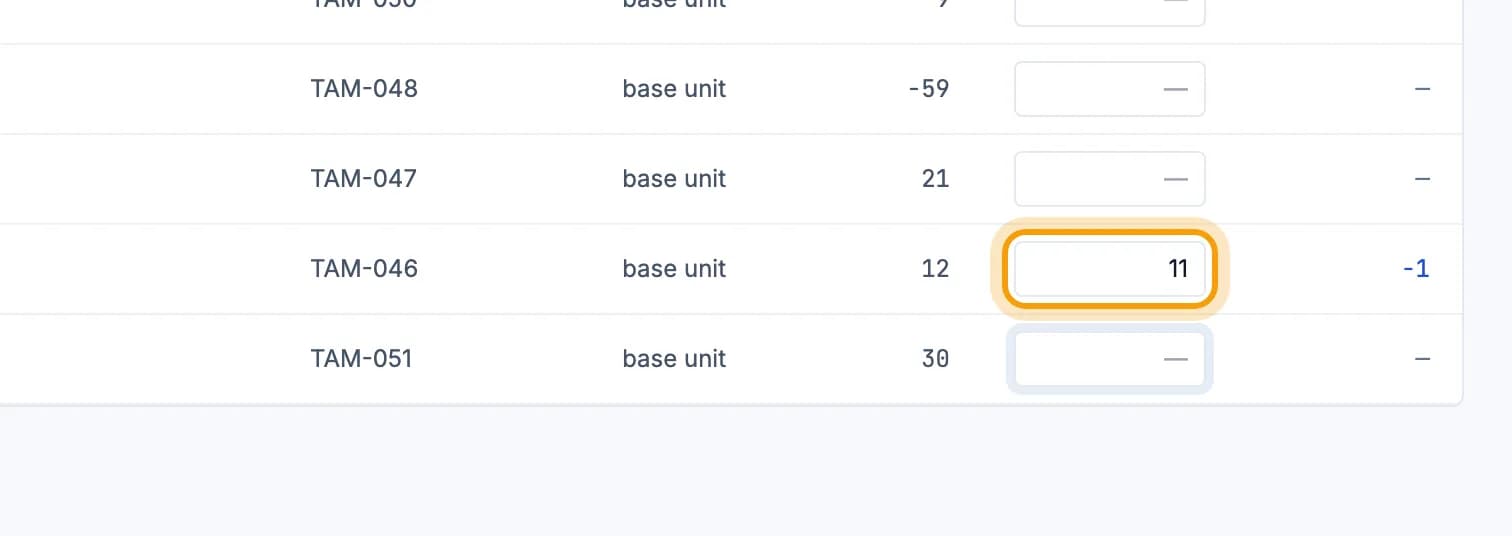
Count the goods, then enter the real number in the Counted column.The Variance column shows the difference from the system stock right away.
Tap Finalize, then confirm.
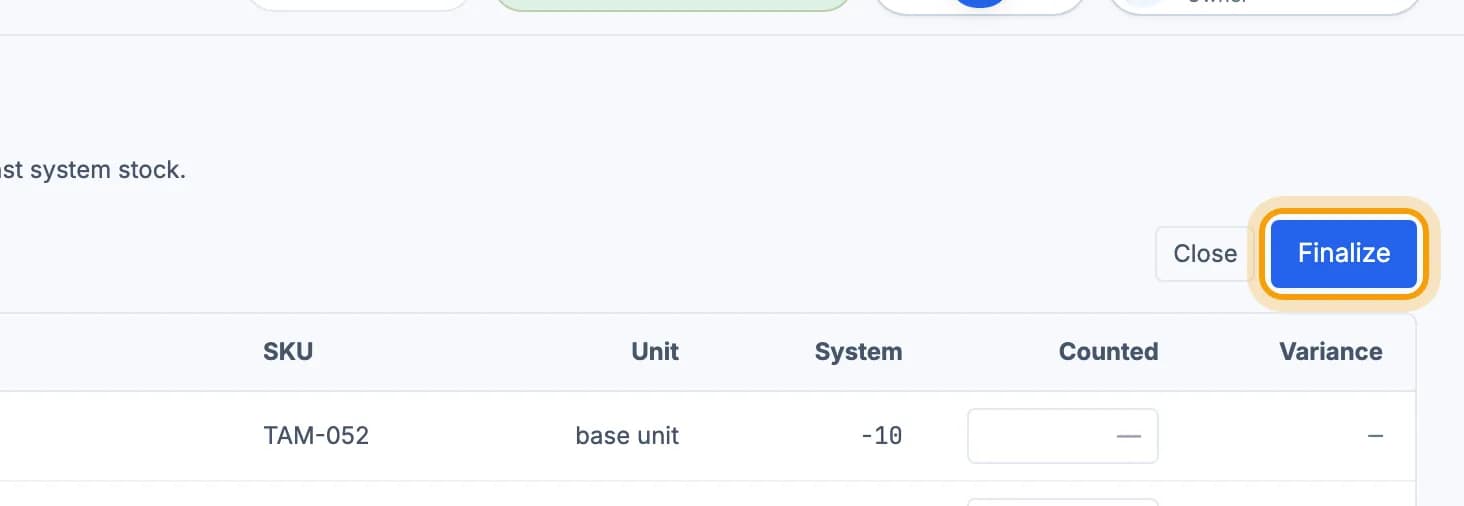
Note: Finalizing cannot be undone. Differences are posted as stock corrections. Rows left empty are skipped.
Tip: More than one outlet? Move stock between outlets with Stock Transfer. On the cashier tablet, Manage Stock can also receive goods and count stock.
Recipes: ingredients go down by themselves
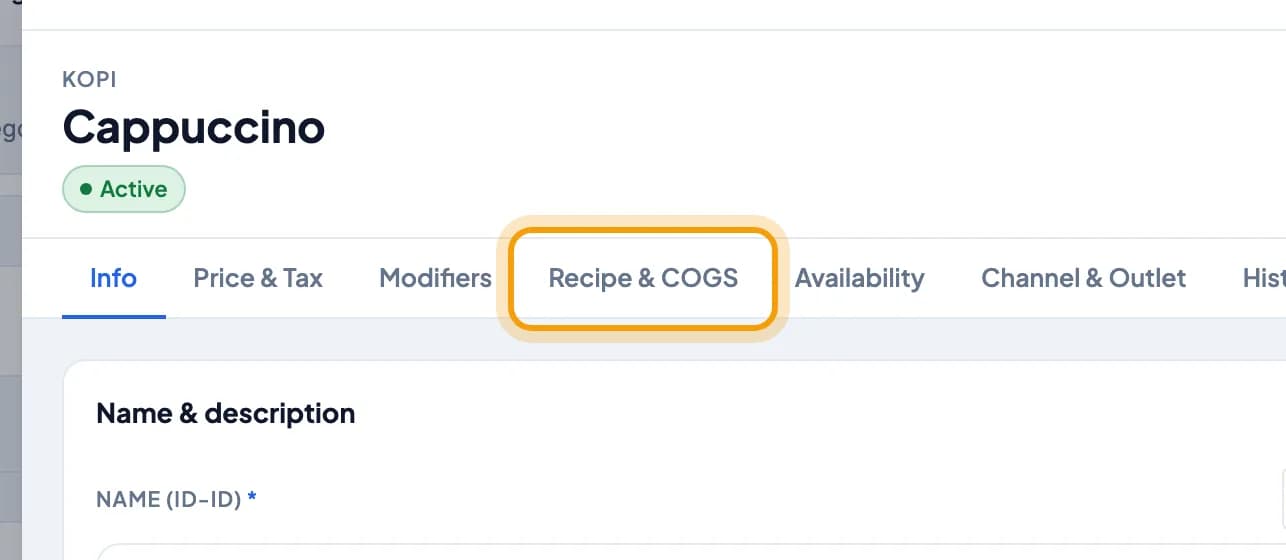
Open the item in Catalog, then tap the Recipe & COGS tab.
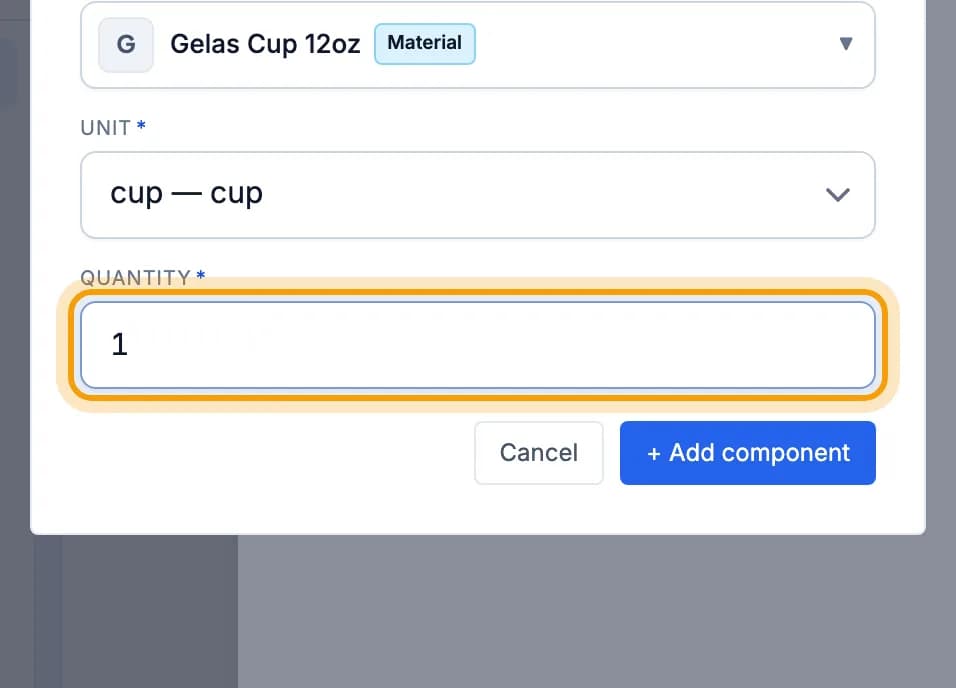
Tap + Add component, pick the ingredient and unit, then enter the Quantity per serving.Tap + Add component to save. Every time the item sells, the ingredient stock goes down and COGS is worked out for you.
Done.
Bookmark this page, or send a section's link to your staff.