QR self-order
Put a QR code on each table. Guests order from their own phone, the order goes straight to the till, and they pay at the counter.
Create & print table QR codes
Open Settings, then tap Tables & Areas.No tables yet? Create them first, see Tables & orders.
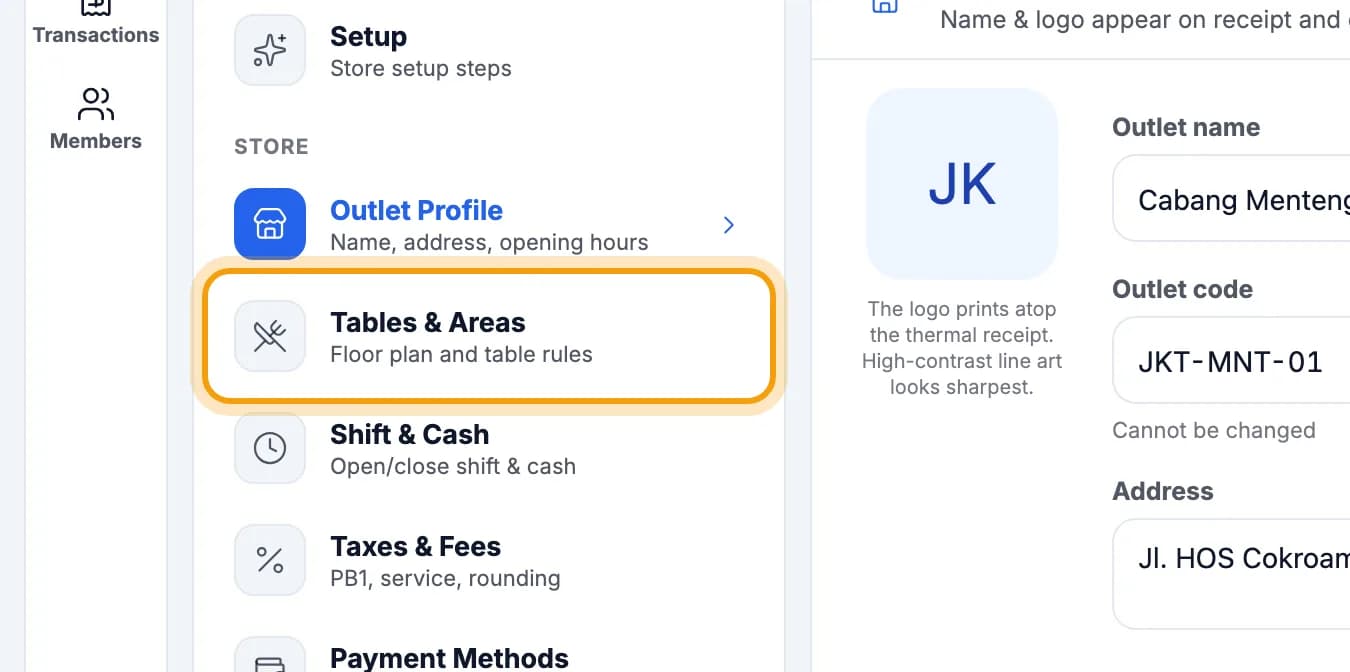
Tap Manage & print QR cards.

For a table marked No QR yet, tap Create QR.Only the owner or a manager can create QR codes.

Tap Print QR, then stick the label on that table.You need a connected printer, see Printer & kitchen.

Tip: Want to print on an office printer? In admin, open Tables & QR and tap Print QR on the table's card.
Note: Label lost or photographed by someone? Tap Rotate QR on that table. The old QR stops working at once; print the new one.
What the guest sees
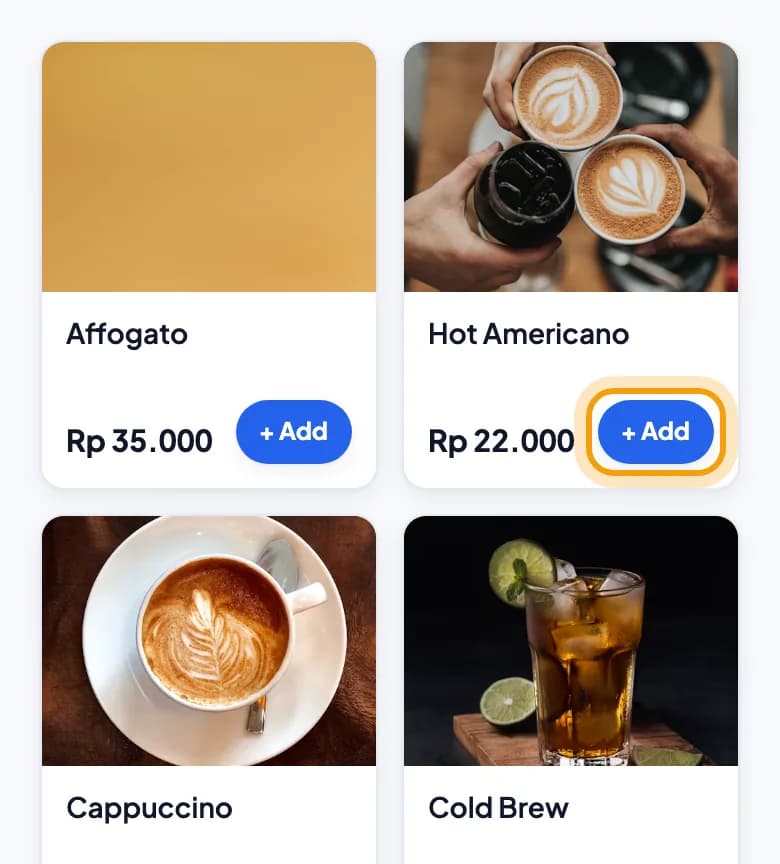
The guest scans the QR with their phone camera, then taps + Add on the item they want.No app, no login. Items that are out of stock show Sold out.
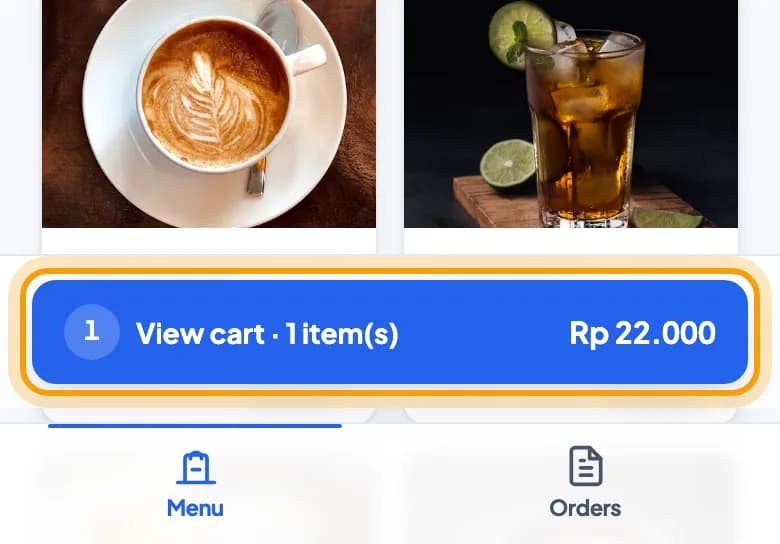
The guest taps View cart · 1 item(s).
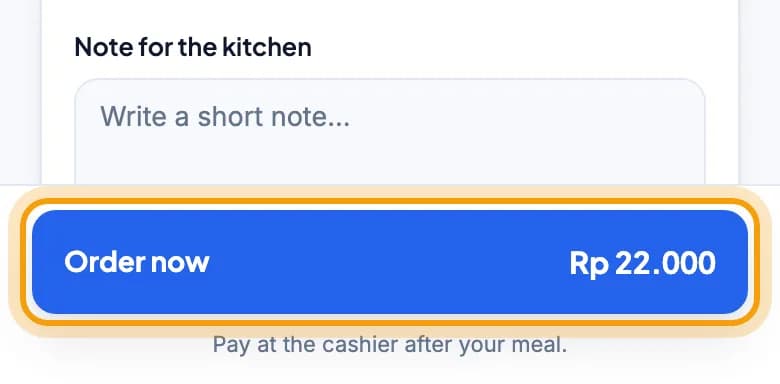
The guest taps Order now.Above it, the guest can write a Note for the kitchen, for example an allergy.
The Order sent screen appears. The guest pays at the counter after the meal.
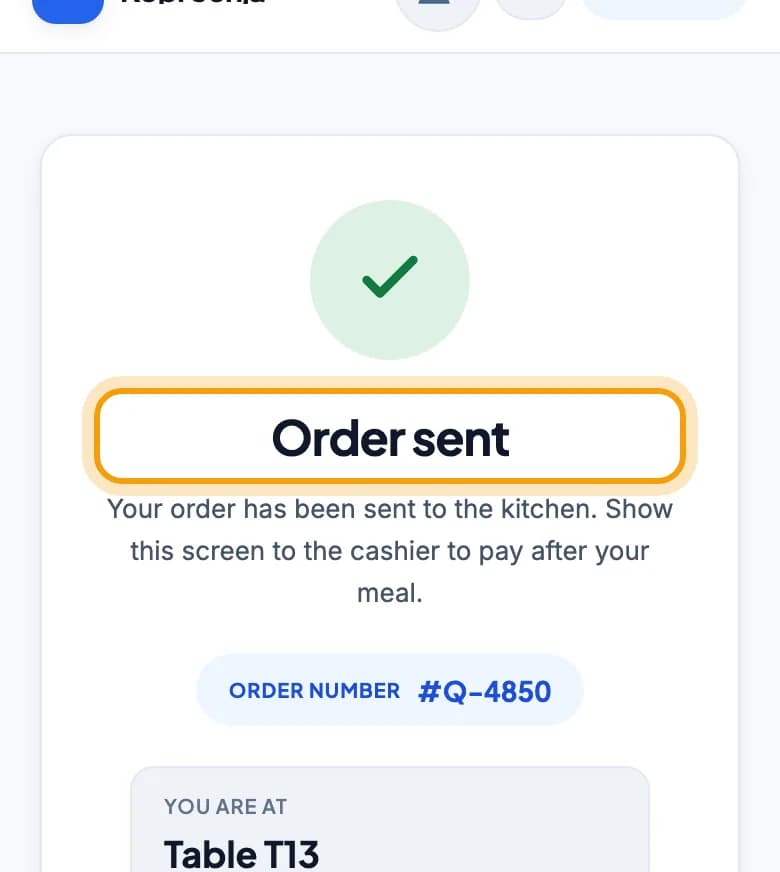
Note: Outside opening hours, QR orders are refused. The guest sees that the outlet is closed. Set Business hours in admin, on the branch card.
The order arrives at the till
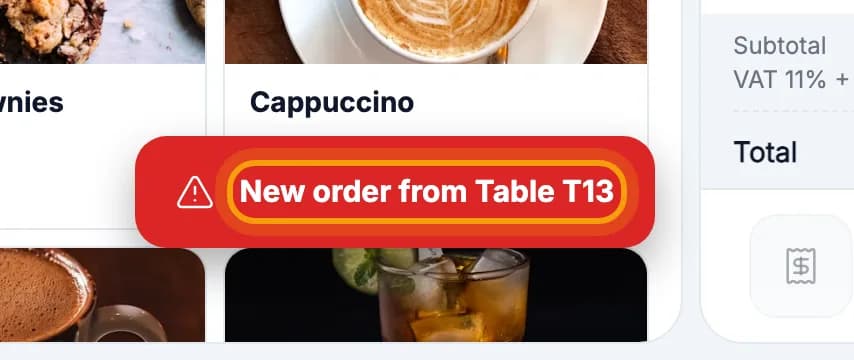
The till chimes and shows New order from Table T13.The kitchen ticket prints if auto-print is on, see the tip below.
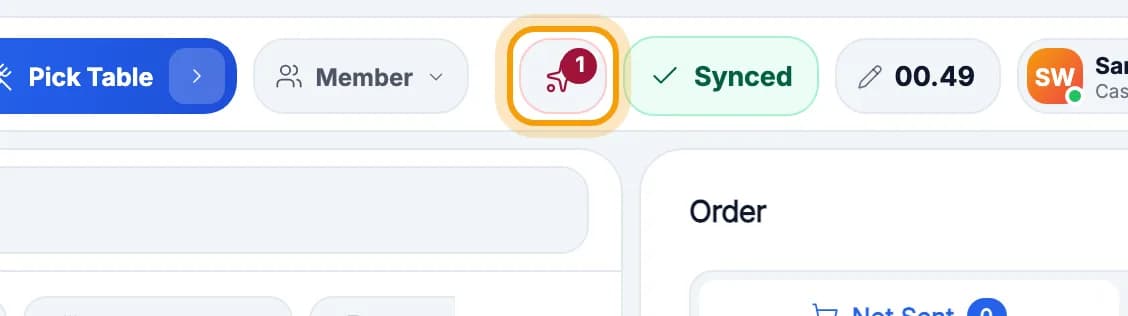
Tap the bell icon in the top bar.The red number counts QR orders you haven't opened yet.
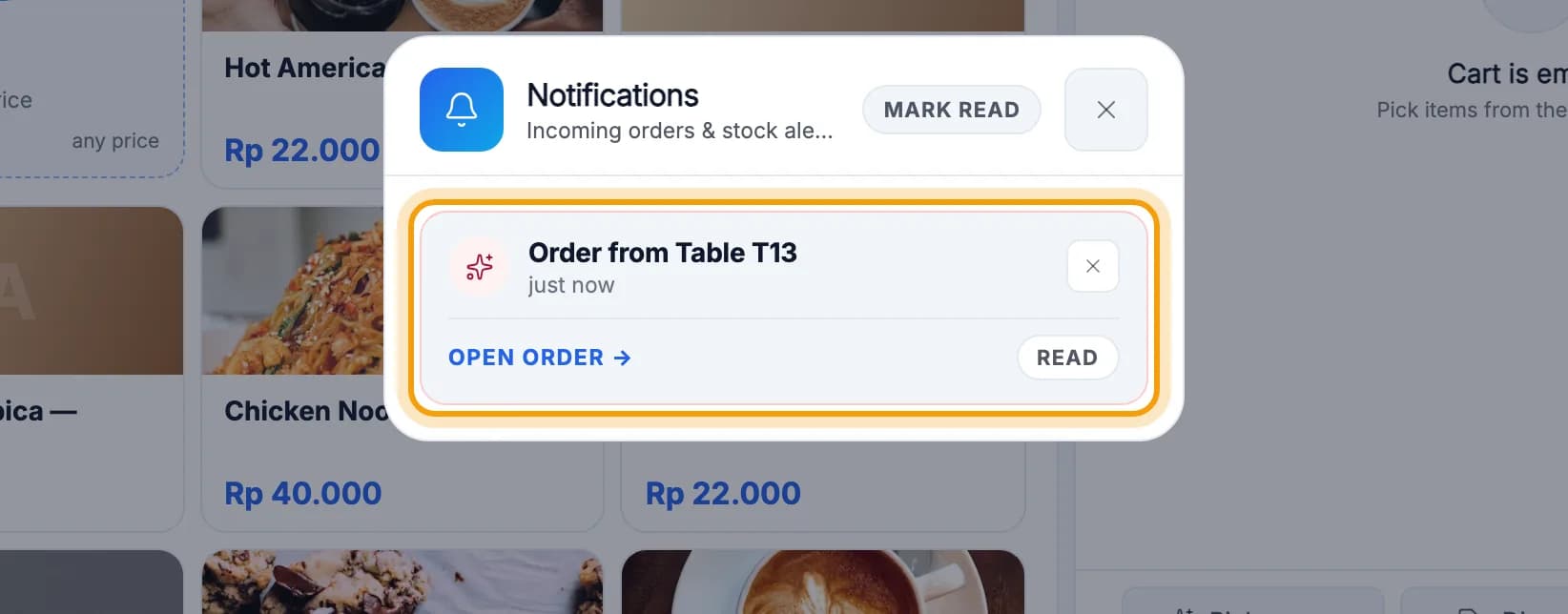
Tap the Order from Table T13 card to open the order.
When the guest is done, tap Pay tab and take payment as usual.The payment steps are in Your first sale.
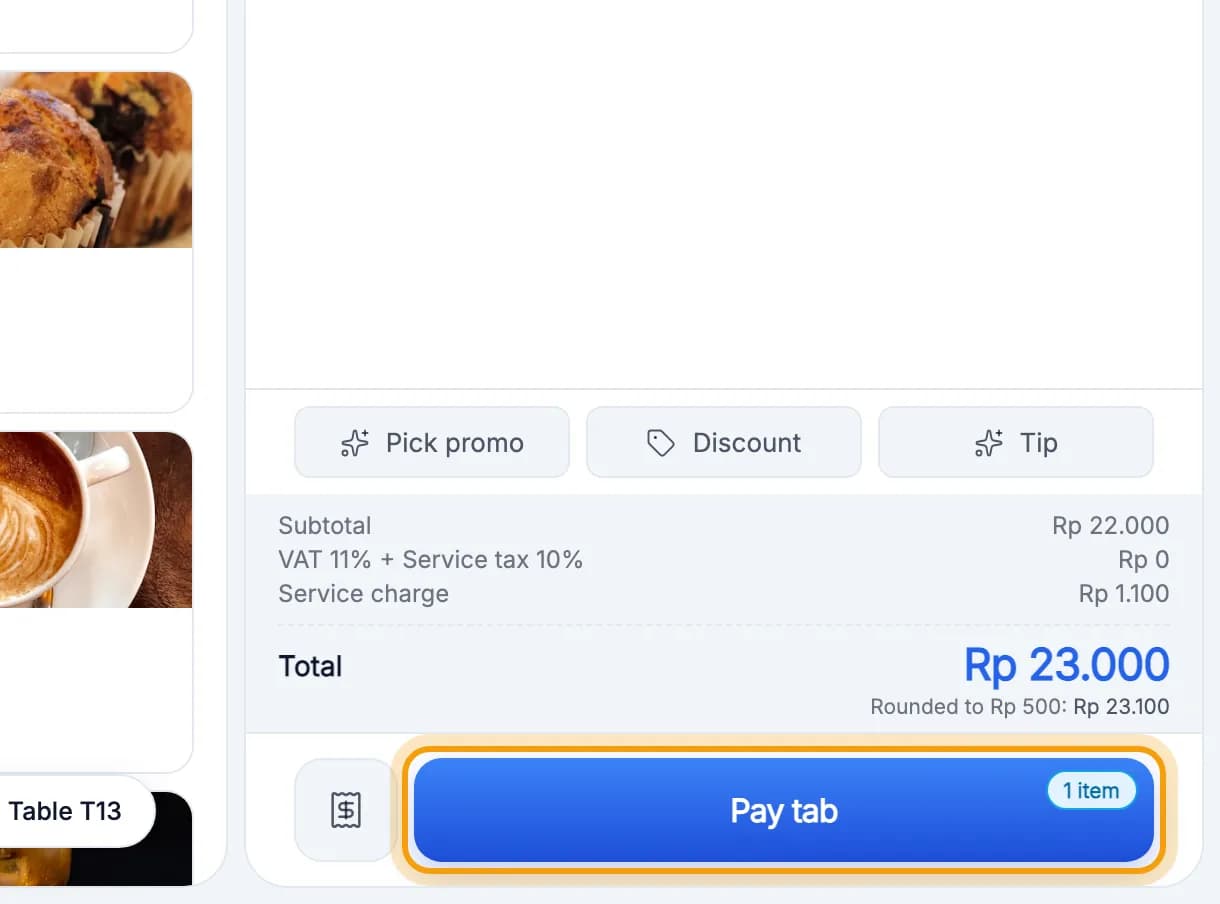
Tip: Want QR order tickets to print automatically? In admin, open Settings → Branches & locations and switch on Auto-print on the branch card.
Waiter QR
In Manage & print QR cards, type the waiter's name, then tap Add waiter.Only the owner or a manager can add one.

Tap Print waiter QR on that waiter's card.No printer? Tap Show QR and scan it straight from the screen.
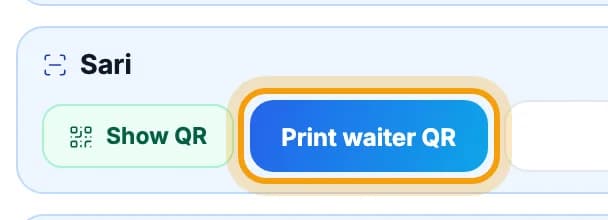
The waiter scans that QR with their phone, picks a table, and orders just like a guest.The order reaches the till with the waiter's name on it.
Note: A waiter QR can order for any table. Keep it behind the counter; never stick it on a table.
Done.
Bookmark this page, or send a section's link to your staff.