Sign up & set up the tablet
Create your business account on the tablet, sign in, then set up the outlet, receipt and taxes. You only do this once.
Create your account
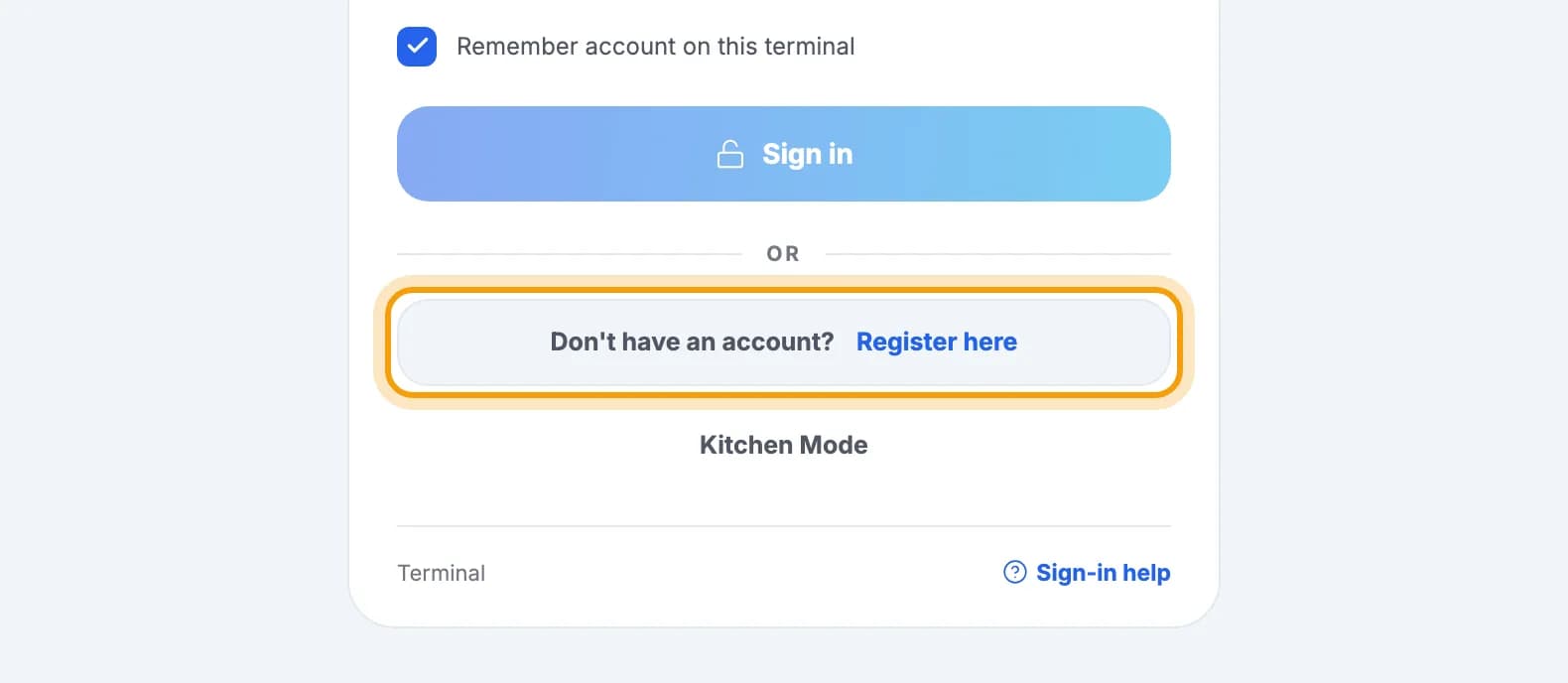
Open the PIKaPOS app on the tablet, then tap Register here.Don't have the app yet? Download PIKaPOS from Google Play. Sign-up only works in the Android app.
Pick your business type: F&B (Food & Beverage) or Retail.F&B for restaurants, cafés and food stalls. Retail for shops and minimarkets.

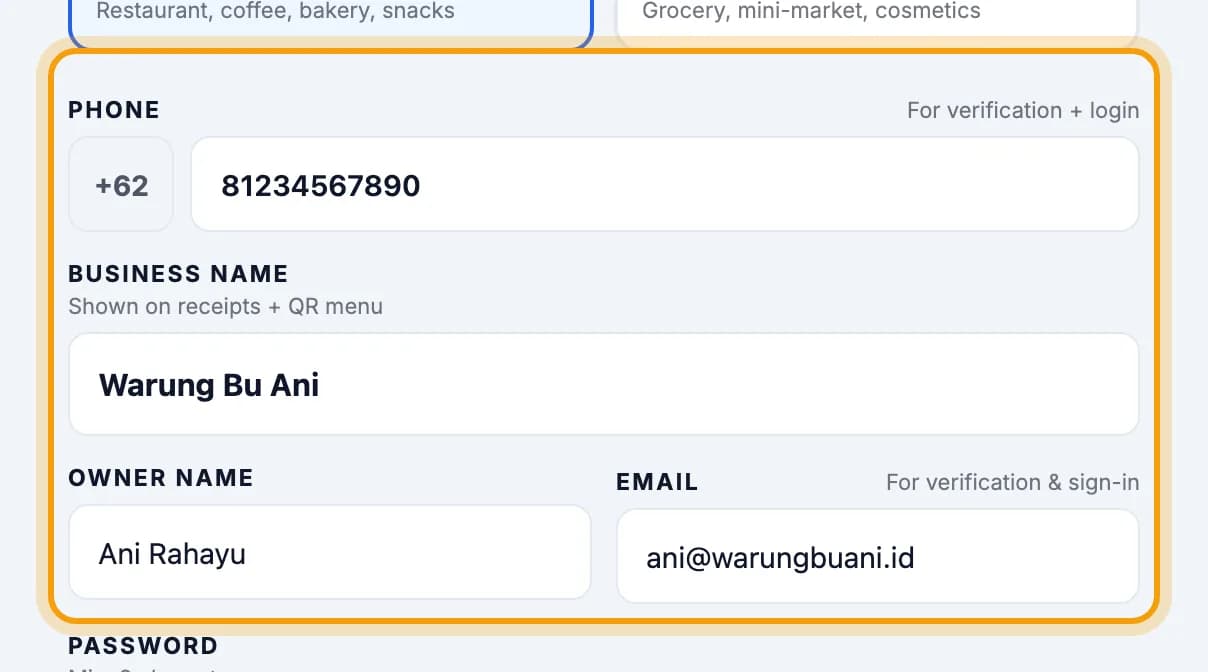
Fill in Phone, Business Name, Owner Name and Email.Your phone number and email are used for verification and for signing in later.
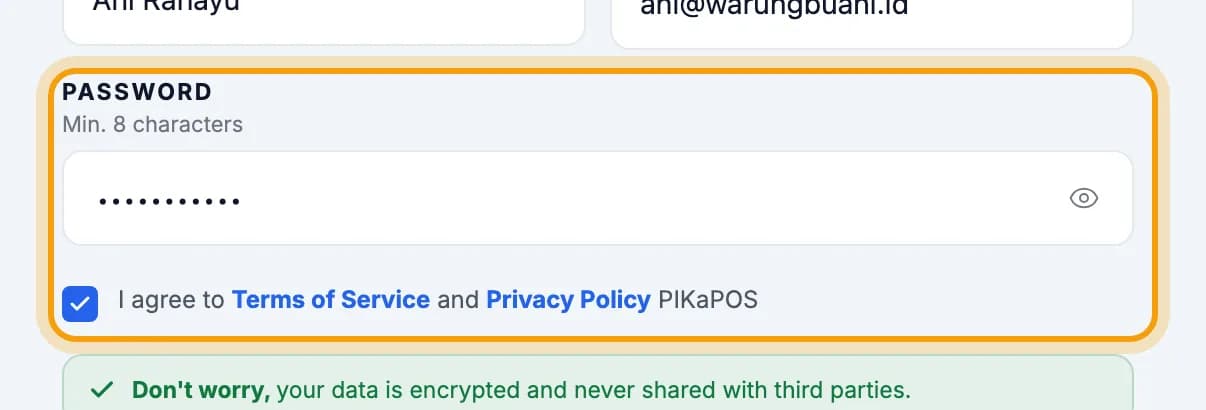
Choose a Password (at least 8 characters).Make sure the I agree to Terms of Service box is ticked. Read the terms through the link there first.
Tap Next.

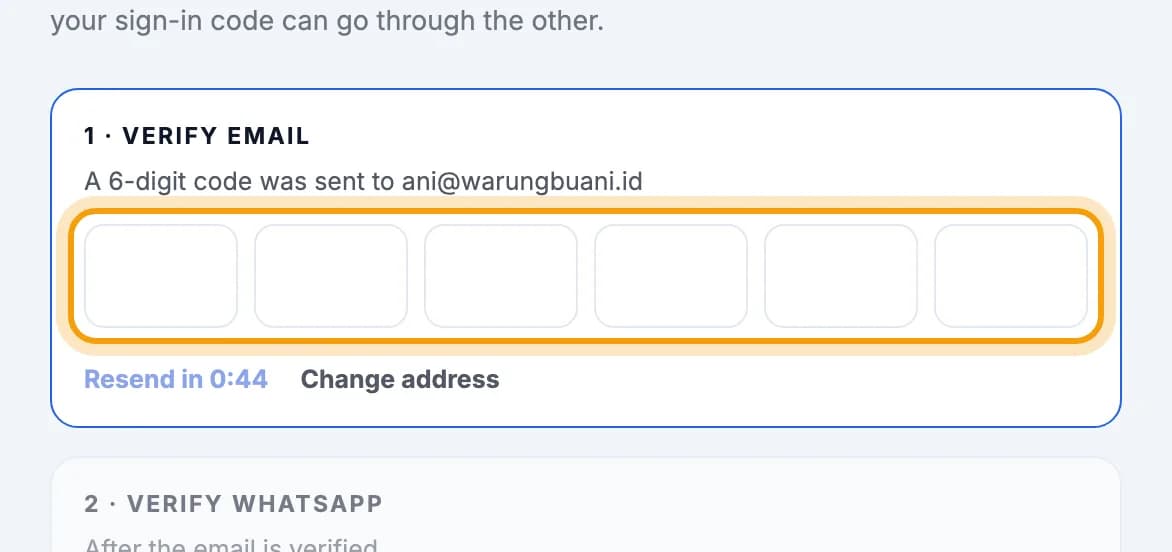
Open your email and type the 6-digit code we sent you.Not in your inbox? Check the Spam folder, or tap Resend.
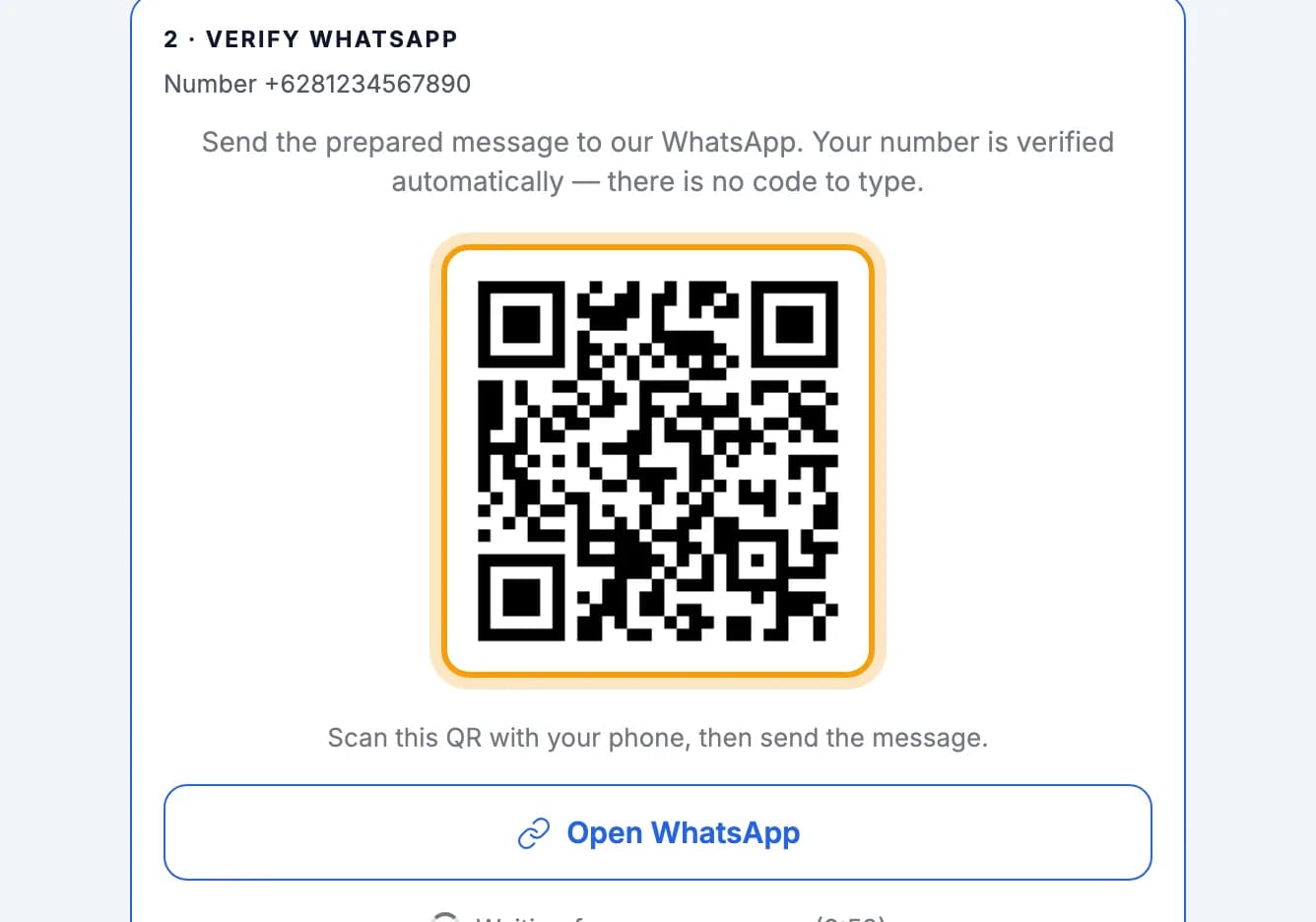
Scan the QR code with your phone, then send the prefilled WhatsApp message.Signing up on a phone? Tap Open WhatsApp. The message must come from the number you entered.
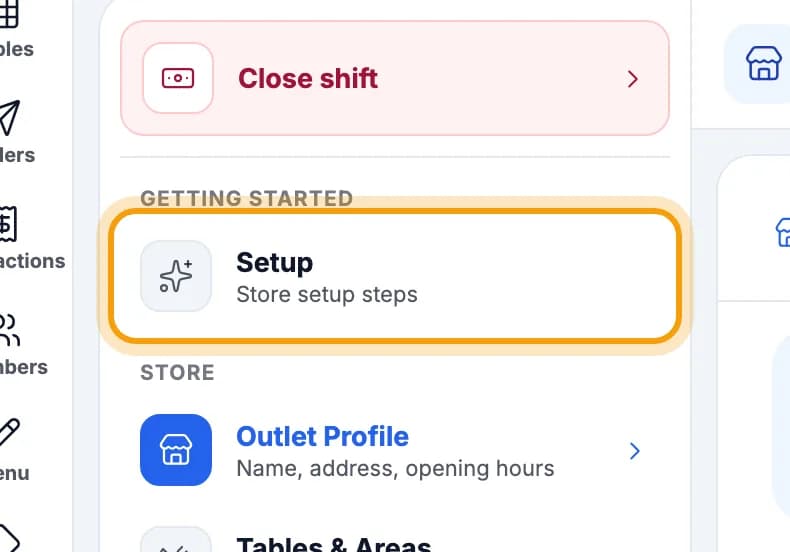
Once your number is verified, follow the setup steps: business profile, starter menu, staff and printer.Want to finish later? Open Settings, then tap Setup.
Note: The business type can't be changed after sign-up. Choose F&B if you serve food or drinks, Retail if you sell goods with barcodes.
Sign in & create a PIN
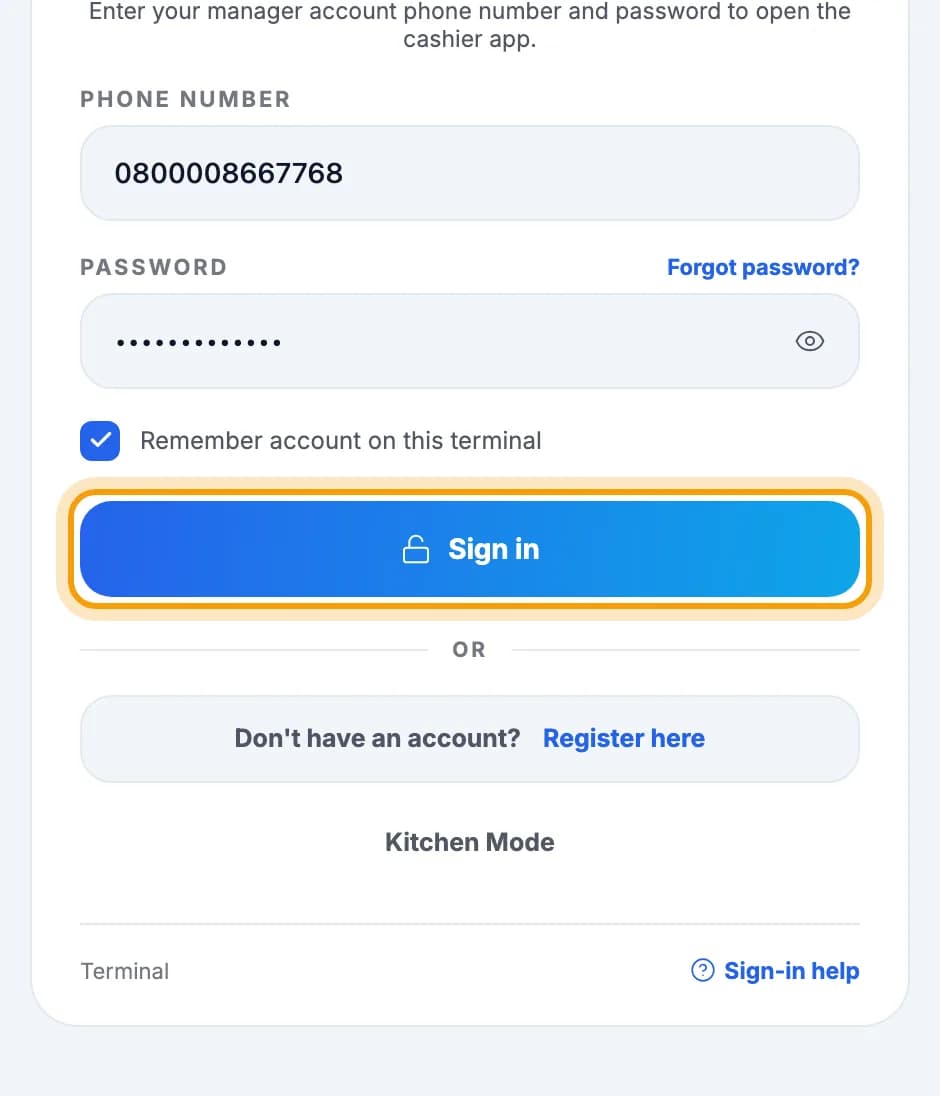
Type your phone number or email, then your password, and tap Sign in.Just signed up? You're already signed in, skip to step 11. A phone number may start with 08.
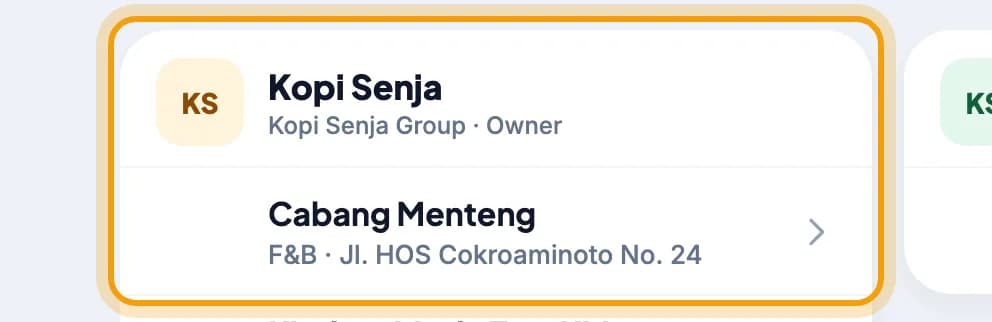
Pick the outlet for this tablet.Only shown if your account has more than one business. You pick once per tablet.
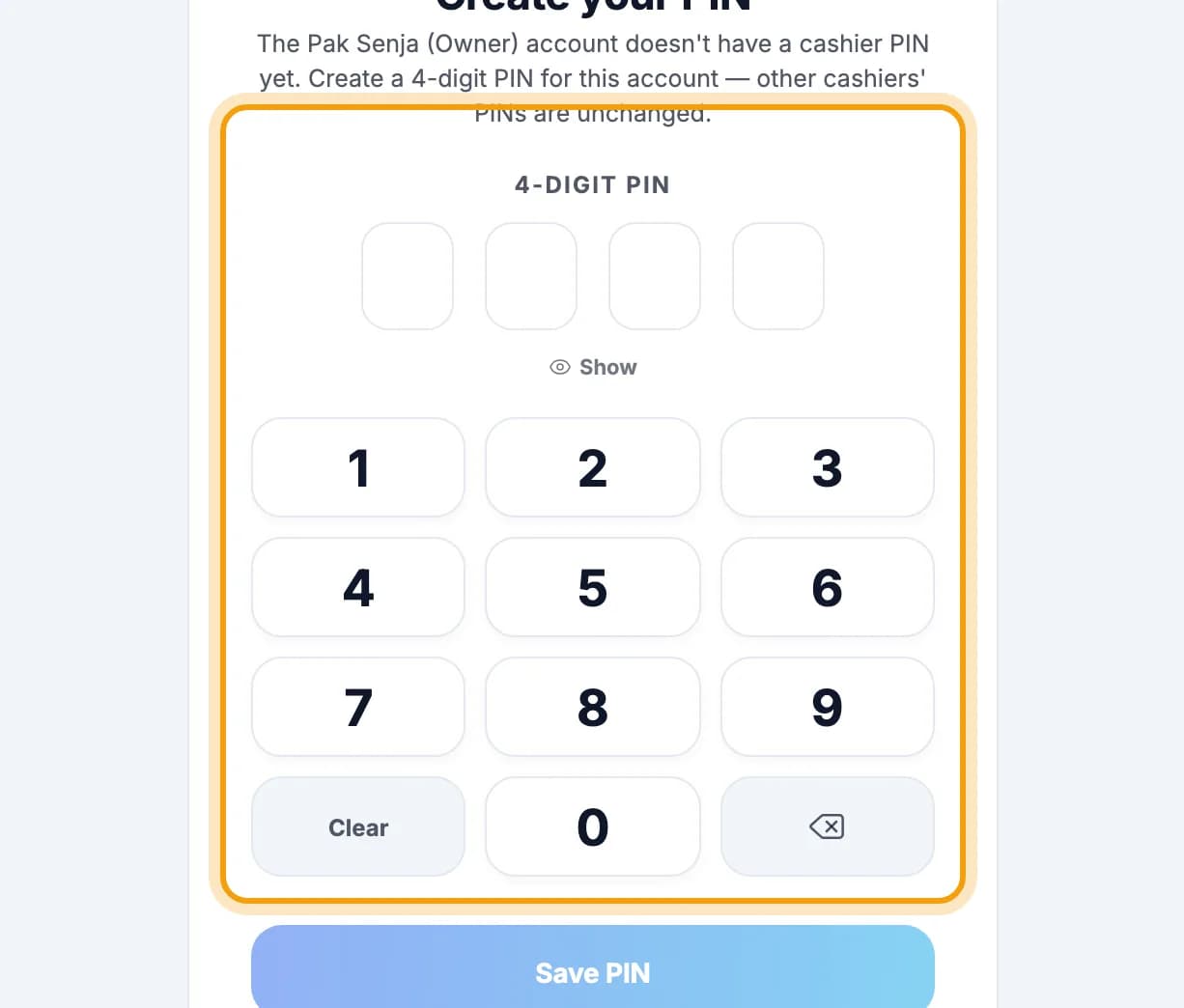
Create a 4-digit PIN, then type it again to confirm.Create your PIN appears once. You use the PIN to open the till every day.
Set up the outlet & receipt
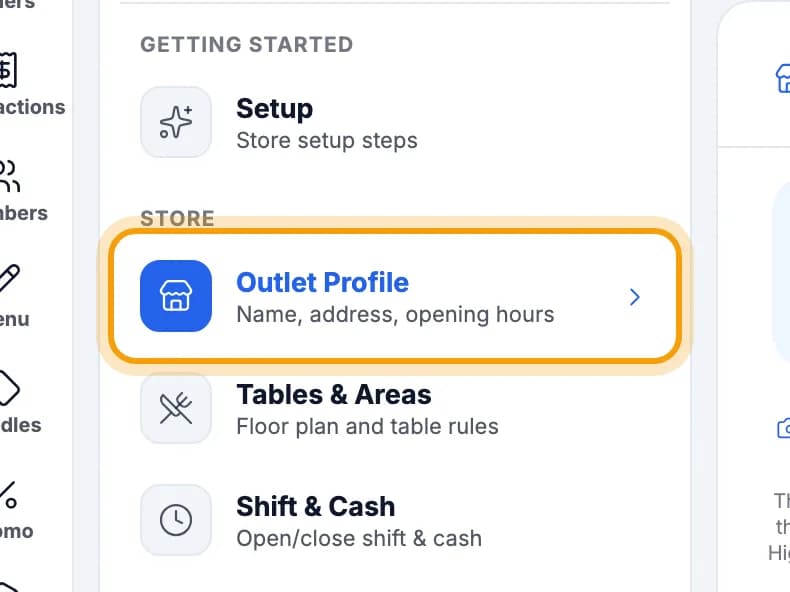
Tap Settings in the left menu, then Outlet Profile.
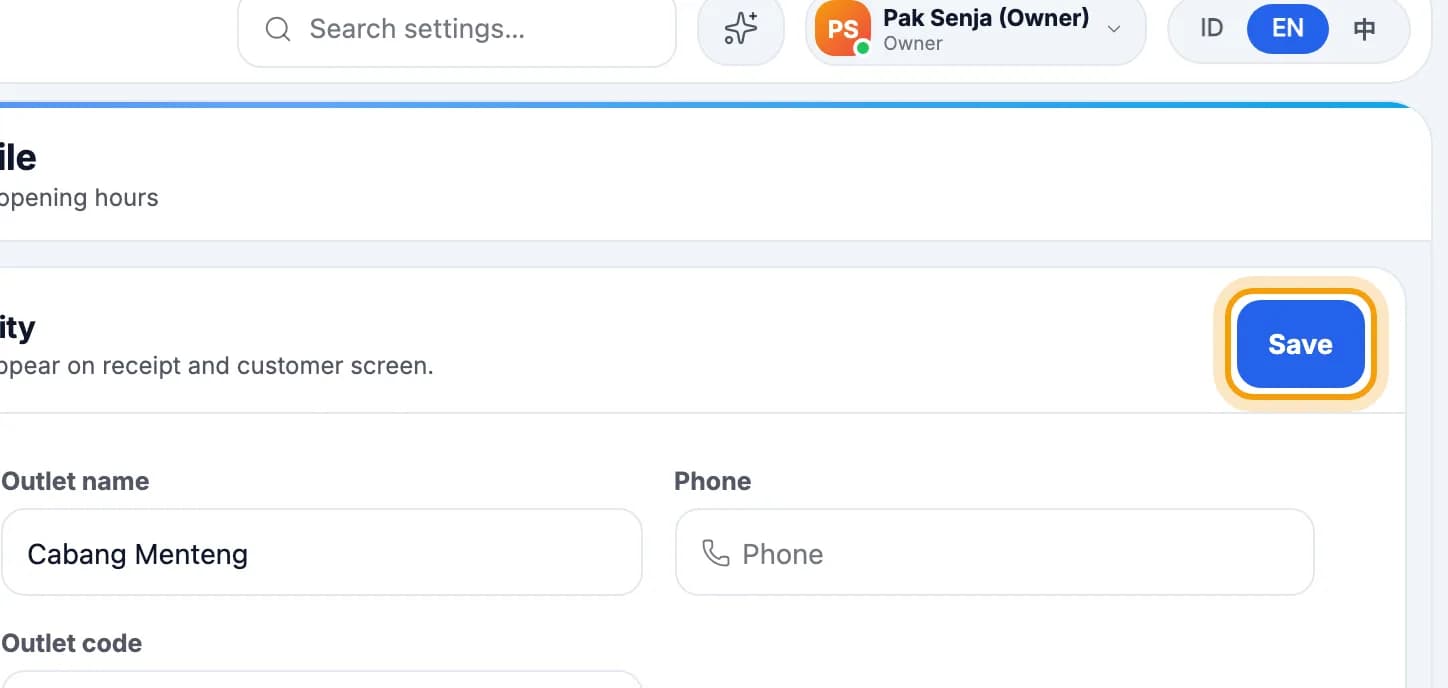
Change the name, phone, address or logo, then tap Save.The name and logo appear on the receipt. Opening hours are set in the web admin.
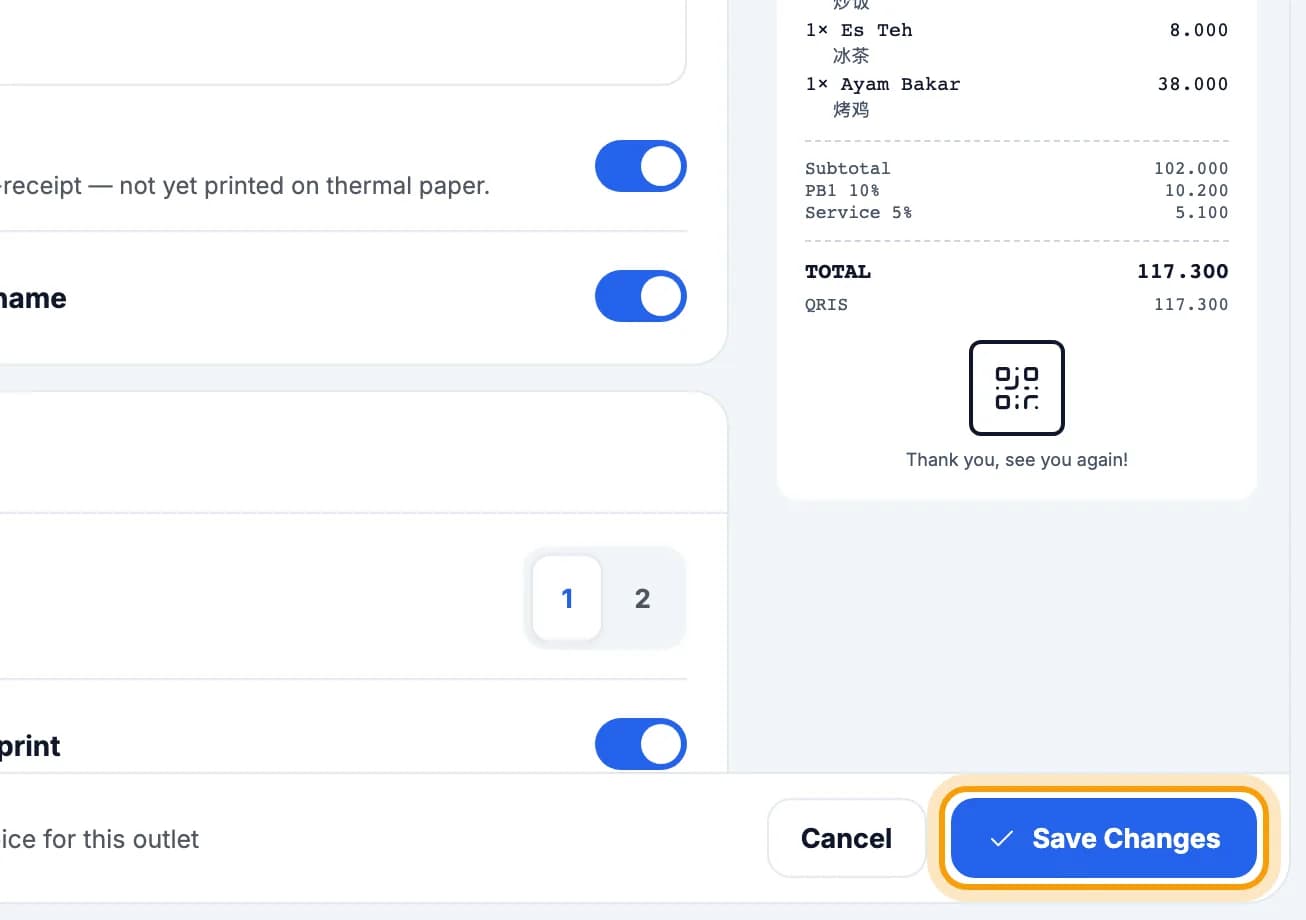
Tap Receipt & Invoice, fill in the title line and footer text, then tap Save Changes.The receipt preview on the right updates as you type.
Set taxes & service charge
In the web admin, open Settings → Tax & service, then click Edit on the rate you want to change.Sign in at admin.pikapos.com with the same account. On the tablet, taxes are view-only.
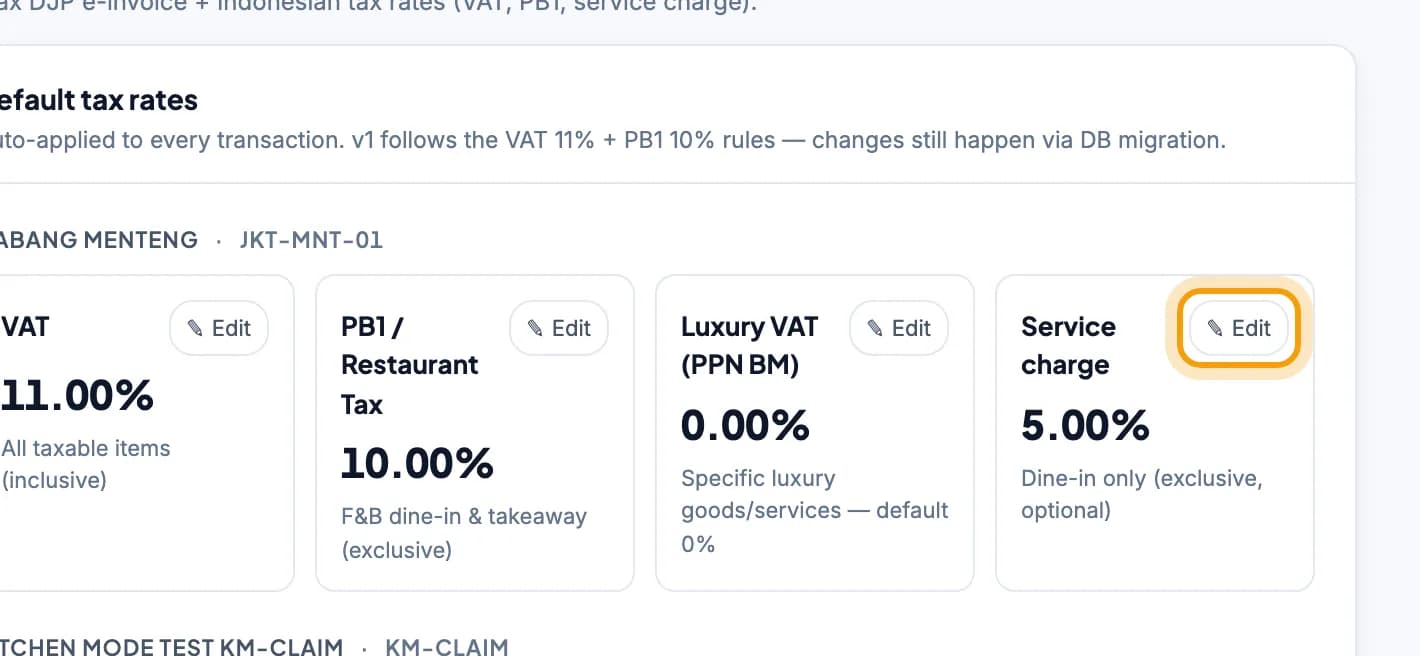
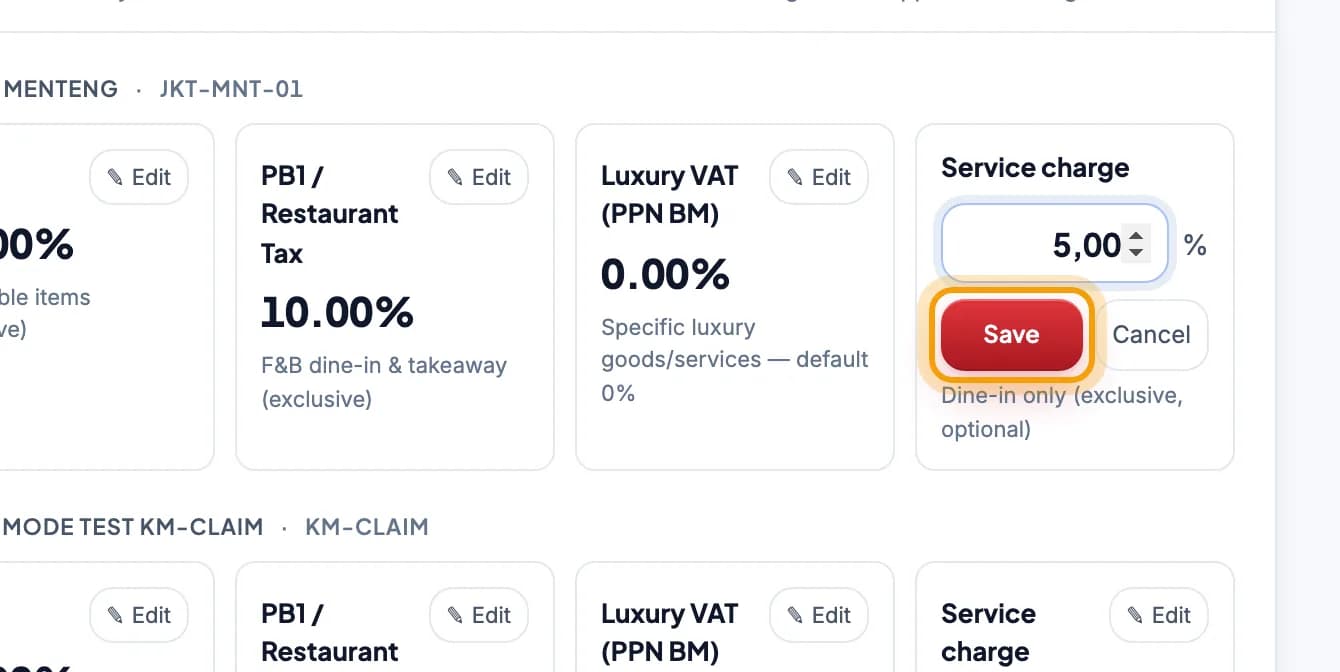
Type the new rate, then click Save.Each outlet has its own rates: PPN, PB1, PPN BM and service charge.
Tip: Not sure which rate applies? Restaurants and cafés usually charge PB1 at 10%. Check with your tax adviser before changing PPN.
Done.
Bookmark this page, or send a section's link to your staff.