Staff & permissions
Add cashiers and waiters, manage their PINs, switch cashier mid-shift, and decide who may void, discount or refund.
Add staff
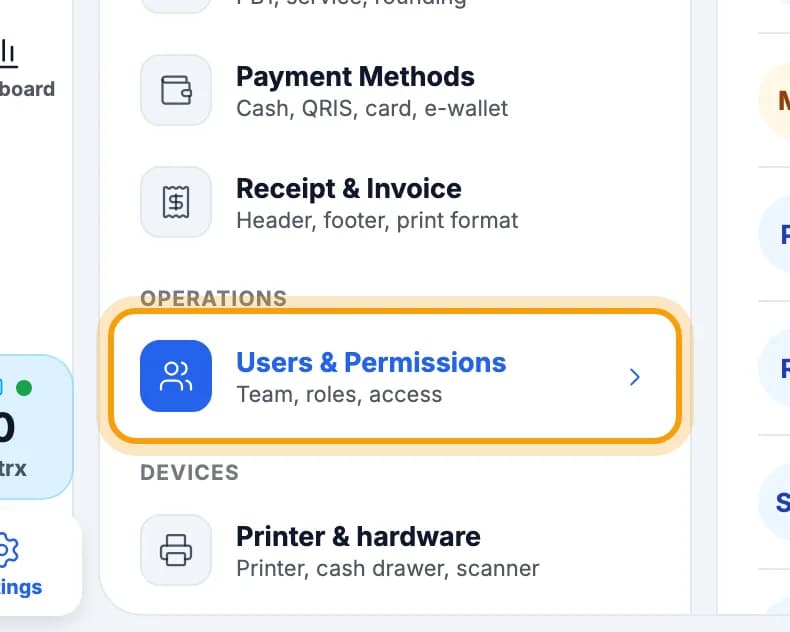
Tap Settings in the left menu, then Users & Permissions.
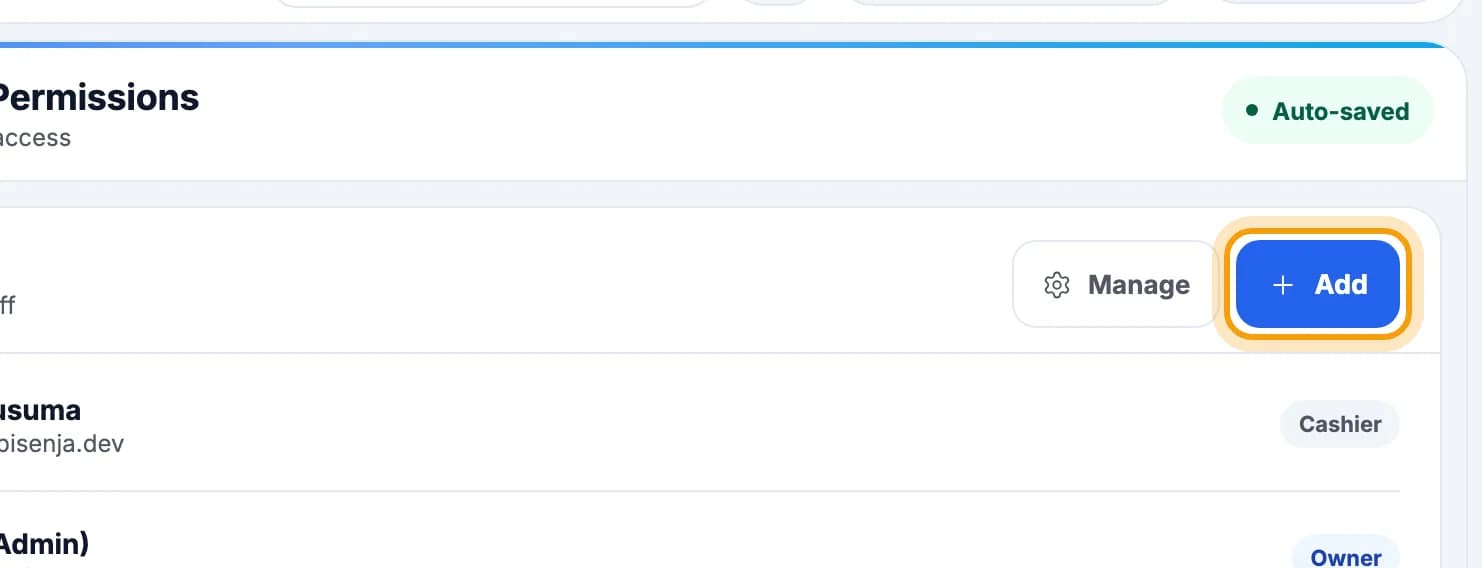
Tap Add.By default only the owner and managers can add staff.
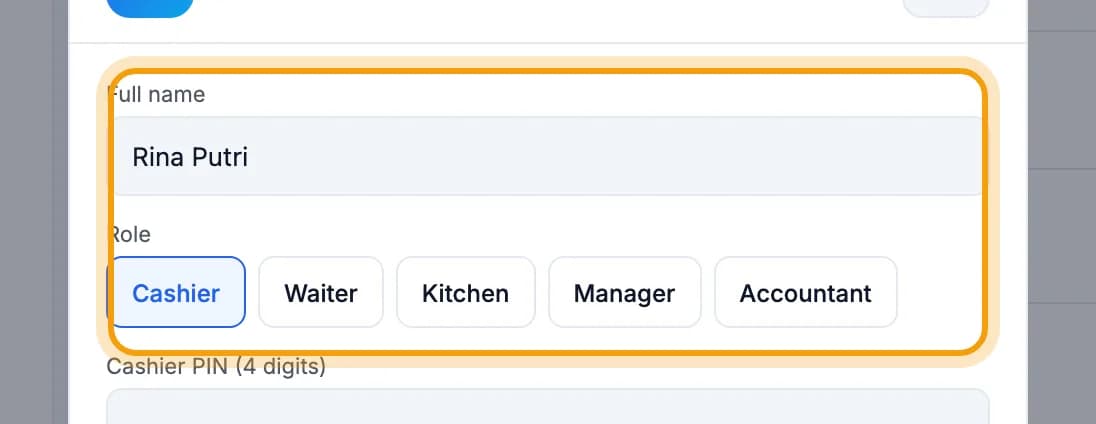
Type the full name, then pick a role: Cashier, Waiter, Kitchen or Manager.Only the owner can add a Manager or Accountant.
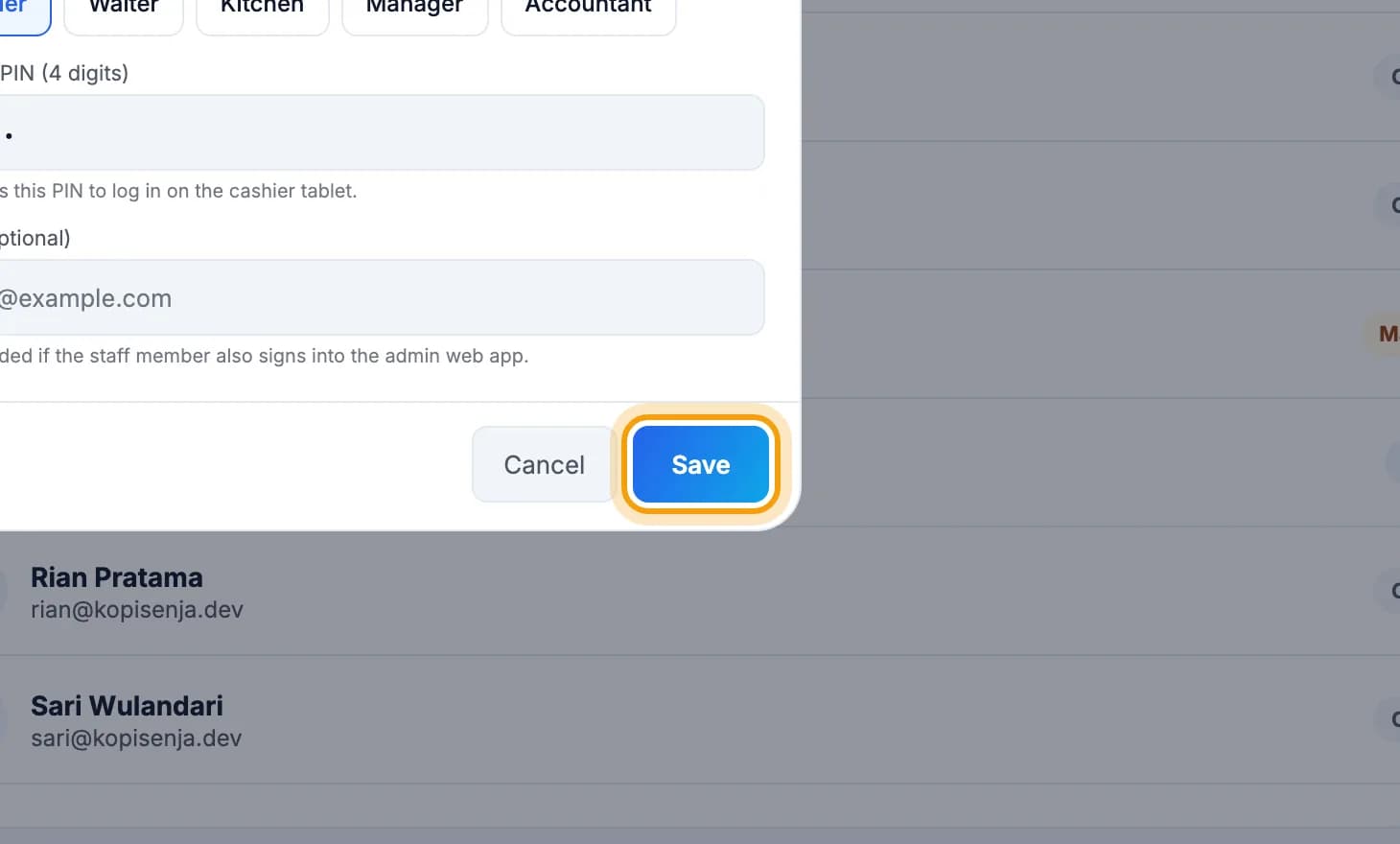
Type a 4-digit cashier PIN for them, then tap Save.Tell them the PIN in person. Email can be left empty.
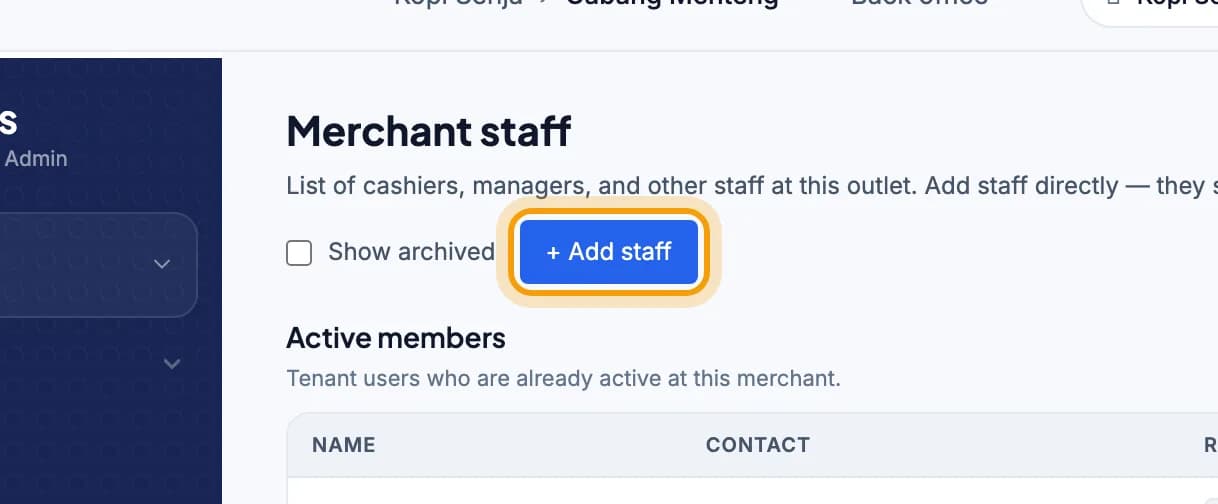
Prefer a computer? In the web admin, open Staff and click + Add staff.Staff added there also get a phone number + password to sign in. Their cashier PIN is generated for you.
Change or reset a PIN
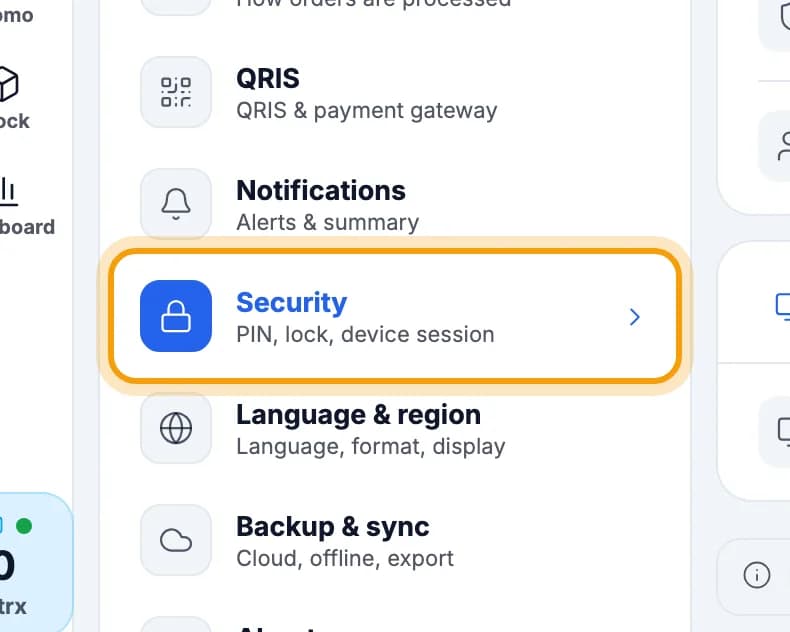
In Settings, tap Security.Can't see it? Tap Advanced at the bottom of the Settings menu.
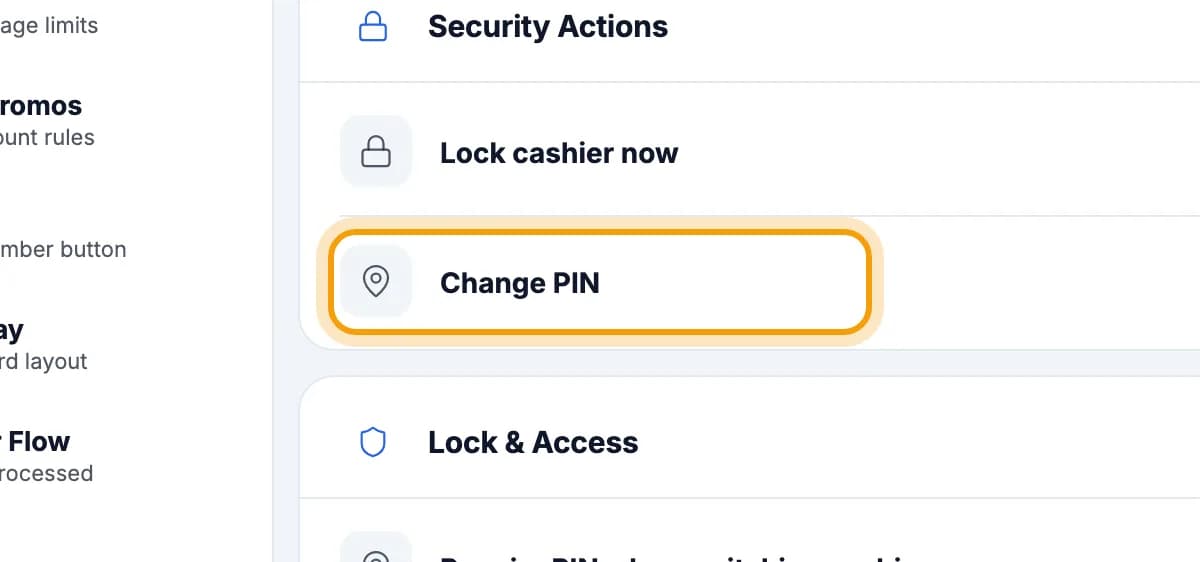
Tap Change PIN.
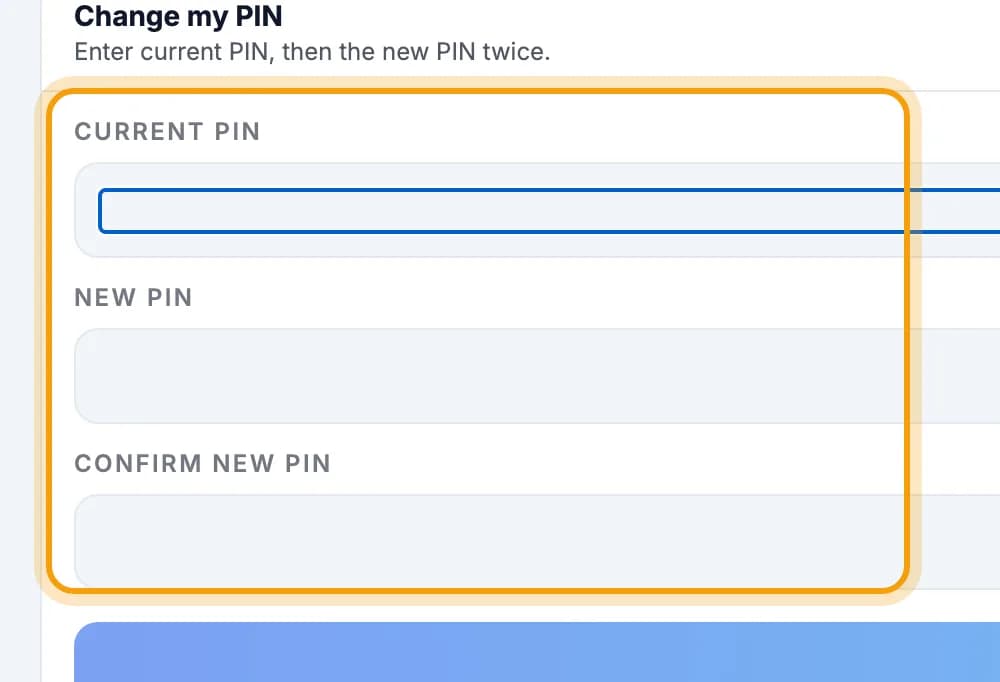
For your own PIN: fill in Current PIN, New PIN and Confirm new PIN.Then tap Save new PIN below them. Forgot the old one? Tap Forgot PIN? Use your account password.
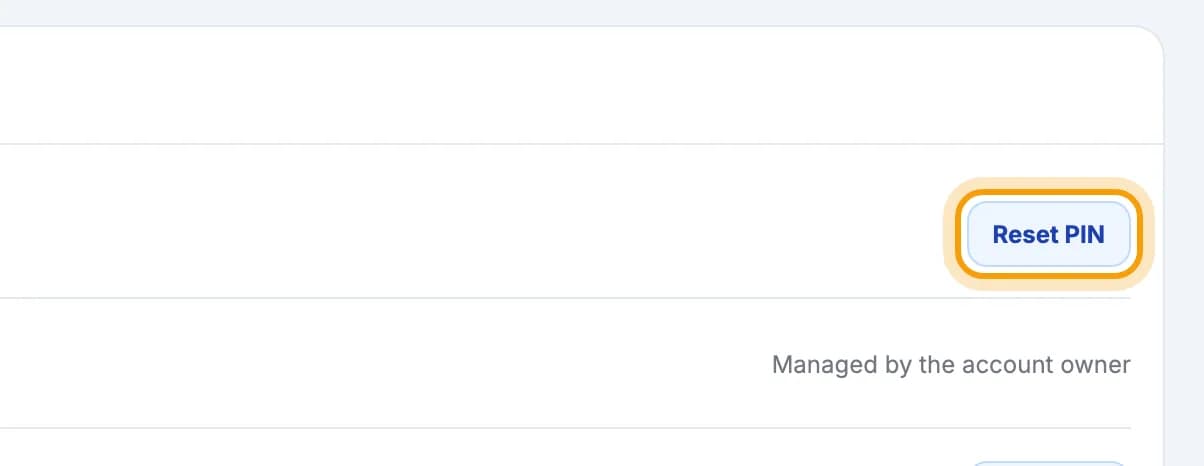
Staff forgot their PIN? Open the Staff tab and tap Reset PIN at the right end of their row.You enter a Manager PIN first, then the new PIN for that person.
Switch cashier mid-shift
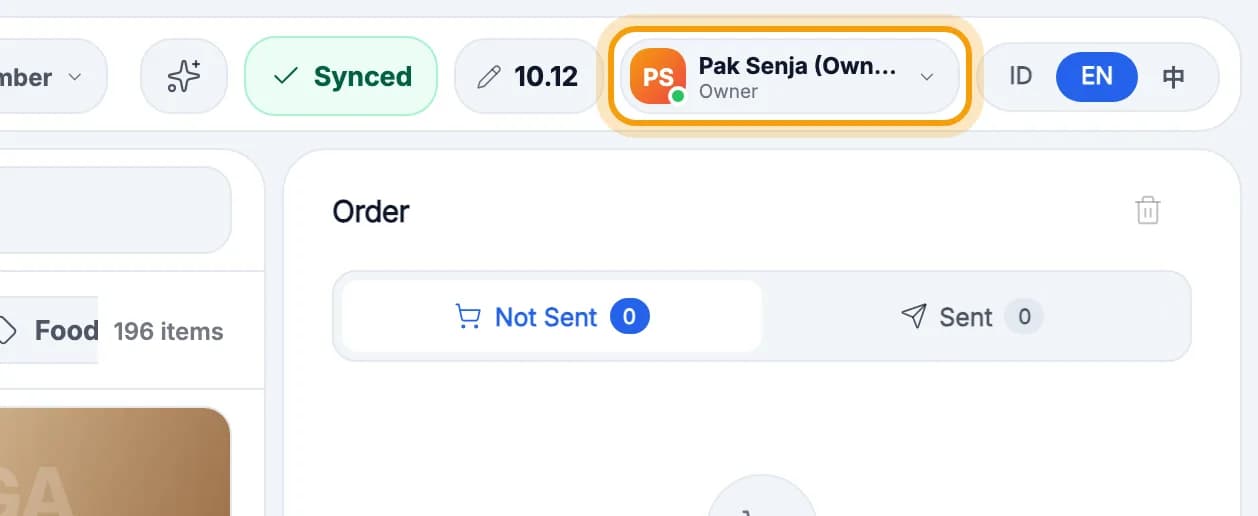
Tap your name in the top-right corner.
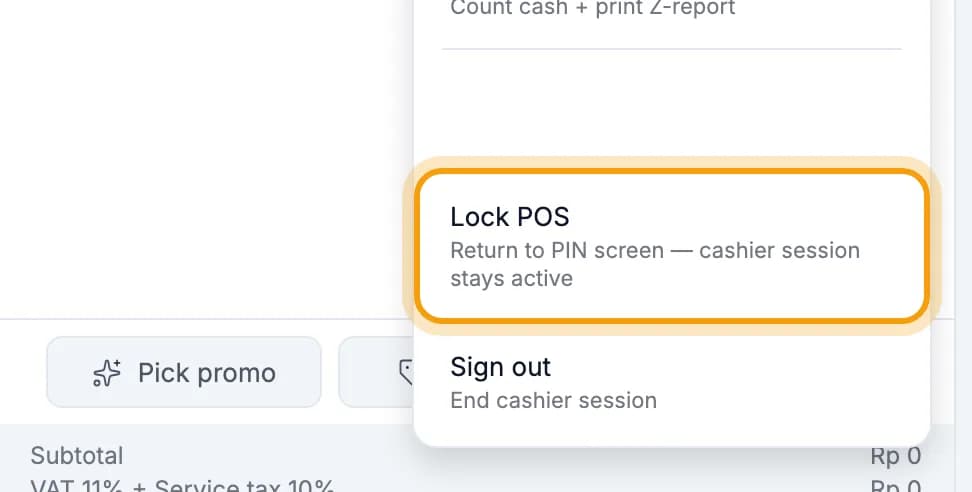
Tap Lock POS.The shift stays open and no orders are lost.
The next cashier taps their name.

Type the 4-digit PIN.Picked the wrong name? Tap Switch staff.
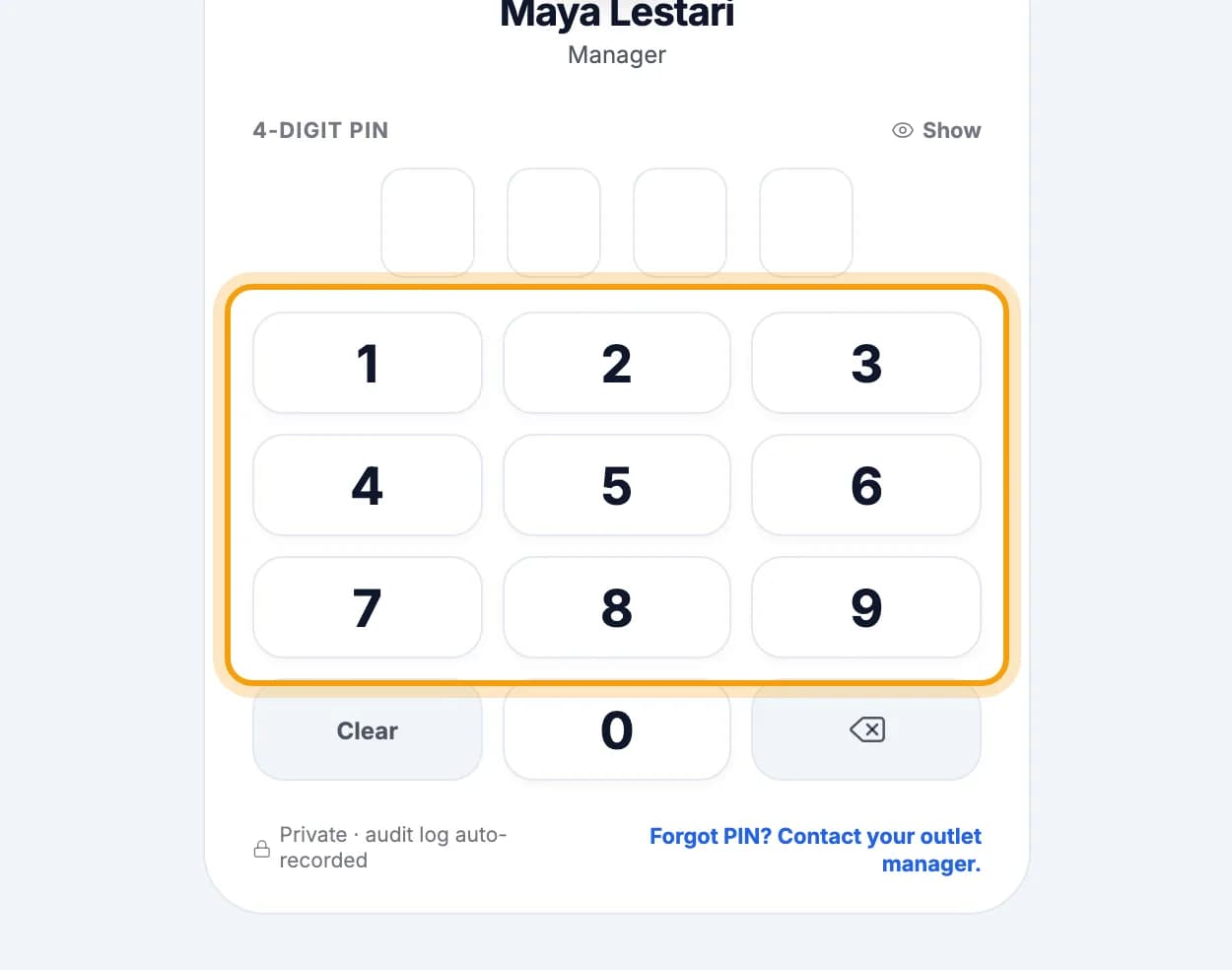
Tip: Tablet left alone for a while? It locks itself to the PIN screen. The shift keeps running; just tap your name and type the PIN again.
Set permissions by role
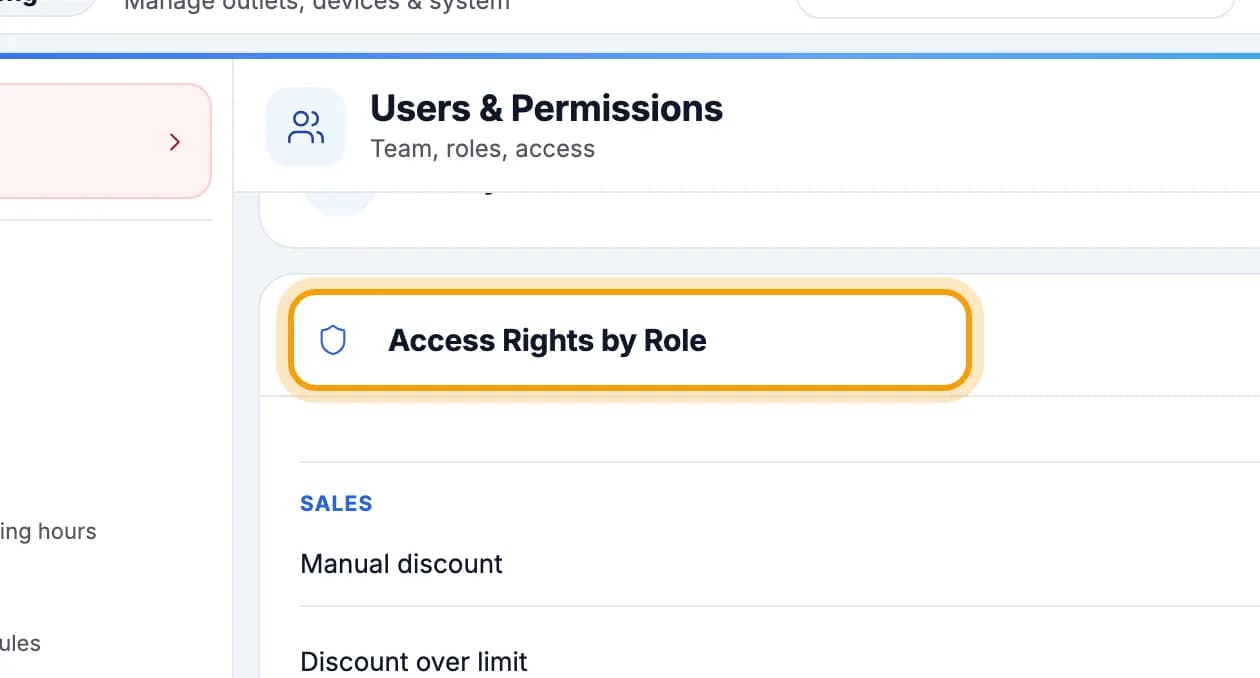
In Users & Permissions, scroll down to Access Rights by Role.Each row is an action, each column a role. Tap the mark to allow or block it.
In the web admin (also on a phone), open Staff, pick a role such as Cashier, then tap an action's switch.A PIN mark means that role may do it once a manager enters their PIN.
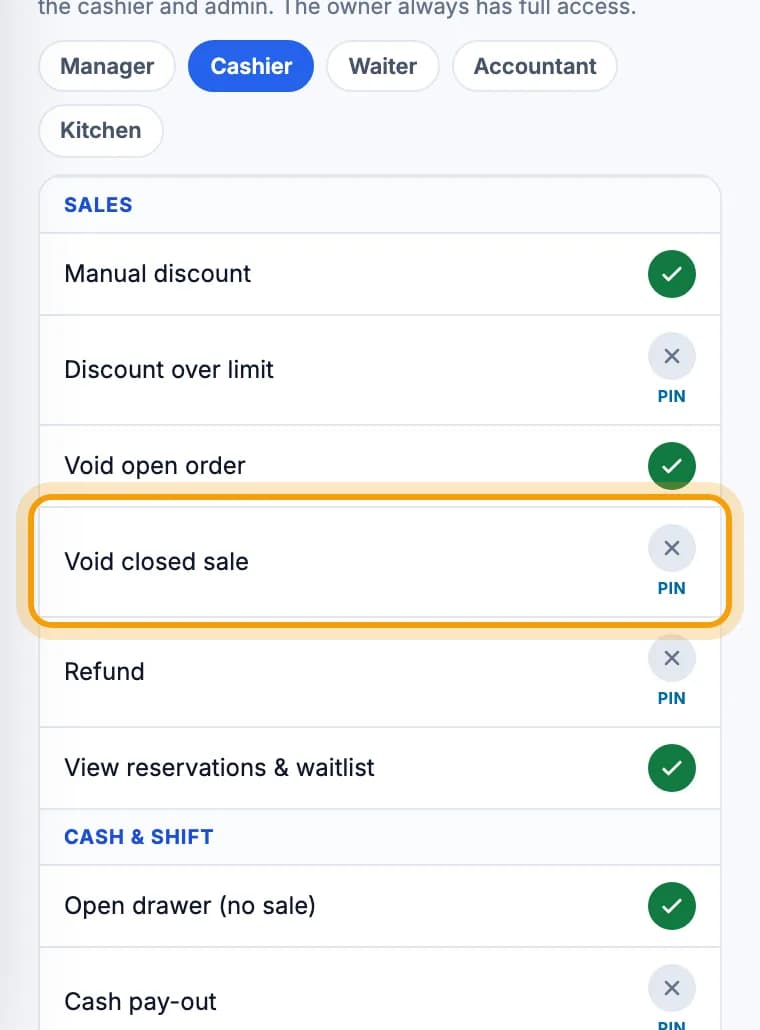
Note: Changes save immediately and apply on both the tablet and the admin. The owner always has full access, and some permissions marked owner only can't be given to other roles.
Done.
Bookmark this page, or send a section's link to your staff.