Printer & kitchen
Connect a receipt printer to the tablet, choose what prints automatically, and send order tickets to the kitchen.
Connect a receipt printer
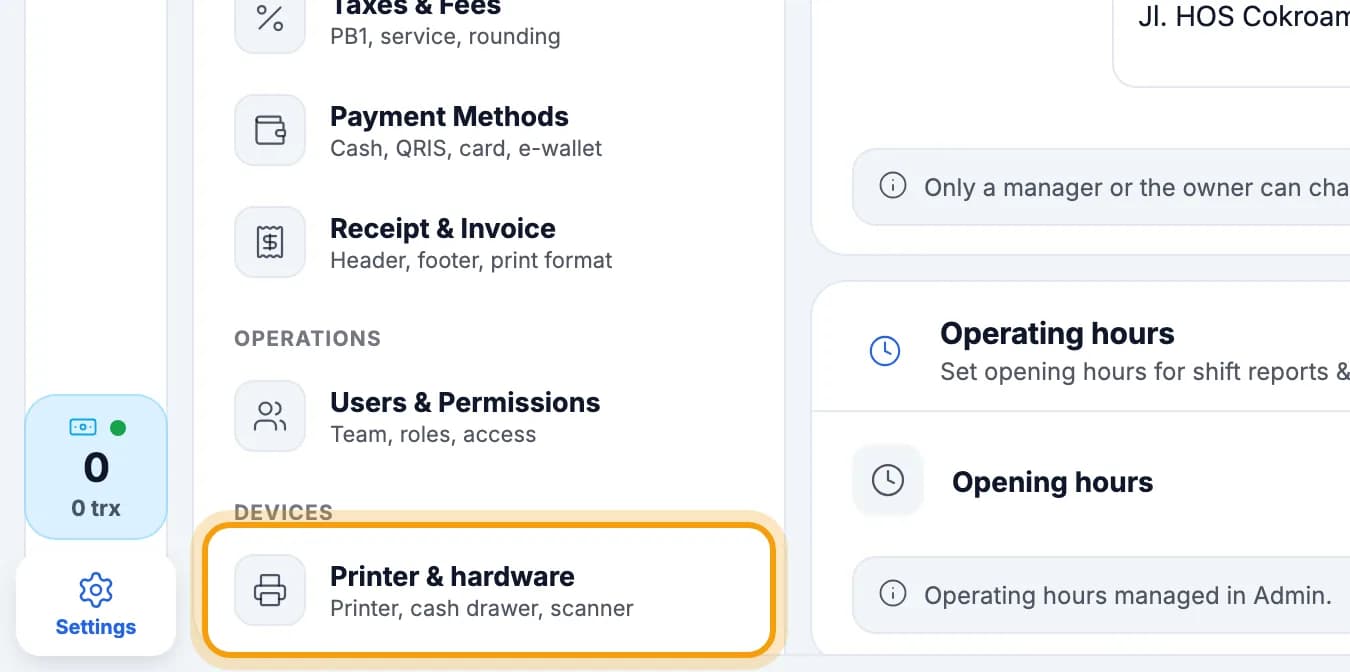
Open Settings, then tap Printer & hardware.Settings is at the bottom left of the till screen.
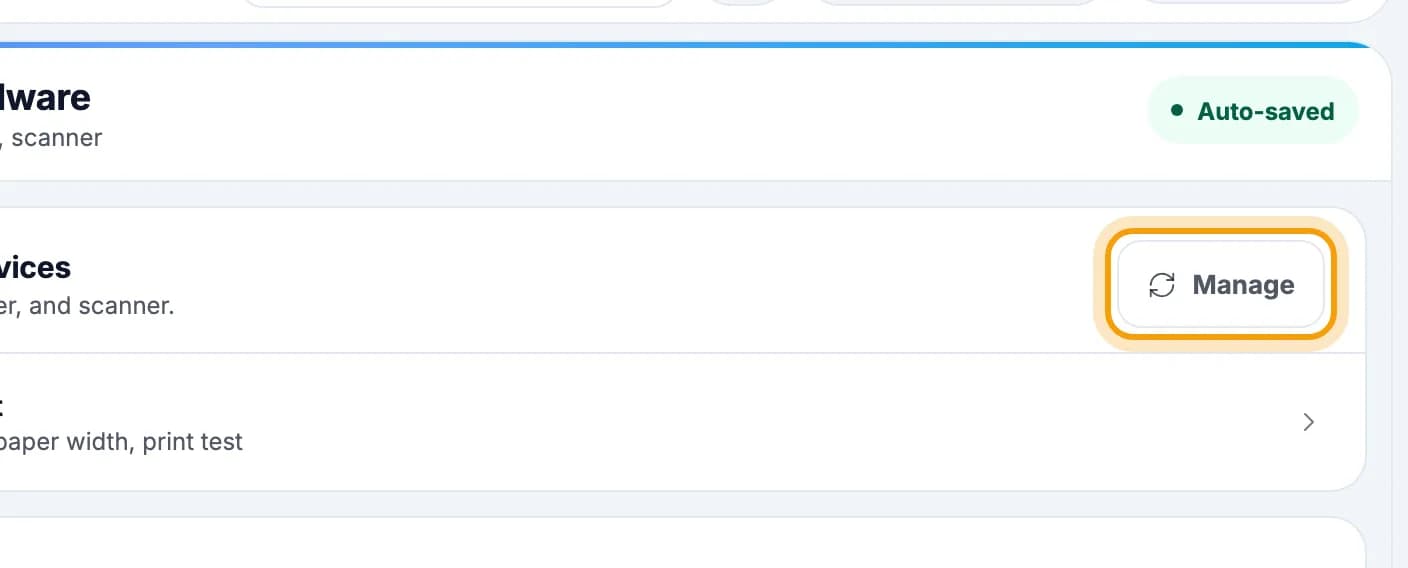
Tap Manage.
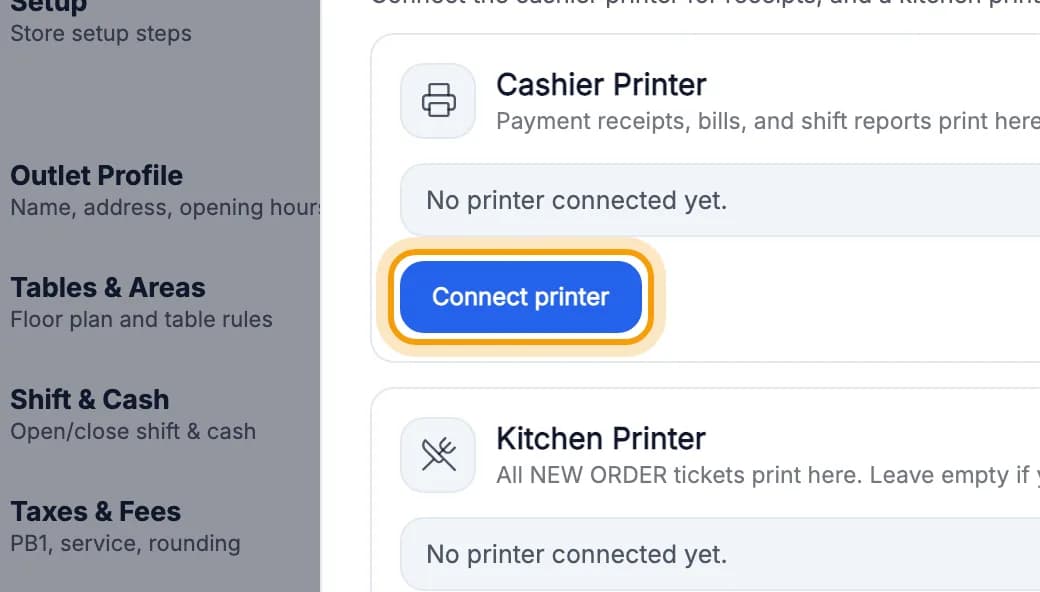
On the Cashier Printer card, tap Connect printer.
Switch the printer on, then pair it in the Android tablet's Bluetooth settings.Once per printer. The app only lists printers already paired in Android.
Go back to the till app and tap Scan Bluetooth printers.Network (LAN) printer? Open the LAN tab, enter its IP address, then tap Save & set as active printer.

Tap the printer's name in the Devices found list.Not listed? Check the tablet's Bluetooth is on and the printer is paired, then scan again.
Tap Test print on the Cashier Printer card. A test receipt comes out.No paper? Check the paper roll, power and cable.
Note: Thermal printers only work in the Android till app. On an iPad/iPhone or in a browser the printer can't be connected. Use an Android tablet as the till that prints.
Tip: 80 mm paper? Open Settings → Tables & Areas → Manage & print QR cards and pick 80mm under Paper width. Receipts follow this width. The default is 58 mm.
Automatic printing
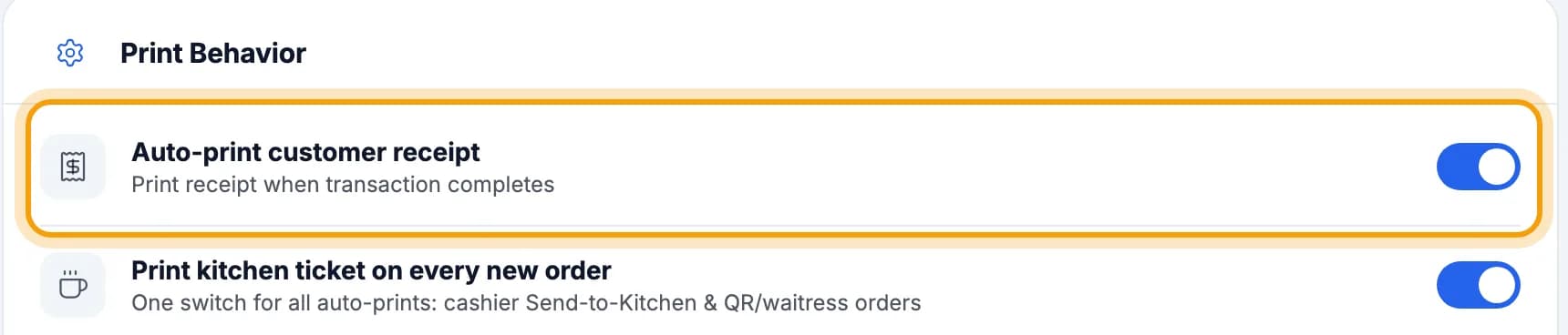
Leave Auto-print customer receipt on so a receipt prints after every sale.Switched off? You can still print with the Print receipt button after payment.
Tickets to the kitchen
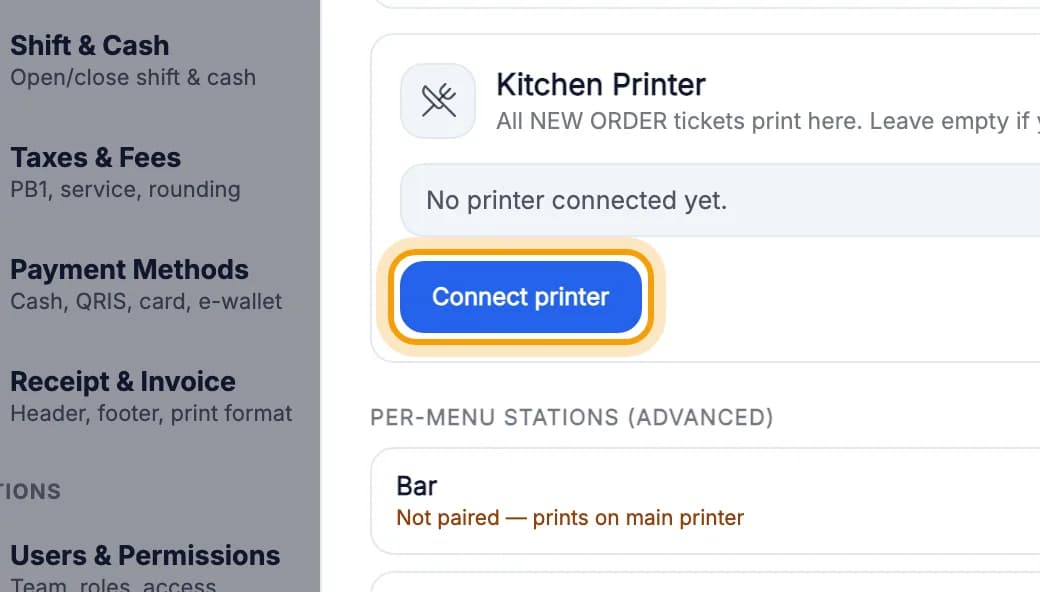
Have a second printer in the kitchen? On the Kitchen Printer card, tap Connect printer and connect it like the till printer.Only one printer? Leave it empty. Kitchen tickets print on the till printer.
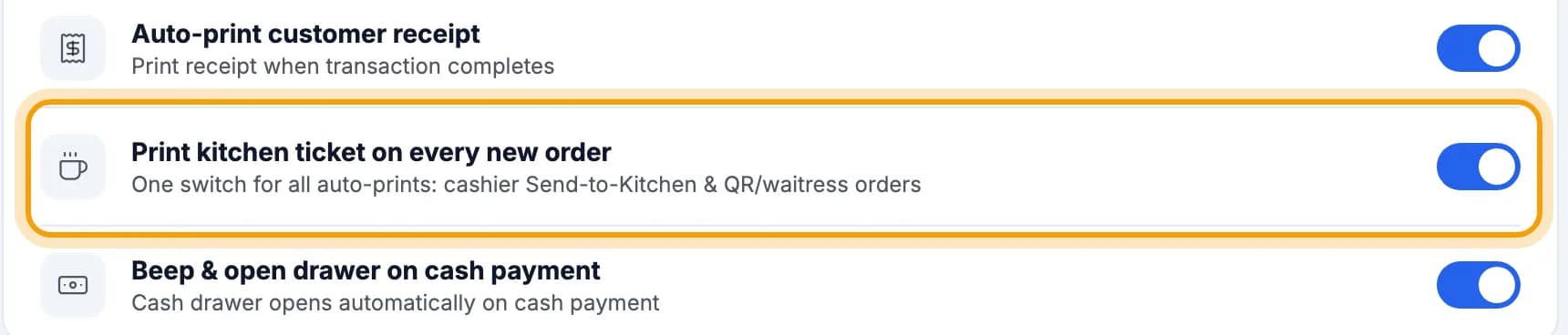
Make sure Print kitchen ticket on every new order is on.It's in Printer & hardware, under Print Behavior.
Every time the cashier taps Confirm, the order ticket prints in the kitchen.How to ring up an order: Your first sale.
Tip: Separate bar and kitchen? Fill in each item's Kitchen station (in admin), then pair its printer under Per-menu stations (advanced) on the same screen. A station without a printer still prints on the main printer.
Kitchen tablet (Kitchen Mode)
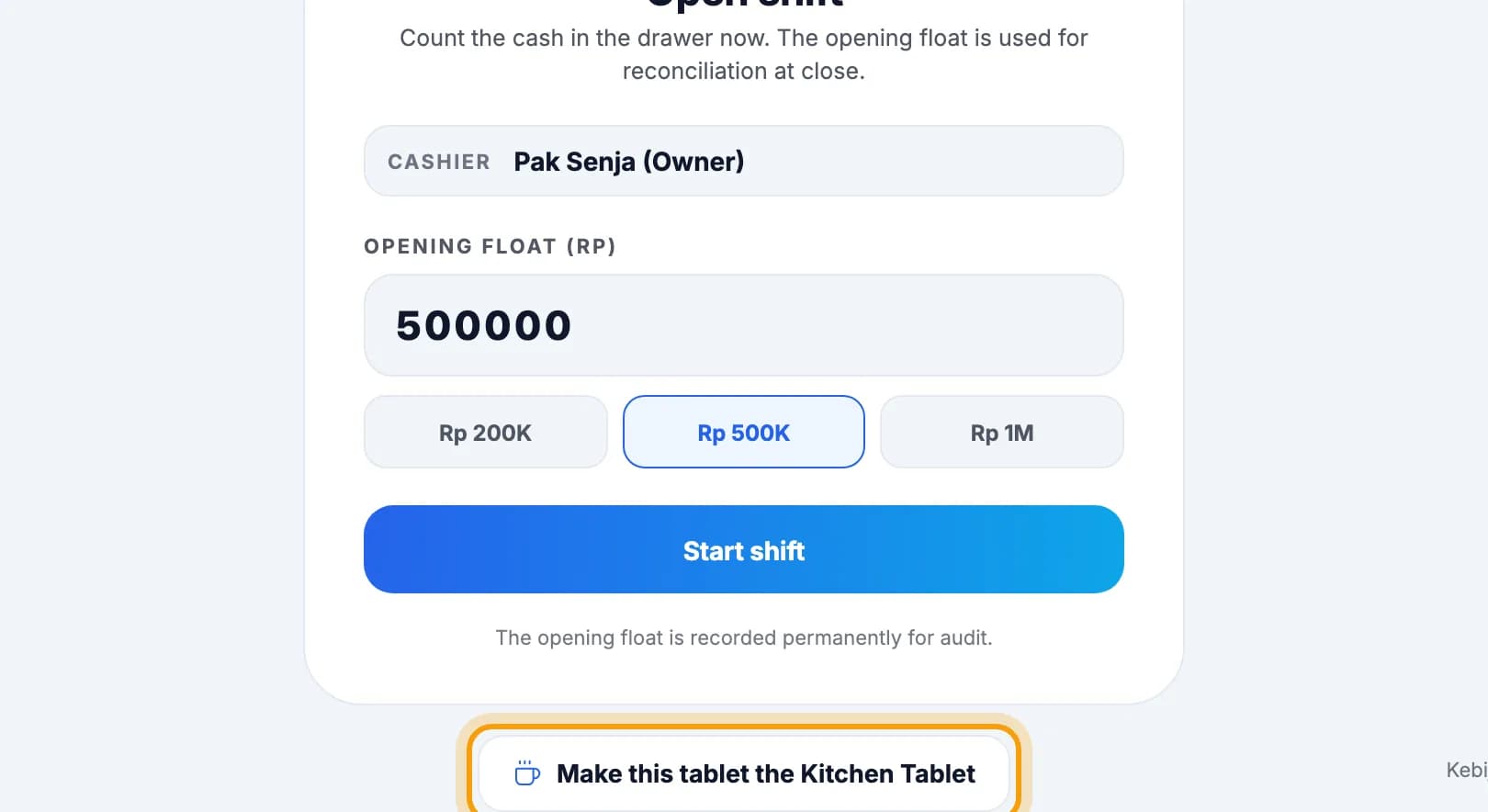
On the tablet that will sit in the kitchen, sign in as the owner or a manager. On the Open shift screen, tap Make this tablet the Kitchen Tablet.Don't start a shift on this tablet. The same button is under Settings → Kitchen Order Flow.
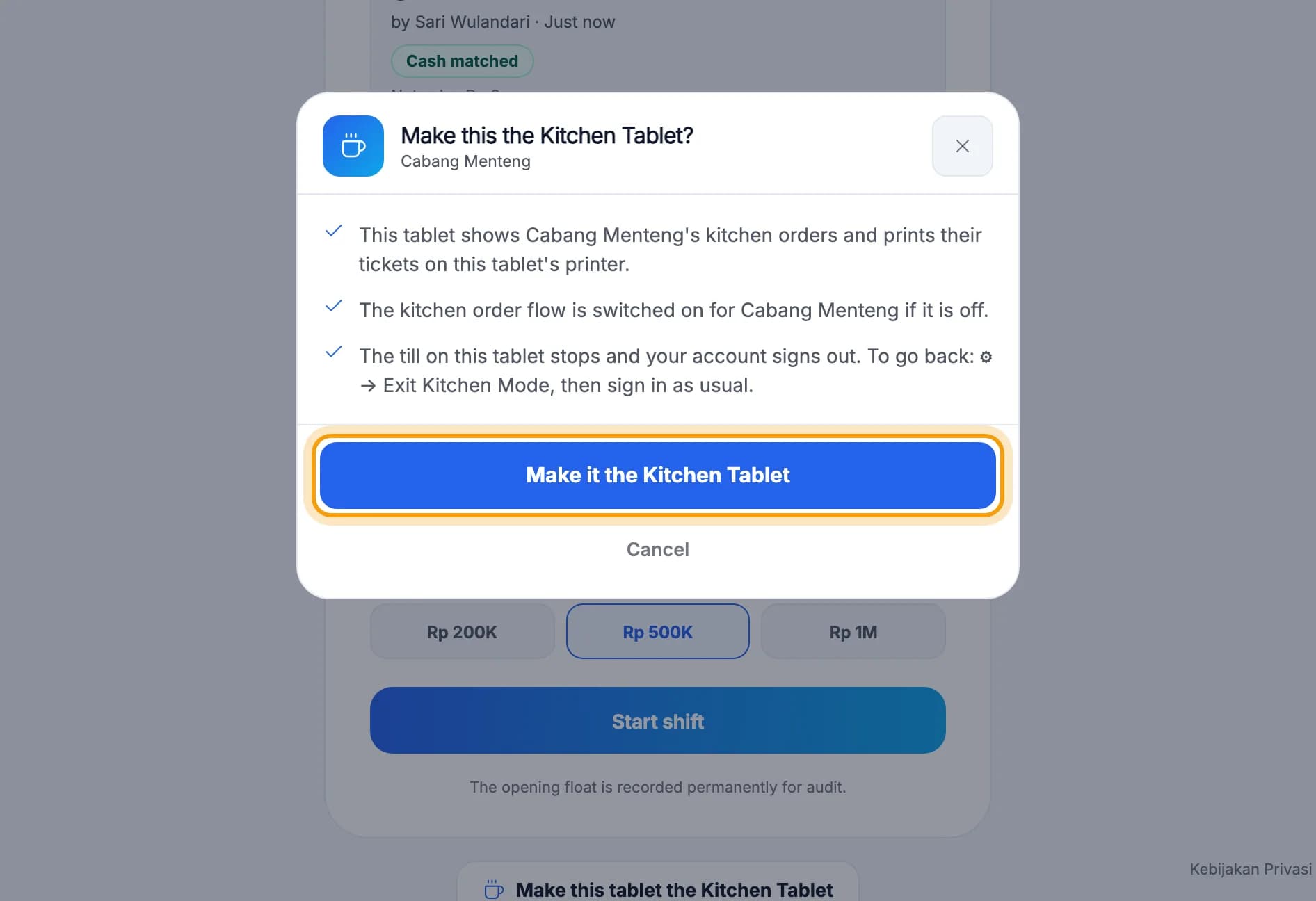
Read the summary, then tap Make it the Kitchen Tablet.The kitchen order flow is switched on and your account signs out of this tablet. To use it as a till again: ⚙ → Exit Kitchen Mode.
The tablet asks Who prints? Choose Yes, this tablet prints, then connect the kitchen printer under ⚙ → Printer settings.Not asked? Turn on ⚙ → This tablet prints kitchen tickets.
In the web admin, open Settings → Branches & locations. Under Kitchen tickets print at, choose Kitchen tablet.This option only works once the kitchen tablet is online with its printer connected.
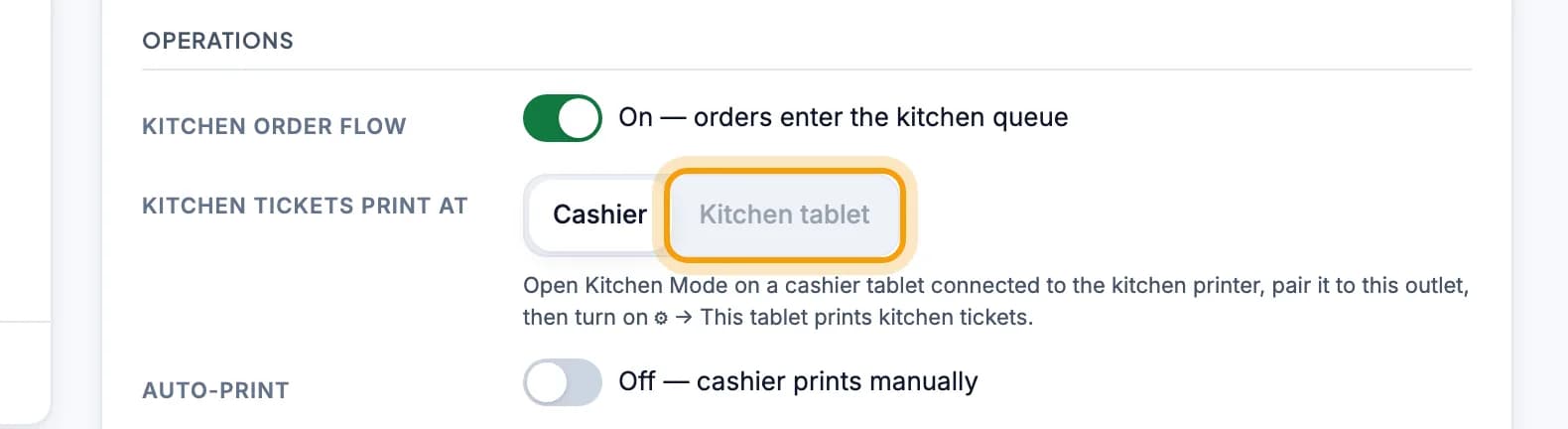
Note: Turn on kitchen printing on one tablet only. Two printing tablets split the tickets between them. If the kitchen tablet is off or offline, a cashier tablet with a printer prints a KITCHEN COPY as a backup.
Tip: Owner not near the kitchen tablet? On the cashier tablet, open Settings → Kitchen Order Flow → Create a code for another tablet. On the kitchen tablet, tap Kitchen Mode on the sign-in screen and type the code.
Done.
Bookmark this page, or send a section's link to your staff.